
An exchange notification is sent when the transaction status at PAY. has changed. If the call is successful, your webshop or custom implementation updates the status so that it matches PAY.'s status. This is very important, for example for following up on logistics processes or sending customer communications.
1. What Is an Exchange Call?
The call from PAY. to your webshop or payment platform is essentially a script (URL) that we call on your server. If we receive the correct response from this script, we know that the new order status has been processed correctly by your system. The script that is called by PAY. we refer to as the communication- or exchange URL. Other names for an exchange call are IPN or webhook.
2. Types of Exchange Calls
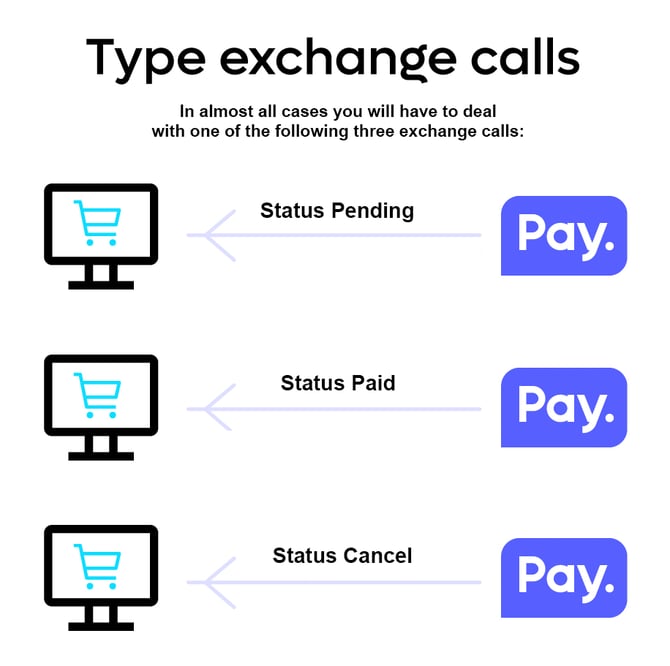
In almost all cases, you will be dealing with one of the following three exchange calls:
-
Starting a Transaction
After a customer has selected the desired payment method, the transaction is started. This is (often) the first time an exchange call takes place between PAY. and your (webshop) implementation. In this case, the order receives the status: Pending
-
Paid Transaction
If the transaction is successfully completed by your customer, PAY. sends an exchange call with the status Paid Through the exchange call, the order is processed in your system, and, for example, an invoice and confirmation email are sent to the customer.
-
Cancelled or Expired Transaction
If the payment is cancelled by the customer, you immediately receive an exchange call with the status cancel. However, if the payment screen is closed without completing payment, this cannot be registered by PAY. In this case too, you will receive the status Paid once the payment has expired. This applies, for many of our payment options, 4 hours after the transaction was started.
Are These All the Exchange Calls?
Certainly not, but these are the exchange calls that are executed in 90% of cases. You can read an overview of all the moments calls are made here
3. Exchange URL
orderExchangeUrl When Starting a Transaction via the API
Automatically via Sales Location
Static URL via Sales Location
There are 3 ways to have PAY. communicate with your server when the status of a transaction changes:
-
You start a transaction with the orderExchangeUrl variable
PAY. calls this URL once after a status change. You can read more information about starting a transaction using transaction::Start in our API documentation. -
Yes, provided via the API or plugin If you use a plugin or hosted solution developed by PAY., for example for Magento or WooCommerce, select this value. The plugin automatically ensures that the correct orderExchangeUrl is set. You should also select the value 'Yes, provided via the API or plugin' if you use our APIs / SDKs and you already provide the orderExchangeUrl when starting a transaction.
-
Yes, Use a Static Exchange URL
If the Exchange URL is not set by a plugin, hosted solution, or API, you need to enter it yourself. To do so, select the option Yes, use a static Exchange URL. Then, in the Exchange URL field, enter the URL to your exchange script and select a call method: GET or POST.
Note: If you provide an orderExchangeUrl via the API and you also set one via the sales location, both will be called.
4. Retry Scheme
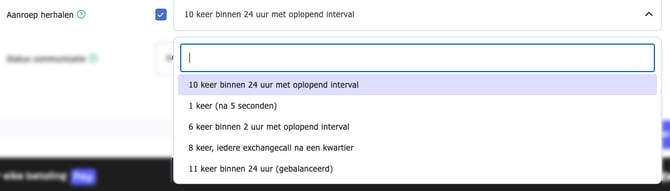
The Retry scheme feature ensures that if an exchange call fails, the call is repeated. The purpose of this repetition is to still receive the correct “TRUE” response from the server. If PAY.'s exchange call is answered with “TRUE”, we assume the request has been processed by the server. Follow the steps below to set up the Retry scheme:
-
Go to My.pay.nl
-
Click the tab Settings and then the tab Sales locations
-
Behind the sales location where you want to enable the Retry scheme, click Change
-
Now scroll to the heading Exchange settings and check whether the feature is set to On.
-
Enable whether you want the calls to be retried. We also refer to this setting as the Retry scheme.
Intervals
The table below shows the time between the various retry calls.
| 10 times within 24 hours (increasing) |
11 times within 24 hours (balanced) |
8 times every fifteen minutes |
6 times within 2 hours |
once after 5 seconds |
|
|---|---|---|---|---|---|
| 1st retry after: | 1 second | 10 seconds | 15 minutes | 30 seconds | 5 seconds |
| 2nd retry after: | 3 seconds | 30 seconds | 30 minutes | 50 seconds | - |
| 3rd retry after: | 10 seconds | 1 minute | 45 minutes | 70 seconds | - |
| 4th retry after: | 30 seconds | 2 minutes | 60 minutes | 5 minutes | - |
| 5th retry after: | 60 seconds | 1 hour | 75 minutes | 30 minutes | - |
| 6th retry after: | 5 minutes | 3 hours | 90 minutes | 60 minutes | - |
| 7th retry after: | 30 minutes | 6 hours | 105 minutes | - | - |
| 8th retry after: | 60 minutes | 10 hours | 120 minutes | - | - |
| 9th retry after: | 12 hours | 14 hours | - | - | - |
| 10th retry after: | 24 hours | 19 hours | - | - | - |
| 11th retry after: | - | 24 hours | - | - | - |
5. Failed Exchange Notification
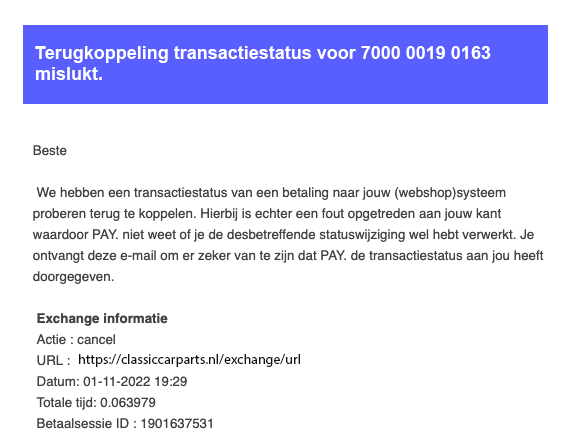
When PAY. calls your Exchange URL after a status change, it waits a maximum of 5 seconds for a response. However, it can happen that your server temporarily does not respond or experiences an outage.
Once the retries of the Retry scheme have been completed, we then send a Failed Exchange Notification by email to all merchant users who have enabled this email notification in their personal account.
Exchange Call Failed (or Too Slow > 5 Seconds)
In this case, we terminate the exchange call and consider the request failed. This can mean that your server has not (correctly) processed the status change, and that, in certain cases, the order status in your own back office does not match the status in PAY.'s Admin Panel.
Troubleshooting
In the Payment state log, you will find, among other things, the HTTP Code returned. If this does not have the value 200 an error has occurred. Using this online checklist you can find out how to resolve the most common problems.
If you are currently receiving a Failed Exchange Notification and want to turn it off, ask your PAY. administrator to disable it in the Admin menu Employees. In this article we explain how you can turn off this notification email.
6. Payment State Log
Exchange Requests via Payment State Log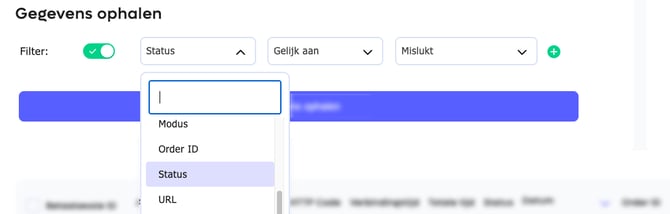
Exchange Requests via Payment State Log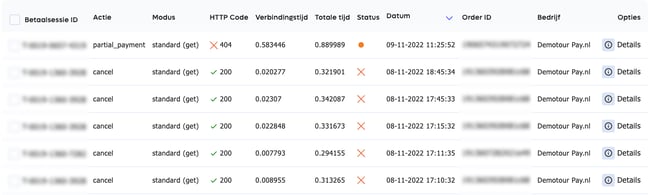
The Payment state log is a table containing all exchange calls between PAY. and the server of your (webshop) implementation from the past 35 days. It is not possible to retrieve exchange calls older than 35 days.
Retrieving Failed Exchange Calls
Follow the steps below to retrieve the exchange calls.
-
Go to My.pay.nl
-
Click the tab Reports and then the tab Payment state log.
-
Enable the filter and select, for example, the filter type Status is equal to Failed and click Retrieve data.
-
The report now shows all calls with the status failed.
-
Click on a row in the table or on the Details icon on the right side of the row to view one failed external call
-
Click Call again to call this single request again.
Calling Multiple Failed Exchange Calls at Once
-
Go to My.pay.nl
-
Click the tab Reports and then the tab Payment state log.
-
In the top right of the overview (next to the question mark icon), click the Configuration icon. Scroll down and set the field Results per page to the desired number of exchange calls (500 is the limit)
-
Enable the filter and select the filter type Status is equal to Failed and click Retrieve data.
-
The report now shows all calls with the status failed. Check all calls in the table header
-
At the bottom left of the Payment State Log, click the dropdown and select Call again and click OK
-
Repeat this until all failed calls have been resolved