
Accounting partners
1. xCore
Reconciliation is quick and easy with the Reconciliation Module 2.0 from xCore for Exact Online. The Reconciliation Module retrieves outstanding items from Exact Online and matches them with payments you receive via PAY.
An example of setting up xCore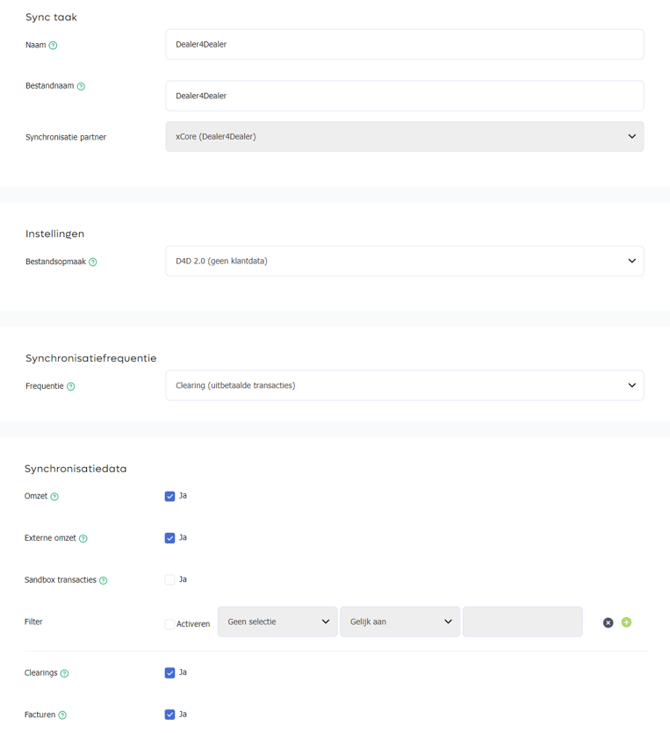
Automatic reconciliation via the sync module
Do you use the Pioneer package or higher? Then you can reconcile your transaction data directly with our accounting partner xCore.
-
Username: Create an account via xCore.
-
More information: afletteren-exact-online-pay.
-
File format: Select the implementation package, D4D 2.0 as File format.
-
General ledger: Once the Reconciliation Module is installed, it will appear in the xCore menu under 'mijn apps'. In the module, PAY.'s payout files are automatically retrieved and cleared from the outstanding items list in Exact Online:
-
You receive a payment. The automatic reconciliation module then retrieves the corresponding payment specification(s) from PAY. You can see this reflected in the Reconciliation Module overview.
-
The module searches for outstanding items in Exact Online and matches them with your received payments. The matching is based on characteristics in the file that correspond to the outstanding items. Often this is an invoice or order number, or a document number. At the same time, the module checks whether the amounts match. It is important that the unique reference assigned to the payment can be found in the outstanding item in Exact Online.
-
In the overview, you will see lines appear that are matched and lines that are partially or not matched. In the event of a 100% match with your payment, the reconciliation module automatically creates a reconciliation entry in Exact Online. This means that the outstanding items are cleared in Exact Online, causing them to disappear from the (sub)administration.
By default, the Reconciliation Module includes PAY.'s costs at line level in the entry. If VAT is charged on PAY.'s costs, you can set this up in the 'Exact Online' tab of xCore. If you enter the correct VAT code in the reconciliation module's settings, the recoverable VAT will be included in the VAT return you can file in Exact.
Example of a journal entry for a booking in the reconciliation module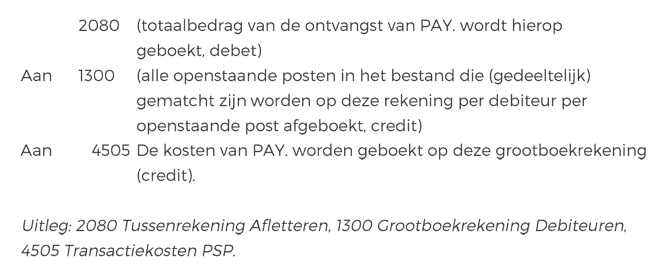
The result of cleared items
Once the above steps have been completed, the outstanding items in Exact Online are cleared. A financial entry is made in the journal that has been created.
Clearing the outstanding items is done by the reconciliation module. The total amount is also booked to an interim account.
You must book the PAY. receipts that come into the bank book yourself to the interim account Reconciliation (2080). Once all items can be matched, this interim account will have a balance of € 0,-.
More information about Reconciliation Module 2.0 from xCore for Exact can be found here.
2. e-Boekhouden.nl
Do you use the Pioneer package or higher? Then you can reconcile your transaction data directly with our accounting partner e-Boekhouden.nl.
Automatic reconciliation via the sync module
-
File format: For e-Boekhouden.nl, select MT940 as File format.
-
Security code 2: You can find this code in your e-Boekhouden.nl account. Select the button Beheer, then Instellingen en daarna voor de API/SOAP. Note: use security code 2.
-
General ledger:You must specify the general ledger account to which this account is linked. If you have not yet created a general ledger account in e-Boekhouden.nl, go to: Beheer, Grootboekrekeningen and there select Toevoegen.
3. Yuki
Do you use the Pioneer package or higher? Then you can reconcile your transaction data directly with our accounting partner Yuki. Once you have created a new synchronization task, our system automatically directs you to the Edit synchronization task screen. Fill in all required fields here:
Automatic reconciliation via the sync module
-
Email address: The email address of your Yuki inbox within Yuki's accounting system.
-
File format: Select Yuki (with customer data) as File format.