
The transaction overview is the most visited page in the Admin Panel. Unlike the Statistics, where you only find successful transactions, the transaction overview offers an overview of all payment attempts from a customer.
1. Transaction overview
The transaction overview is a table with all payment attempts from your customers. This overview therefore also includes unsuccessful transactions. In this overview you will find, among other things, the following transaction information:
- Amount
- Status
- Date / time
- Payment option used
- Customer details
- Webshop name
- Order description
- IP address
Configuration
Configure columns in table
By default, the transaction overview displays the most commonly used of the 20+ available columns. Via the 'Configuration' link Image: Configure columns in table at the bottom right of the menu, however, you can determine for yourself which columns you want to display in the table. It is also possible to move the column names here so that you can determine the order of the table yourself. Finally, at the bottom of the configuration screen you can enter the number of results that should be displayed per page.
Table with all payment attempts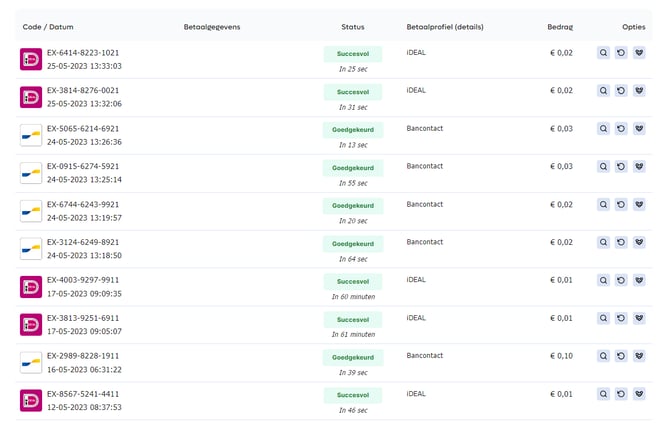
View all transactions
To view all transactions, follow the steps below:
-
In the Admin Panel, go to the Transactions » Total overview https://admin.pay.nl/transactions.
-
The table displays the last 10 payment attempts Image: Table with all payment attempts. You can optionally change the number of results per page via the configuration link at the bottom right of the menu. Via the navigation bar below the table you can view the results on the next page.
Reversing a Transaction
Via the transaction overview, you can easily reverse paid transactions. A detailed explanation can be found here.
Availability
Below you will find within which packages the 'Transaction overview' is available.
 Pioneer Pioneer |
 Professional Professional |
 Business Business |
 Corporate Corporate |
|
|---|---|---|---|---|
| Transaction overview | ✔️ | ✔️ | ✔️ | ✔️ |
2. Transaction Details
General transaction details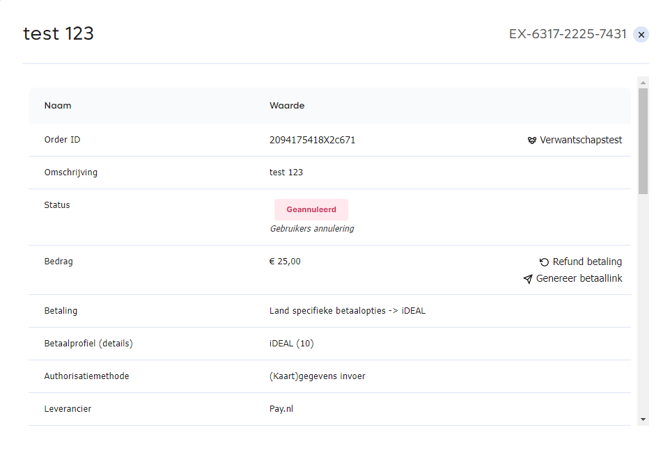
Transaction workflow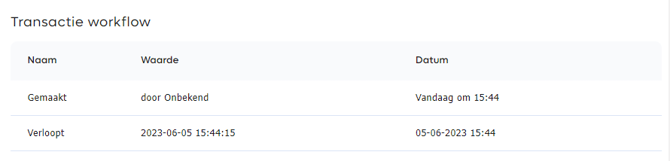
Customer details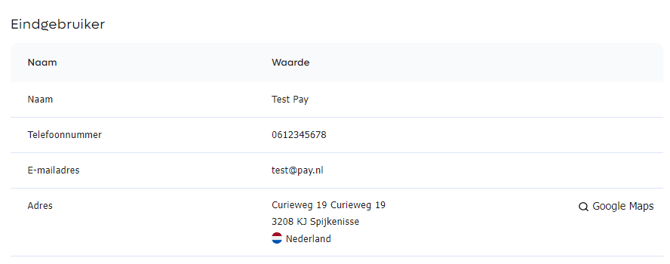
Product details
Communication details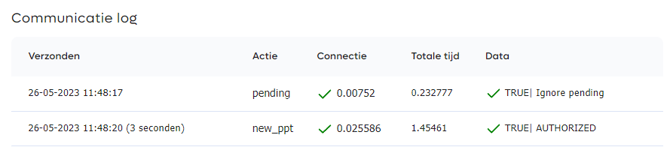
The transaction overview shows the most important characteristics of a transaction. To view all details of one specific transaction, click the magnifying glass icon or the EX code. A popup will then open with the following transaction details below:
General transaction details
At the top of the popup, the most important details are Image: General transaction details displayed, such as the amount, the order number, the name of the webshop and the chosen payment method. Via the 'Refund payment' link, you can directly issue a payment refund to the customer.
Authorization method
With an increasing number of payment options, such as iDEAL, Bancontact, Alipay and WeChat Payment, authorization can also take place via a QR code. Below you will find the possibilities.
- Card details entry / bank selection
- Mobile 2 APP
- QR 2 APP Payment
Transaction workflow
In the transaction workflow Image: Transaction workflow you will find the various steps a transaction has gone through. By default, this shows the date/time on which the transaction was started and on which it was paid out to the merchant via a clearing. In addition, you can also find any refunds (restitutions) here.
End user details optional
If the plugin or API you use forwards the customer details, you will find them under 'End user'. Image: Customer details
Product details optional
If the plugin or API you use forwards the product details, you will find them under 'Products'. Image: Product details
Communication details optional
If the plugin or API you use has configured a communication URL, you will find all calls related to this transaction under 'Communication information'. Image: Communication details
Availability
Below you will find within which packages the 'Transaction details' are available.
| Pioneer |
Professional |
Business |
Corporate |
|
|---|---|---|---|---|
| Transaction details | ✔️ | ✔️ | ✔️ | ✔️ |
3. Other Currencies
Conversion for transactions in a different currency
PAY. is a Dutch PSP and pays out in Euro. However, with PAY. you can have consumers pay in the local currency. Received payments are converted to EUR based on the current daily exchange rate.
From your webshop you pass a currency code to our API. The payment is then displayed on the payment screen in the same currency as you offer in your webshop, so if you offer your product in USD, the payment will be displayed in USD. Any exchange rate difference between EUR and USD is for the merchant. If you start the payment in EUR and the customer pays in USD, the exchange rate difference is for the consumer.
Because the daily exchange rate also changes during the day itself, the amount debited may differ from the amount with which the transaction was started.
Refund of a Transaction in a Different Currency
There are 2 options:
-
Refund in original currency: Before we send the refund to the payment option, a conversion takes place based on the daily exchange rate. If the amount in EUR is equal, the refund is sent. If the refund amount in EUR is higher after conversion, you will receive an error message. This only occurs with the payment option Credit card.More information about the maximum refund amounts per payment option can be read here. If the consumer has a payment account in a different currency, the consumer's bank will convert the payment to the original currency
-
Refund in EUR: We send the amount in EUR to the payment option. If the consumer has a payment account in a different currency, the consumer's bank will convert the payment to the original currency
Because the daily exchange rate also changes over a longer period, the amount in the original transaction may deviate positively or negatively from the amount with which the transaction was started.
4. Money Flow Involved
Transaction not received from the payment option.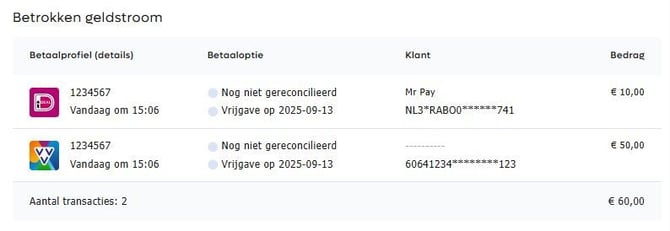
Transaction received and paid out.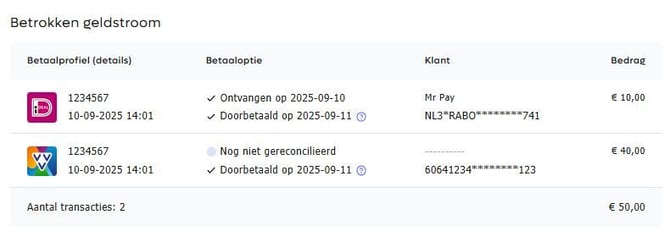
When you receive a transaction, we place the revenue directly in your account balance. However, we do not receive these funds directly from our payment options. Because we cannot pass on funds before they have been received, we pay them out according to the payout terms. The payout differs per payment option. An overview per payment option can be found in the Payout Speed table
From the Pioneer package onwards, it is possible to see at transaction level whether funds have been received from the (pay-after) payment option. If funds have not been received, PAY. will usually not pay out. In the Transaction information popup in the table Money flow involvedthis will be visible in the following way:
1. Transaction Not Yet Reconciled
As indicated above, PAY. only pays out funds once they have been received and verified. We call this reconciling. In the image on the right, we see a partial transaction. The VVV gift card transaction has not yet been received from the payment option and is therefore also not released. Based on the payout term, we communicate the date on which the transaction will be released. Clearing takes place according to the configured clearing frequency.
You will also see an iDEAL payment. We have received the funds from this payment option on 12-09-2025. We release the transaction on 13-09-2025. The payout takes place according to the configured clearing frequency.
2. Transaction Received/Released/Paid Through
In the image on the right, we again see a partial transaction. The VVV gift card transaction has been received, released, and paid through. The same applies to the iDEAL payment. By hovering your mouse over the question mark, an ALT tag appears containing the clearing reference in which the transaction was paid out. You can look up the clearing reference in the clearing history.
5. Refunds
Refunding a Transaction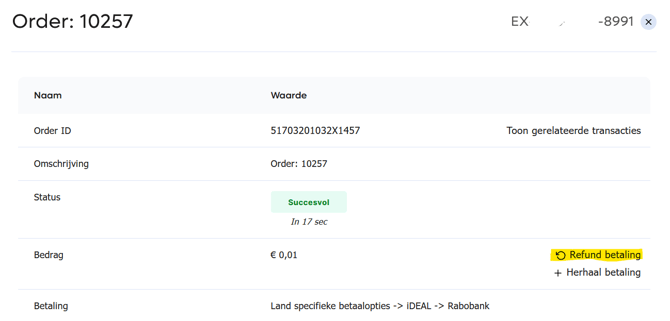
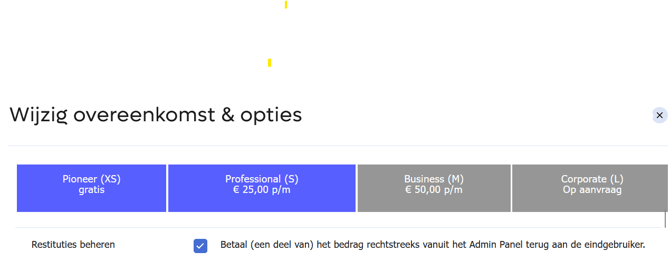
Manage Refunds
Via the ''Transaction overview'' you can process a refund for any transaction with status PAID to your customer. If the customer details are known in our system, they will be pre-filled and you can create a refund directly. You do this by clicking the green arrow of a specific transaction in the transaction overview. As soon as you click the green symbol, a popup appears. Click ''Refund payment'' to refund the payment Image: Refunding a Transaction.
Many of our plugins also support refunds from the back-end. See the documentation of the relevant plugin.
See for a more detailed explanation: Refunding a Transaction
Check in the PAY. portal whether the option for refunding is turned on (this is not always the case)
Merchant -> Agreement -> Change agreement & options -> Search for the option Manage Refunds
6. Partial Payments
It is possible to receive partial payments via Pay.nl. This allows a customer to pay part of the amount with a gift card (see here for a complete overview of the various gift cards) and the remaining amount with another gift card or payment option. The process of a partial payment may differ depending on how the remaining payment is carried out. Here we explain a few important points:
-
The customer starts their payment and enters the gift card details. We verify the details and perform an authorization on the gift card; only once the remaining payment has succeeded do we set the gift card payment to PAID and deduct the balance from the card.
-
For a partial payment with a gift card and remaining payment via a pay-after option, the process is slightly different. In this case, we perform a direct capture on the gift card. If 'Direct Capture' applies to the pay-after option, we will also perform a direct capture on the remaining payment. If 'Delayed Capture' applies, a capture or release still needs to take place on the pay-after transaction.
-
For a partial payment, we will cancel the transaction if no payment has been made within 30 minutes.
-
For a partial payment with a pay-after option, we will automatically refund the funds to the gift card when the pay-after option is released (cancelled).
For more information about refunding a partial payment, this page can be consulted.
7. Filtering Transactions
Select Period
Select Filter
Select View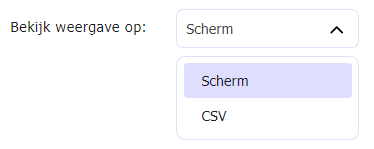
At the top of the transaction overview, you will find the option to search for transactions, where the following options can be used:
-
Period
Select the period Image: Select period for which you want to display the transactions, such as today, last 7 days, last month, a custom period, etc.
-
Filter
Use a filter Image: Select filter to search by a certain property such as payment method, status, amount, customer characteristic, etc. By clicking the green plus icon, you can add multiple filters. More information about filters can be found here.
-
View Display As
By default, all transactions are displayed in the table (screen) Image: Select view. From the Professional package onwards, however, you can also choose the 'CSV' option, which generates a CSV file with all transactions that fall within the search query.
Availability
Below you will find the available display options per package
| Pioneer |
Professional |
Business |
Corporate |
|
|---|---|---|---|---|
| Table (screen) | ✔️ | ✔️ | ✔️ | ✔️ |
| Output to CSV | ✖️ | ✔️ | ✔️ | ✔️ |
9. Transaction Statuses
Reserved transactions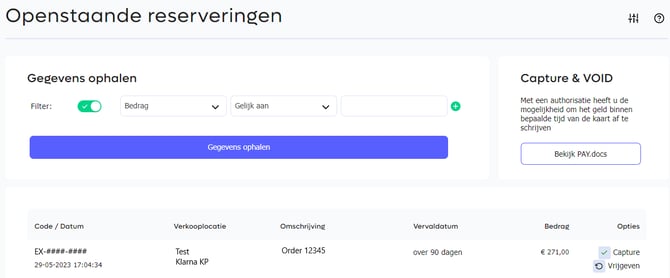
Capturing or Voiding a Transaction (Releasing)
Capturing or Voiding a Transaction (Releasing) from the Transaction Popup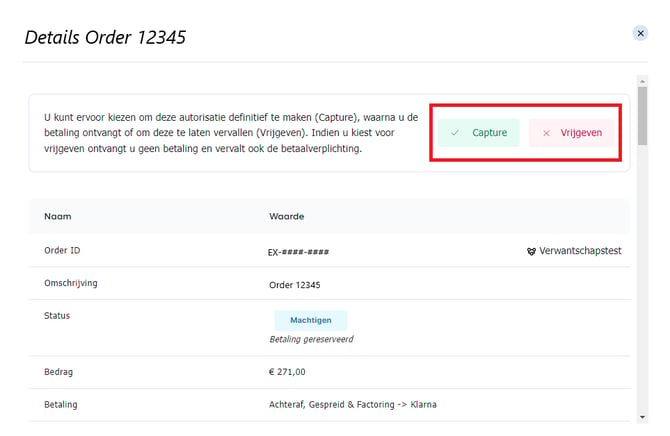
For certain pay-after and credit card transactions, it is possible to create a reservation that can later be converted into a payment (capture) or into a cancelled transaction (void, also known as released)
By default, transactions for which a reservation is possible are captured immediately. If you want to use 'delayed capture', please contact your account manager for the possibilities.
There are 2 ways to convert a reserved transaction into a capture or a void
- Via the overview of reserved transactions
- Via the transaction details popup
1. Via the Overview of Reserved Transactions
-
In the Admin Panel, go to the Transactions » Reservations https://admin.pay.nl/transaction/reservations.
-
Under 'Open reservations' you will see an overview of all reserved transactions Image: Reserved transactions. In the options column, you can convert the transaction into a payment by clicking 'capture'. If you want to cancel the transaction, click release (void).
2. Via the Transaction Details Popup
-
Via the Dashboard or the Transaction overview, you can open the transaction details popup.
-
If it concerns a reservation, you will see the option at the top of the popup to capture the transaction or release it (void). Image: Capturing or Voiding a Transaction (Releasing) from the Transaction Popup
.
A reservation can only remain open for a certain period of time. If you do not convert the transaction into a capture within the maximum reservation period, the transaction will be automatically released by default. However, it is also possible to use an autocapture after x days. Your account manager can help you set this up.
Payment options for which the capture/void action applies
| Payment option | Type of payment option | Default capture time | Max capture time | Payment Setting |
|---|---|---|---|---|
 |
Payment by invoice | 14 days | 90 days | Delayed capturing |
 |
Payment by invoice | 14 days | 90 days | Delayed capturing |
 |
Payment by invoice | 14 days | 90 days | Delayed capturing |
 |
Credit card | 7 days | 7 days | Reservation |
 |
Credit card | 30 days | 30 days | Reservation |
|
Credit card | 14 days | 14 days | Reservation |
9. Transaction Statuses
Status Flow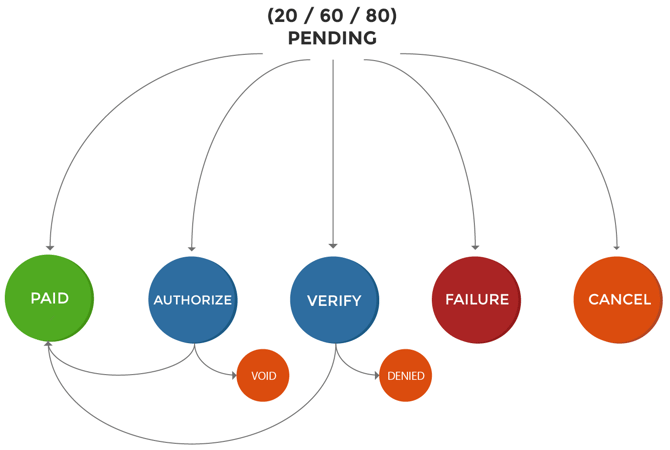
For 99% of transactions, the status PENDING is assigned when the transaction is created, followed by the status PAID if it is paid successfully, or the status CANCEL if the payment fails. However, there are also a number of other statuses used within PAY.'s platform. A complete overview can be found in the table below.
It is technically possible for a PAID status to follow a CANCEL, for example if a malfunction occurs with a payment option, or if the customer opens multiple screens and cancels one payment.
Statuses
| Code | Status | Description |
|---|---|---|
| Common statuses | ||
| -90 |  CANCEL CANCEL |
The payment has been cancelled |
| -80 | EXPIRED |
The payment has expired |
| -72 |  REFUNDING REFUNDING |
The payment is being refunded (you can still cancel it) |
| -81 | REFUND |
The payment has been refunded |
| 20 25 |  OPENING OPENING |
The final status of the payment is not yet known. |
| 50 | SUCCESS_PENDING |
The customer has been successfully redirected to the payment environment; however, the final status of the payment is not yet known. |
| 85 |  VERIFY VERIFY |
The payment has been marked as irregular. The status must be determined by an additional check. |
| 90 | OPENING |
The payment has not yet been received in our escrow account and is therefore not yet guaranteed. |
| 95 | AUTHORIZE |
The payment is reserved and can be captured. This status occurs with credit cards and some pay-later methods. |
| 97 | PARTLY_CAPTURED |
The payment has been partially captured - a portion is still in AUTHORIZE. You can CAPTURE or VIODEN the remainder of the value. |
| 80 | PARTIAL PAYMENT |
Partial payment, applicable to gift cards with which the full amount has not been paid |
| 100 |  PAID PAID |
The payment is successful |
| Other statuses | ||
| -51 | PAID CHECKAMOUNT |
Payment cancelled because the amount paid by the customer does not match the original order amount |
| -60 |  FAILURE FAILURE |
The payment was interrupted due to an unexpected error with the payment option. |
| -63 | DENIED |
The payment was declined by the payment option. For pay-later methods, this means that the customer did not pass the credit check. |
| -64 | DENIED |
The payment has been rejected due to an action by an employee or external system. |
| -71 | CHARGEBACK |
Credit card payment chargeback |
| -82 | PARTIAL REFUND |
The payment has been partially refunded |
| -95 | REJECTED |
The payment has been rejected by the payment option |
- Status code: 100 (PAID): The payment is successful
- Status code: NEGATIVE: The payment has been cancelled or reversed
- Status code: POSITIVE: The payment is still pending, no final status is known yet
10. Success Overview
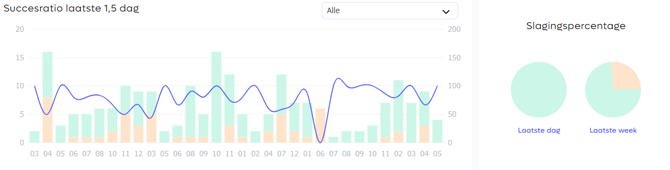
Above the table with transactions, you will see a graphical overview of successful payments Image: Success overview. These graphs show the success rates for the:
-
Last 36 Hours
In the bar chart on the left, one bar is equal to one hour. The bar shown is made up of cancelled, expired, and paid transactions. The blue line represents the percentage of successful transactions per hour.
-
Last Day
Pie chart showing the percentage of cancelled, expired, and paid transactions for the last day.
-
Last Week
Pie chart showing the percentage of cancelled, expired, and paid transactions for the last week
Success Overview for a Payment Option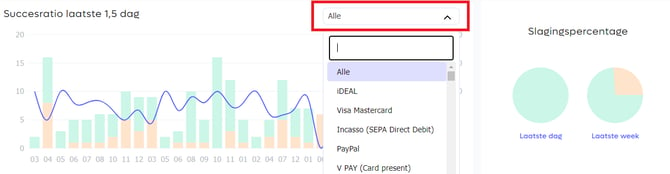
By hovering your mouse over the graphs, you get more information. By default, the results of all transactions are displayed. However, you can also select individual payment methods in the selection box Image: Success overview for a payment option. This way, you can, for example, view the success rates for credit card payments.
Availability
Below you will find within which packages the 'success overview' is available.
| Pioneer |
Professional |
Business |
Corporate |
|
|---|---|---|---|---|
| Passing Overview | ✔️ | ✔️ | ✔️ | ✔️ |