
You can easily activate Pay.POS via the PayNL app. By scanning the QR code of Pay.POS, the activation code is automatically copied over and you can link the terminal directly to the correct sales location.
What Do You Need?
For this activation method, you need two devices:
- The device on which you want to activate Pay.POS.
- Another device on which the PayNL app is installed and on which you are logged in.
Don't have the PayNL app installed yet? You can download it via:
QR code for the PayNL app (Android)Scan the QR code to open the PayNL app directly in the Google Play Store.
|
QR code for the PayNL app (iPhone)Scan the QR code to open the PayNL app directly in the App Store.
|


Step 1: Open the Activation Code in Pay.POS
Open Pay.POS on the device you want to activate.
At the bottom of the screen, you see the activation code. Tap the activation code to continue.
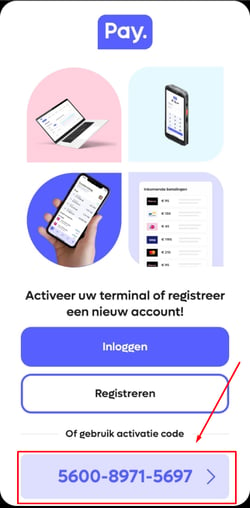
Step 2: Open the QR Code
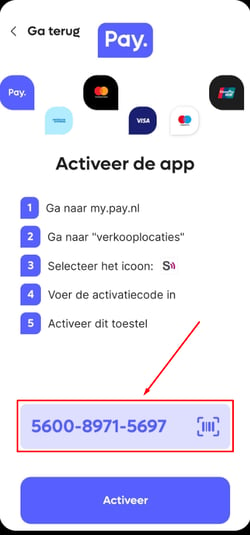
You are now in the activation screen of Pay.POS. The activation code is displayed again at the bottom of the screen.
Tap the activation code with the scan icon.
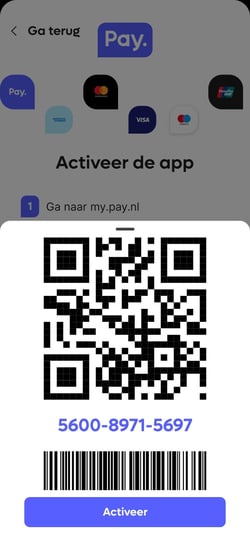
A screen now appears with a QR code, the activation code, and a barcode.
Leave this screen open. You will need the QR code in a following step.
Step 3: Open Terminal Management in the PayNL App
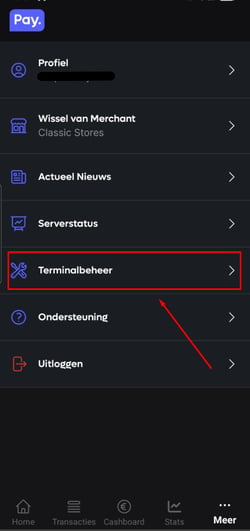
On the other device, open the PayNL app and log in.
In the bottom right of the menu, tap More.
Then tap Terminal Management.
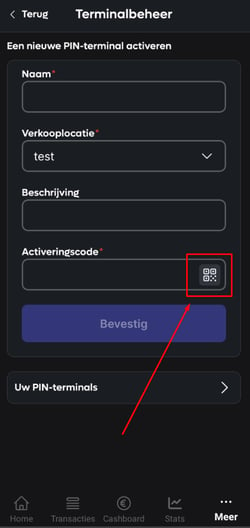
Step 4: Enter the Terminal Details
Under Activate a New PIN Terminal, enter the requested information:
- Name: give the terminal a recognizable name.
- Sales Location: select the sales location you want to link Pay.POS to.
- Description: optionally add a description of the terminal.
Then, next to Activation Code, tap the QR code icon.
Step 5: Scan the QR Code
The camera opens. Scan the QR code displayed on the device where Pay.POS is open.
The activation code is automatically filled in in the PayNL app.
Check that all information is correct and that you have selected the correct sales location. Then tap Confirm.
Step 6: Activate Pay.POS
Go back to the device where Pay.POS is open and tap Activate.
Pay.POS is now activated and linked to the sales location you selected in the MY.PAY 2.0 app.
The terminal is now activated and ready for use.