
With PAY.'s donation module, you can create a donation screen within minutes where donors can easily and securely make a donation. You decide how you set up the donation screen and which options you offer.
- Amount
Set a free-choice donation, a minimum or maximum amount, or a fixed donation amount. - Free Fields
Add up to three optional fields to collect additional information, such as the donor's name or email address. - Payment Methods
Choose which payment methods you want to offer your donors. - Custom Thank-You Page
After a successful donation, the donor sees a default thank-you message on the donation screen. You can also redirect the donor to your own thank-you page. - Country and Language
Set the default country and default language for the donation screen. Payment methods are displayed per country, and donors can select their preferred language themselves.
Sharing a Donation Link
With the link generator, you can easily create a donation link to your donation screen. The link remains valid indefinitely and can, for example, be shared via email, placed on your website, or converted into a QR code.
Payment Screen
PAY.'s payment screen for dynamic payment links looks like this:
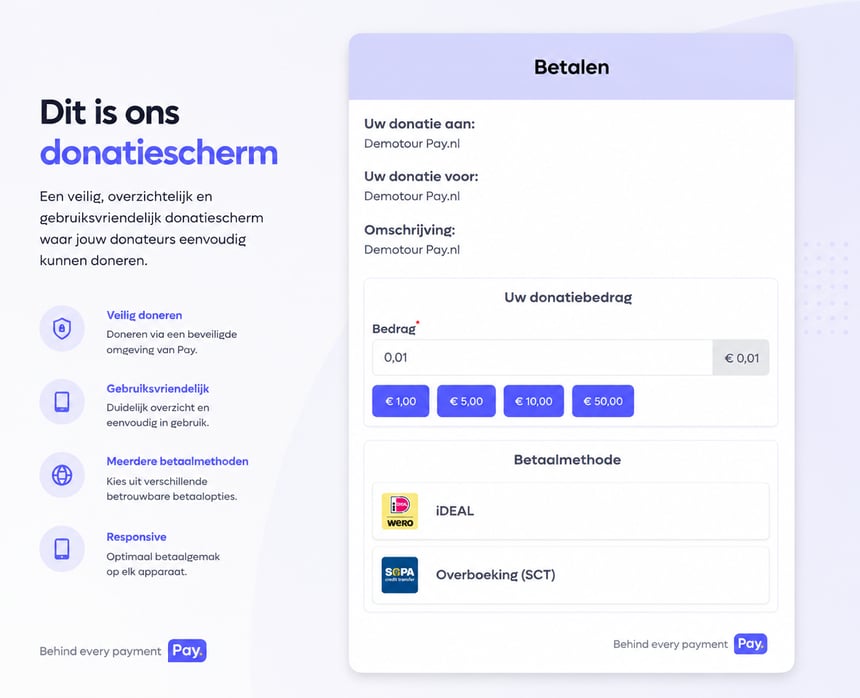
The payment screen is responsive, accepts payments in euros, and is available in the following languages:
 Dutch
Dutch English
 German
 French
 Spanish
 Italian
Setting Up the Donation Module
Before we can create a donation link, we first need to set up a sales location for it once. Follow the steps below to do this.
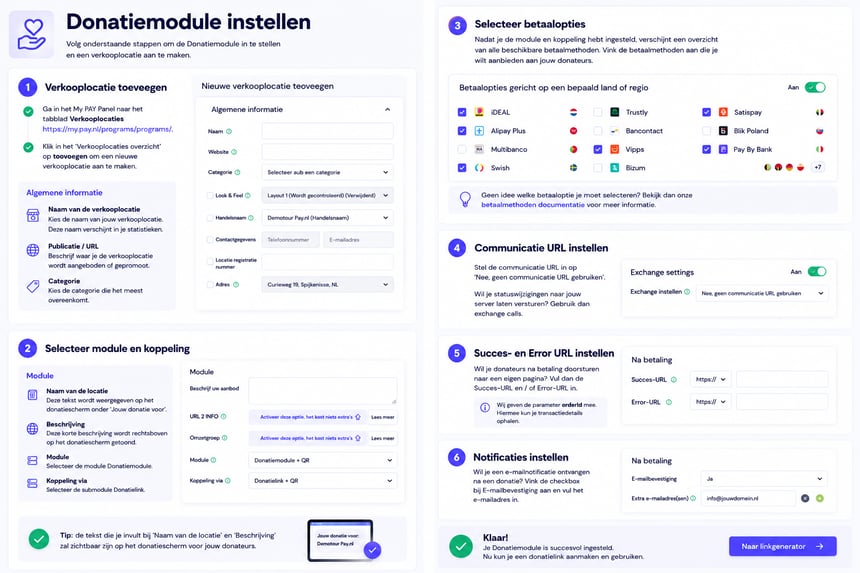
Depending on your package, more fields may be displayed than those mentioned above. Contact your account manager if you have any questions about this.
Creating a Donation Link
We have now created a sales location that we will use to create a donation link. We can add various characteristics and security settings to this donation link. Setting up and generating a donation link works as follows:
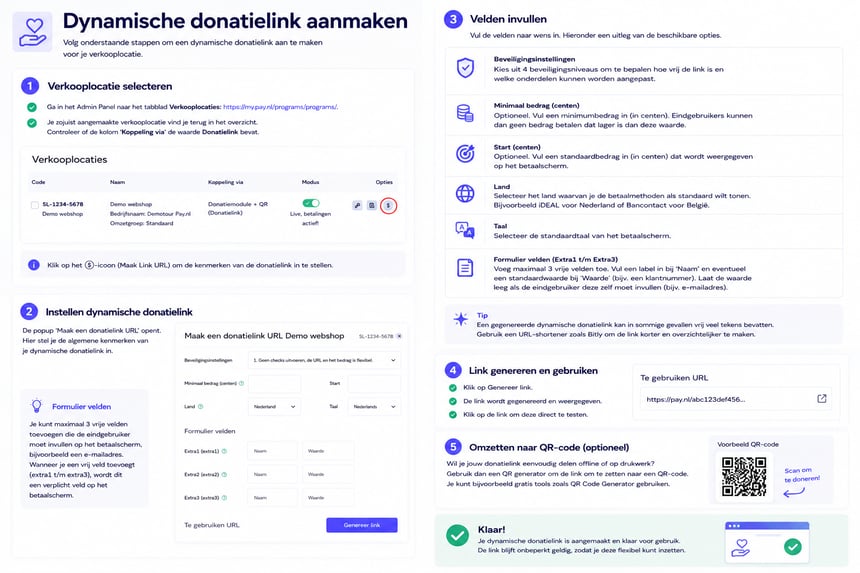
Tip: A generated donation link can sometimes contain quite a lot of characters. Using a URL shortener such as Bitly you can easily convert it into a short URL.
Security Settings
While generating a dynamic donation link, you can choose from four different security levels. The table below shows, per security level, which parts of the payment link can be adjusted.
| Element | 1 – Flexible | 2 – Fixed amount | 3 – Fixed variables | 4 – Fully fixed |
|---|---|---|---|---|
| Standard amount via URL | ✓ | ✕ | ✕ | ✕ |
| Standard amount via payment screen | ✓ | ✕ | ✕ | ✕ |
| Minimum amount via URL | ✓ | ✓ | ✕ | ✕ |
| Minimum amount via payment screen | ✓* | ✕ | ✕ | ✕ |
| Free field label via URL | ✓ | ✓ | ✕ | ✕ |
| Value of free fields via URL | ✓ | ✓ | ✕ | ✕ |
| Value of free fields via payment screen | ✓ | ✓ | ✓ | Only when empty |
✓ Adjustable · ✕ Not adjustable
* If no default value has been set.
Security Levels
Under Security Settings, choose how many parts of the dynamic payment link may be changed afterward. The higher the security level, the more parts are locked.
| Security level | Institution | Explanation |
|---|---|---|
| 1 – Flexible | Do not perform checks | The URL and the amount are flexible. The amount, the variables, and the corresponding values can be adjusted. |
| 2 – Fix amount | Fix amount only | The amount is fixed. The rest of the URL, including variables and values, can be changed without checks. |
| 3 – Fixing variables | Pin prefilled variables | The amount is fixed. Pre-filled variables cannot be changed or deleted via the URL. The user can, however, still enter the corresponding values via the form. |
| 4 – Fully tighten | Do not allow changes | The amount and variables are fixed. Only empty variables can be entered by the user via the form. |
In short: the higher the security level, the fewer parts of the payment link can be adjusted afterward.
Changing Donation Screen Text
Text Changes to the Donation Module
The payment screen of the donation module cannot be personalized. However, it is possible to change a few text fields:
Changing the Sales Location
To change these fields, log in to PAY. Admin, click on Manage > Sales Locations and Change to the right of your sales location. Using the fields below, you can change the following text (see image)
- Your donation to:
This field is determined by the Trade Name active in the sales location. If no trade name is set in the sales location, your company name will be shown. - Your donation for:
This field is determined by the Name in the sales location. - Description:
This field is determined by the Describe your offer field in the sales location. Try to describe this text in a few words.