
Register a Merchant
To process payments for your merchants through your platform, they must have an account with PAY. You can register a merchant through the API or manually via the PAY. portal.
Once the registration has been submitted, a merchant can generally start processing transactions immediately. Payouts are enabled once the required onboarding and KYC checks have been completed. As a licensed financial institution, PAY. is required to perform Know Your Customer (KYC) checks to prevent money laundering and other financial risks.
This article describes the complete merchant lifecycle:
Registration → Onboarding → Active → Management → Cancellation / Offboarding
To provide your customers with the best possible experience and ensure a fast and seamless onboarding process, we recommend submitting the registration as completely as possible from the start. Make sure we have the correct directors and UBOs identified from the beginning, and request the most commonly required documents from your customer in advance, so nothing stands in the way of a smooth onboarding process.
The most commonly requested documents are (see also our acceptance policy and required documents):
- Copy of identification document of the UBO
We must have a complete overview of the full names and percentage ownership interests. - Chamber of Commerce extract
- Business bank account
This can be provided by means of a copy of a bank statement, a screenshot from the merchant's business banking app, or the merchant can perform a one-time payment through online banking.
Merchant Lifecycle
During its relationship with PAY., a merchant goes through several stages:
| Stage | Description |
|---|---|
| Registration | The merchant is created within PAY. |
| Onboarding | KYC information and documents are collected and reviewed. |
| Active | The merchant can process payments and receive payouts. |
| Management | Merchant details, users and settings can be managed. |
| Cancellation / Offboarding | The merchant relationship is terminated. |
Register a Merchant via the API
Would you like to automate the registration process? Use the Merchant:Create. API endpoint.
With a single API call, you can:
- Create a merchant account
- Add users and related persons
- Register the merchant's basic information
This method is suitable for platforms that want to onboard merchants fully automatically.
Register a Merchant via the Portal
You can also manually create a (sub)merchant through the PAY. portal. On the merchant management page, you will find an overview of all merchants within your account. Use the Add button to start a new registration.
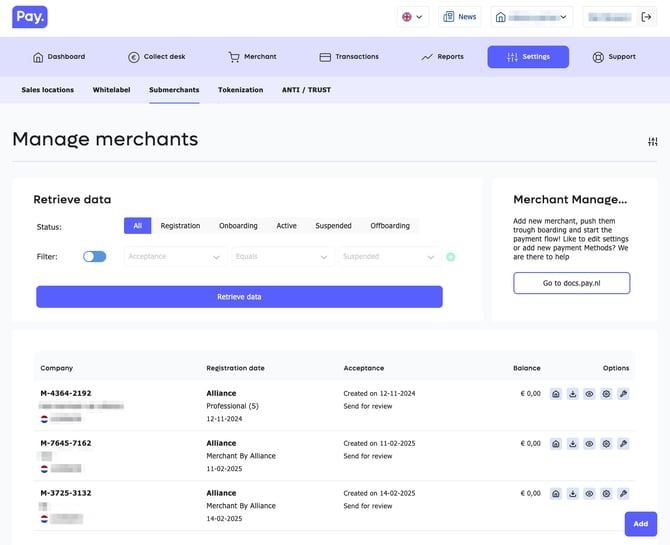
During the registration process, the following sections will be completed.
1. Package
Select the correct connection type and choose the package that suits the merchant.
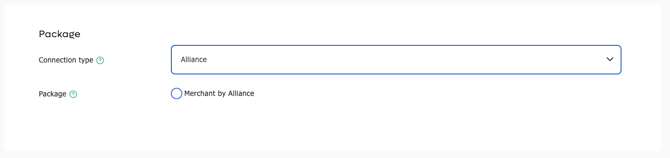
A package may contain predefined configurations such as:
- Payout schedules
- Pricing structures
- Optimization settings
2. Company Details
Enter the merchant's basic details:
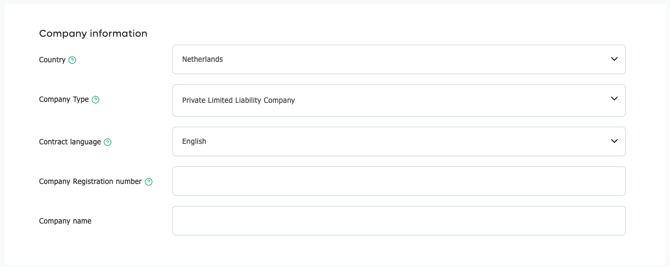
- Country
- Company name
- Legal entity type
- Contract language
- Chamber of Commerce number
3. Address Details
Enter the address from which the business carries out its activities.
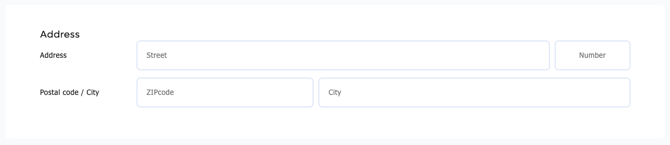
This address is used in transaction processing towards payment methods and card schemes. In some cases, PAY. may request additional documentation to verify the address.
4. Bank Account
Provide the bank account to which payouts should be sent.
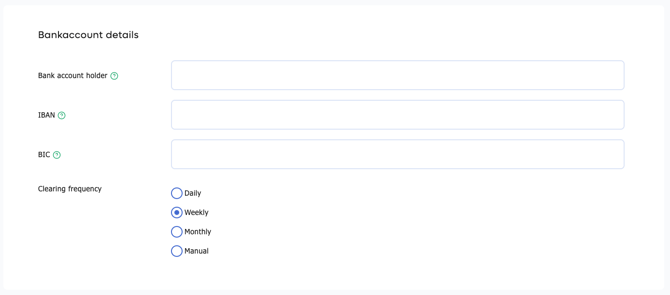
Currently, only IBAN bank accounts are supported.
5. Signatories and UBOs
Add all relevant persons within the organization.

For each person, you can indicate whether they:
- Have signing authority
- Are a UBO (Ultimate Beneficial Owner)
- Require access to the PAY. portal
If a person is already known within PAY., they will automatically be linked to the new merchant account.
6. Contact Details
Enter the merchant's contact information.
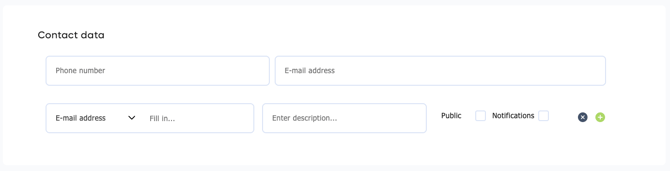
These details are used for:
- System notifications
- Operational communication
- Contact with end users (if publicly displayed)
Important
For in-person payments via payment terminals or PAY.POS, and for online card payments, a phone number and email address are required. We recommend always completing these fields.
7. Sales Location
Provide at least one sales location or service.
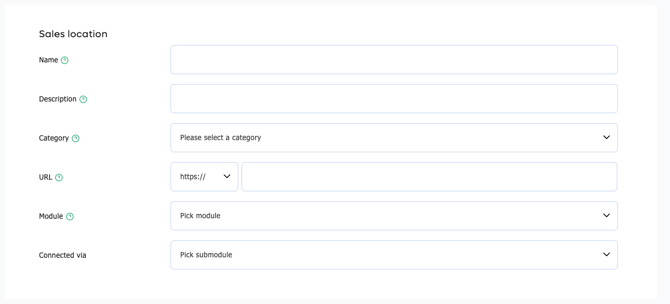
This can be, for example:
- A physical store
- An online store
- Another PAY. integration
The selected category is used for risk assessment and partly determines which payment methods are available to the merchant.
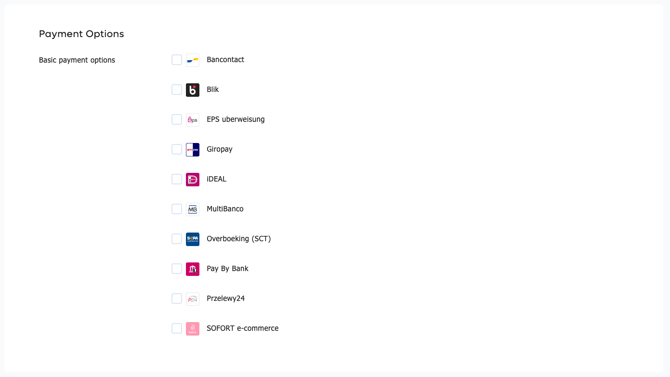
8. Payment Methods
Select the payment methods that should be activated on the created service.
9. Additional Settings
Depending on your partner license, additional configuration options may be available. These allow you to further configure the merchant account according to your own processes and agreements.
10. Settle Invoices Through the Ledger Balance
Within an Alliance collaboration, you can choose to automatically settle invoices for your own services against the submerchant's ledger balance.
Enable the option:
I want to use the merchant's ledger balance for invoices from my company.
11. Welcome Email
After registration, PAY. can automatically send an email to the created users. You can choose from different variants.
No Welcome Email
No email will be sent.
Standard Welcome Email
The user receives:
- A confirmation of the account registration
- An automatically generated password
If applicable, the email will also contain a link to digitally sign the agreement.
Extended Welcome Email
Contains the same information as the standard welcome email, supplemented with a brief explanation of the collaboration between the partner and PAY.
Merchant Onboarding at PAY.
After a merchant has been registered, additional onboarding and compliance information must be provided. This enables the merchant file to be reviewed by PAY.'s onboarding team.
Once the registration has been submitted correctly, payments can generally be processed immediately. As a licensed financial institution, PAY. is required to perform Know Your Customer (KYC) checks to prevent money laundering and other financial risks.
After the submitted information and documents have been reviewed, PAY. can proceed with paying out processed transactions to the merchant's bank account.
What Is Required for Onboarding?
During the onboarding process, PAY. collects information about:
- The company
- Ultimate Beneficial Owners (UBOs)
- Directors and other associated persons
- Legally required KYC documentation
- Banking and payout details
This information is required to comply with laws and regulations and to enable payouts.
Onboarding Status
During onboarding, a merchant may have different statuses.
Merchantstatus
| Status | Meaning |
|---|---|
| Active | The merchant can process payments. |
| Inactive | The merchant is not active. |
Onboarding Status
| Status | Meaning |
|---|---|
| Registered | The merchant has been registered, but additional information is still required. |
| Onboarding | All required information has been submitted and is being reviewed. |
| Accepted | The merchant has been approved and is fully active. |
| Suspended | The merchant cannot process new payments but still has platform access for actions such as refunds. |
| Offboarded | The merchant has been terminated and no longer has access to the platform. |
Payout Status
| Status | Meaning |
|---|---|
| Enabled | Payouts are active. |
| Disabled | Payouts are disabled or temporarily blocked. |
These statuses help monitor the progress and compliance status of merchants.
Providing KYC Information
For every merchant, insight must be provided into the individuals associated with the organization, including:
- Directors
- Owners / UBOs
- Representatives
- Other relevant persons within the organization
This information is used to fulfil PAY.'s legal identification and verification obligations.
Uploading Required Documents
During onboarding, PAY. may request various documents, such as:
- Chamber of Commerce extract
- Identity documents
- Proof of address
- Additional compliance documentation
For each document, it is specified:
- What is required
- Why the document is required
- Which requirements the document must meet
For example, a Chamber of Commerce extract may not be older than six months.
Submitting a Merchant File for Review
Once all information and documents have been provided, the merchant file can be submitted to the onboarding team for review.
During this review, PAY. verifies whether:
- All required information is present
- Documentation has been submitted correctly
- The merchant complies with PAY.'s compliance guidelines
After successful approval, payouts will be activated.
Merchant Management via the PAY. Portal
Navigate to Merchant Management in my.pay.nl.
Here you will find an overview of all merchants registered under your account. You can filter by status or search using the merchant code, company name, and other characteristics.
Merchant Overview
View all merchants within your account and filter by:
- Merchant code (M-code)
- Company name
- Onboarding status
- Compliance status
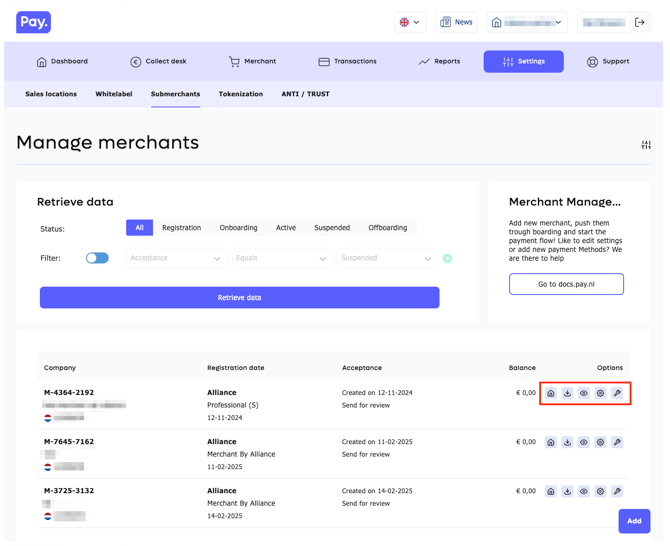
Various actions are available within the merchant overview.
| Optie | Name | Description |
|---|---|---|
 |
Impersonate | If you have the required permissions, you can log in as your (sub-)merchant and view the portal exactly as they see it. |
 |
Download | Download all available merchant documents. |
 |
Compliance status | View the merchant's compliance status. Missing documents can be uploaded and additional data such as dates of birth can be updated. |
 |
Data manager | Request additional information or documentation from your sub-merchant. |
 |
Merchant Details | View an overview of merchant details, including configured services, sales locations and authentication tokens. |
Automating Onboarding via the API
For partners who want to automate onboarding processes, PAY. provides various API endpoints for:
- Retrieving merchant statuses
- Submitting KYC information
- Uploading documents
- Submitting files for review
The technical implementation is described in detail in the developer documentation.
👉 Developer Portal:
https://developer.pay.nl/docs/onboard-your-merchants
Merchant Cancellation and Offboarding
When a merchant stops using PAY., the merchant relationship must be terminated.
Before a merchant is terminated, we recommend verifying that:
- All transactions have been processed.
- Any chargebacks have been resolved.
- Outstanding refunds have been processed.
- Any pending payouts have been completed.
- There are no outstanding compliance requests.
Business Partner
Within a Business Partner setup, the merchant has a direct relationship with PAY.
The merchant can submit a cancellation request independently through the Merchant Admin Panel.
More information:
Merchant Admin Panel - Cancellation
After the request has been received, PAY. will process the cancellation.
Connect Partner
Within a Connect Partner setup, the relationship between the merchant and PAY. is managed through the partner.
The process is as follows:
- The merchant submits the cancellation request to the partner.
- The partner verifies any outstanding obligations.
- The partner reports the termination to PAY.
- PAY. performs the offboarding.
The partner remains the primary point of contact for the merchant throughout this process.
Alliance Partner
Within an Alliance partnership, the partner manages the merchant relationship independently.
The partner can terminate a merchant:
Via Merchant Management
Select the merchant within Merchant Management and start the termination process.
Via the API
Partners who have automated merchant management can also perform the termination through the available API functionality.
This allows the complete merchant lifecycle to be managed through the partner's own systems and processes.
What Happens After Cancellation?
After successful processing, the merchant receives the status Suspended.
The merchant will no longer have access to the platform and cannot process new payments. Historical data may remain available for:
- Legal retention requirements
- Compliance purposes
- Financial administration
- Reporting
- Audits
For this reason, a merchant account is generally not deleted immediately.
Frequently Asked Questions
Can a merchant process transactions immediately?
Yes. In many cases, transactions can be processed immediately after registration is completed. Payouts are only activated after onboarding and KYC checks have been completed successfully.
Why does PAY. request so much information?
As a licensed financial institution, PAY. is legally required to identify and screen customers in accordance with KYC and anti-money laundering regulations.
When are payouts activated?
Payouts are enabled after the onboarding team has approved all required information and documentation.
How can I see which documents are still missing?
Through the compliance overview in the PAY. portal, you can see exactly which documents or information are still required.
Who is responsible for cancellation?
| Partner Model | Responsible Party |
|---|---|
| Business Partner | The merchant cancels directly with PAY. |
| Connect Partner | The merchant informs the partner, who reports the cancellation to PAY. |
| Alliance Partner | The partner terminates the merchant via Merchant Management or the API. |
Can a merchant be completely deleted?
No, not always. Due to legal, financial and compliance-related obligations, certain information may need to be retained after a merchant relationship has ended.
More information for developers:
https://developer.pay.nl/docs/onboard-your-merchants