
Using the 'Tokenization' option, the payer's card details are automatically stored encrypted within our systems. This is also known as card on file. You then receive a token with which you can perform a follow-up payment. You then don't need to ask for your customer's card details again. This token can initiate four types of payments.
- Merchant initiated transaction
After receiving a mandate, you determine when and what amount you debit - Cardholder initiated transaction
The cardholder performs an action in an app or within your web environment, after which the payment is debited immediately and the status is reported back to the cardholder. - MOTO transaction
An employee of the company who is logged into the PAY. Admin performs the transaction on behalf of the cardholder. - Recurring transaction
Periodic debit for a membership or donation - Installment transaction
For paying off an order in installments
1. Activation
To activate tokenization for your account or sales location, you must contact your account manager. You can find the technical documentation here.
Available Payment Options
- VISA
- MasterCard
2. Stored Tokens
Tokenization Overview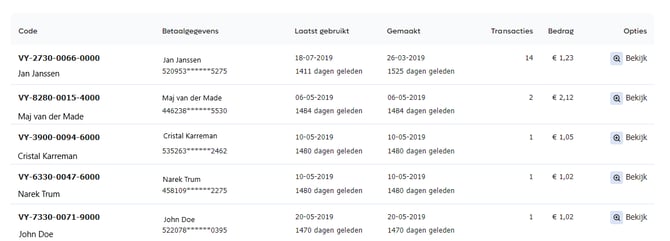
Token Details Overview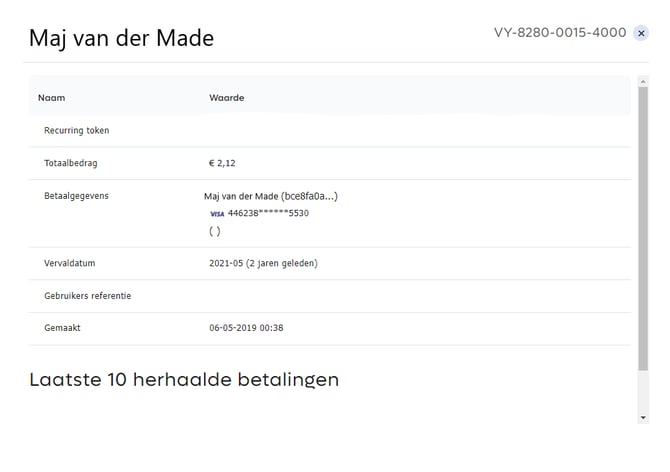
You can find the stored tokens in the Admin Panel Image: Tokenization Overview. You can find this overview under Manage > Tokenization. Here the following data is shown:
- Code The unique code that is created as a token.
- Customer details The consumer's details: name and part of the credit card number.
- Last used The last time the token was used.
- Created Date on which the token was created.
- Transactions The number of transactions that have taken place with this token.
- Amount The total amount paid via this token.
- Options A detailed overview of the token with information about the consumer Image: Token Details Overview.
3. Collect Desk
Credit Card Payment via Collect Desk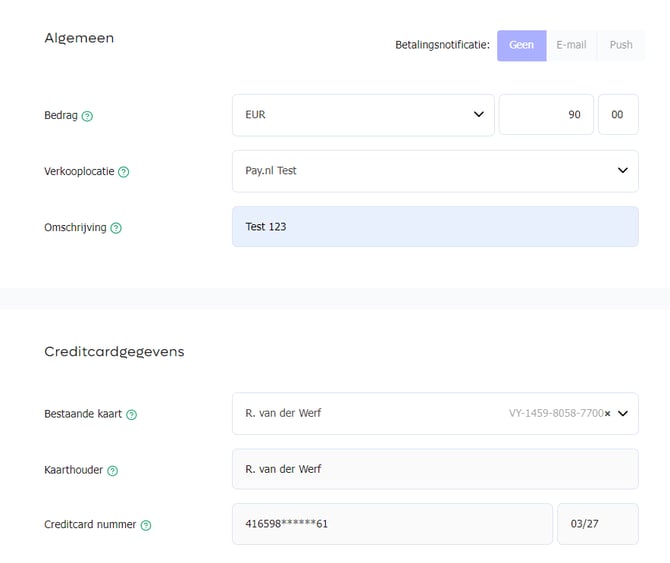
You can also manually perform credit card transactions, also known as a Merchant Initiated Transaction (MIT). To do this, go to the tab Collect Desk in the Admin Panel. If you click 'Credit card payment' in the left menu, an overview appears where you can fill in the correct details Image: Credit Card Payment via Collect Desk. The fields shown are:
- Amount - Enter the amount and corresponding currency here.
- Sales location - Select the sales location the payment should be linked to here.
- Payment reference - Enter the payment reference for the transaction here.
- Existing card - Select the consumer's card details here if you have stored them via tokenization. The following fields will then be filled in automatically. If you don't have stored card details, you can fill in the following fields manually.
- Cardholder - Name of the cardholder as stated on the credit card.
- Credit card number - The 16-digit number and expiration date stated on the credit card.