
When a Wero payment cannot be processed successfully, an ISO 20022 reason code may be returned. This code indicates why a payment was rejected, could not be processed, or could not be completed.
Good to know: An ISO 20022 reason code does not automatically mean there is a problem with your integration or payment environment. The cause may also be related to the customer's bank, the beneficiary's bank, or the payment infrastructure.
Want to know what you can do? Use the overviews below.
Where can I find these reason codes?
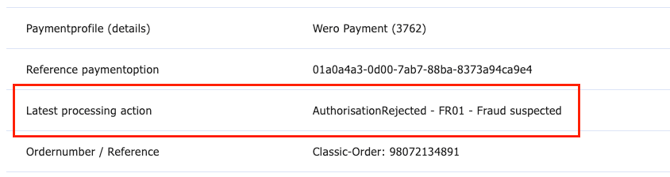
When you open a transaction in My.pay, you can see the Latest processing action.
This consists of the following components:
- Latest processing action: in the example below, this is AuthorisationRejected.
- Reason code: in the example below, this is FR01.
- Reason: in the example below, this is Fraud suspected.
Want to know what you can do? Use the overviews below.
Payment rejected during authorisation
These error codes are returned when a payment cannot be authorised, for example because the customer has insufficient funds or a payment limit has been exceeded.
| Code | Meaning | Suggested action for merchant |
|---|---|---|
| AB11 | Timeout at the customer's bank | Ask the customer to try the payment again. |
| AC03 | Invalid beneficiary account number | Check the payment and beneficiary details. |
| AC05 | Customer's payment account is closed | Ask the customer to use another bank account or payment method. |
| AC06 | Customer's account is blocked | Ask the customer to contact their bank or use another payment method. |
| AG01 | Transaction not permitted | Ask the customer to use another payment method or contact their bank. |
| AM02 | Amount not permitted | Check the amount. If necessary, ask the customer to use another payment method. |
| AM04 | Insufficient funds | Ask the customer to check whether sufficient funds are available and try again. |
| AM21 | Payment limit exceeded | Ask the customer to check their payment limit with their bank or use another payment method. |
| BE17 | Beneficiary identification is missing or invalid | Check the details. |
| CURR | Invalid currency | Check whether the currency used is supported. |
| DS09 | Request could not be decrypted | Technical error. Try again. |
| DT01 | Invalid or missing date | Check the configuration and/or request. |
| DUPL | Duplicate payment authorisation | Do not resubmit the payment before checking the status of the original payment. |
| FF01 | Invalid request format | Check the API request and payload. |
| FR01 | Payment rejected due to fraud or security checks | Ask the customer to use another payment method or contact their bank. |
| MS03 | Multiple captures not permitted | Check the capture logic of your integration. |
| NARR | No specific reason provided | Ask the customer to try again or use another payment method. |
| RR04 | Payment rejected due to regulatory requirements | Ask the customer to use another payment method or contact their bank. |
| SL11 | Merchant is not on the customer's whitelist | If necessary, ask the customer to allow the merchant through their banking environment. |
| SL12 | Merchant is on the customer's blacklist | Ask the customer to contact their bank or use another payment method. |
| TK01 | Invalid or revoked payment token | Start a new payment session. |
| TKSG | One-time token has already been used | Do not reuse the token. Start a new payment session. |
| TKVE | Payment token limit exceeded | Check the amount and, if necessary, start a new payment session. |
| TKXP | Payment token has expired | Start a new payment session and ask the customer to try again. |
Payment failed during processing or settlement
These error codes occur after a payment has been authorised but cannot be completed during further processing through the SEPA Instant payment infrastructure. These errors generally cannot be resolved by the merchant.
| Code | Meaning | Action for merchant |
|---|---|---|
| AB05 | Timeout at the beneficiary's bank | Check the payment status. If the payment was not completed, it can be retried. |
| AB06 | Timeout during the clearing and settlement process | Check the payment status and retry if the original payment was not completed. |
| AB07 / AB08 | Beneficiary's bank or payment institution is offline | Ask the customer to try again later or use another payment method. |
| AB09 | Processing error at the beneficiary's bank | Ask the customer to try again. |
| AB10 | Temporary network or routing issue | Try the payment again later. |
| AC01 / AC04 | Beneficiary account is incorrect or closed | Check the payment and beneficiary details. |
| AG02 | Invalid payment routing | Technical error. |
| AG10 / AG11 | Payment institution involved has been suspended | The payment cannot currently be processed. |
| AM05 | Duplicate payment detected | Do not resubmit the payment before checking the status of the original payment. |
| AM23 | Amount exceeds the SEPA scheme limit | Reduce the amount or use another payment method. |
| BE04 | Beneficiary's bank does not participate in the relevant scheme | Use another payment method. |
| CNOR / DNOR | Beneficiary's or customer's bank is offline | Ask the customer to try again later or use another payment method. |
| MS02 | No specific reason provided | Ask the customer to try again or use another payment method. |
| RC01 | Issue with scheme or payment routing | Try again. |
| RR01 / RR02 / RR03 | Required customer information is missing | Check the available payment and customer information. |
What should I do when I receive a Wero error message?
Use the following steps as a general guideline.
1. Check the payment status
Always check first whether the payment has actually failed. Do not resubmit a payment if its status is unknown. The original payment may still be processing. This helps prevent duplicate payments.
2. Check whether the customer can resolve the issue
For example:
- insufficient funds;
- a payment limit has been exceeded;
- a blocked account;
- an issue with the customer's bank.
In these cases, ask the customer to try the payment again, contact their bank, or use another payment method.
3. Check your payment details and integration
For errors such as an invalid account number, invalid request format, or an issue with a payment token, check the payment details and your integration.
4. Retry in case of a temporary error
In case of a timeout, temporary network error, or temporary server error, the payment can be retried.
Note: Avoid submitting the same payment multiple times.
5. Contact Pay.
Contact Pay. when:
- the error keeps recurring;
- the cause is unclear;
- you suspect a technical issue;
- the payment status cannot be determined.
When contacting us, always include the Order ID, the relevant ISO 20022 reason code, payment reference, and relevant request or transaction details. This helps us investigate the issue more quickly.
Summary
| Situation | Action |
|---|---|
| Issue with customer or customer's bank | Ask the customer to try again, contact their bank, or use another payment method. |
| Invalid payment details | Check and correct the details. |
| Temporary technical error | Retry according to the retry strategy. |
| Duplicate payment or unknown status | Do not resubmit. Check the payment status first. |
| Integration or configuration issue | Check the integration and contact us if necessary. |
| Unknown or recurring error | Contact us and provide at least the reason code and Order ID. |