
Your M-code
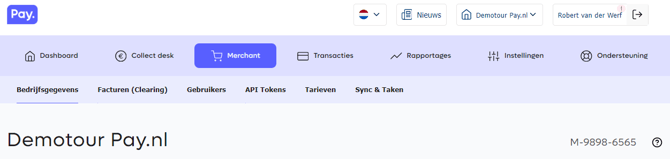
If you choose PAY. to process payments for your organisation, we will refer to your business as “The Merchant.” When you communicate with PAY. , we may ask for your merchant code. This code starts with the letter M, followed by two strings of four digits each, e.g. M-9898-6565.
1. Sign-up
You can register your company with the following URL: https://www.pay.nl/en?register.
Multiple companies?
Toegang tot meerdere bedrijven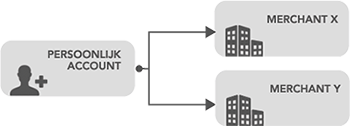
Persoonlijke bovenbalk
PAY. provides merchant connections per unique company (COUNTRY + business registration). If you want to register multiple companies, you must submit each company separately. We are obliged to audit every company according to the same rules. You must therefore always go through the full acceptance procedure.
Register with an e-mailadress that you have already used before
If you already have a personal account and you enter your e-mail address and password during the registration process (step 3), your personal account will be directly linked to the added merchant account. If your personal account has already been checked and you have supplied the requested documents for identification, you do not need to add the documents all over again. If you use a new e-mail address, we may change your account during the identification procedure. If you log in with your personal account, you will then be able to switch between the companies you have access to in the top right of the Admin Panel menu.
If you are the acting director or UBO for several companies, a relationship is established between your personal account and the merchant. You will only have to confirm your identity once by adding proof of identity.
Affiliation to a parent company
It is possible to obtain a connection with the parent company (holding company) of a company. You must purchase the business package once from a parent company. This way you can avoid having to pay package and compliance costs multiple times.
The difference with 'multiple companies'.
- You can use this construction to create reports based on your total turnover without having to switch. You can add a turnover group and/or sales location per subsidiary, which means you can manage your reports and you can also split your financial flows.
- You cannot give your users limited insight into a part of the turnover. A user with all permission will see the entire turnover of the parent company.
If you wish to receive the funds paid into the subsidiaries' accounts, we will request a clearing form and a copy of the account statement for each account and subsidiary. There is also a chance that we will also request the business registration documents for the subsidiaries.
Registering with PAY.
Instruction video: Registering with PAY. in 6 easy steps.
2. UBO's en legal representatives
Extra personen koppelen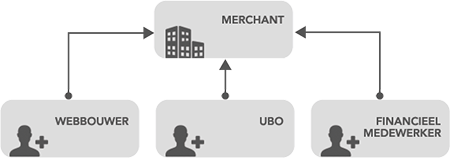
The terms of our licence require us to verify the identities of directors and UBOs and UBOs . We do so by creating a personal account for every director who has signed our agreement, to which they can then add a copy of their ID. For the UBO, we record the data that you provide by filling out the UBO form or we use data from trade registers. In order to verify these data, we may ask for this person’s ID, which they can add to their personal account.
UBO
Ultimate Beneficial Owner: A person who has a stake in the organisation’s profits. Foundations or other non-profit organisations have pseudo UBOs. These are the natural persons who, although they do not have a stake in the profits, do have a say in what is done with the organisation’s funds.
- Direct UBO (e.g. shareholder of a private company, a general partnership or the owner of a one-man business).
- Indirect UBO (when a holding or foundation administration office is located hierarchically above the business)
- Pseudo UBO (persons who have a say in or are the owner of a non-profit organisation).
LRead more about UBOs at: https://www.dirkzwager.nl/kennis/artikelen/definitie-ubo-en-het-ubo-register/
Example of a private company
Peter and Paul both own the shares of a business. Paul is the company’s director and has a stake of 70%. Peter owns the remaining 30% of the shares, which he has placed in his holding: “Peter Management.”
Paul is 70% direct UBO.
Peter is 30% indirect UBO.
Example of a foundation
Janneke is the treasurer of the “Help a Child” foundation. Francien and Carla are the directors, while Mieke handles the administration.
Janneke is pseudo UBO, because, as treasurer, she has access to the foundation’s funds.
Francien is pseudo UBO.
Carla is pseudo UBO.
Mieke is not an UBO, because she does not have a say nor can she access the foundation’s funds.
Example of a general partnership
Tim and Tom are the co-owners of a general partnership
Tim is 50% direct UBO.
Tom is 50% directe UBO.
Example of a one-man business
Puck owns a one-man business.
Puck is 100% direct UBO.
3. Add Employees
From now on you can add multiple users to your connection with every PAY. package. This is ideal if you manage your website together with colleagues or if you want to give your accountant or web builder access.
You can assign separate right groups to each personal account. This way you can for instance give your web builder access to all functions except financial data.
Medewerker toevoegen

Notificaties instellen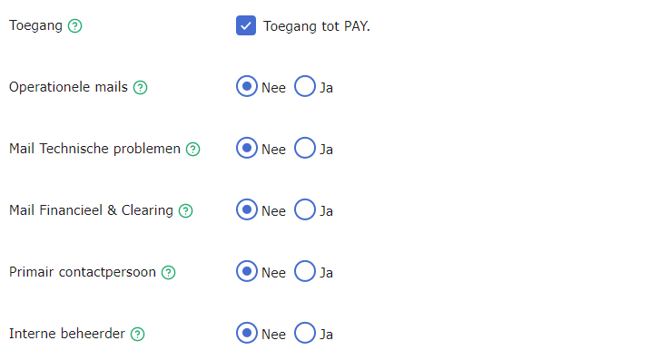
Activate additional employee accounts option
The option 'Additional employee accounts' is not activated by default. You can activate this option via the link 'Change package options' on the tab Merchant » Company https://admin.pay.nl/my_merchant. Make sure the option 'Multiple users' Figure: Activate extra employees in the pop-up is checked.
Need help with activating?
More information on activating a package option can be found here. Do you want to make use of the option 'Additional employee accounts' but does your current package not support this option? You can easily upgrade.
Creating additional employee accounts
- In the Admin Panel, go to the tab Merchant » Users https://admin.pay.nl/company/accounts.
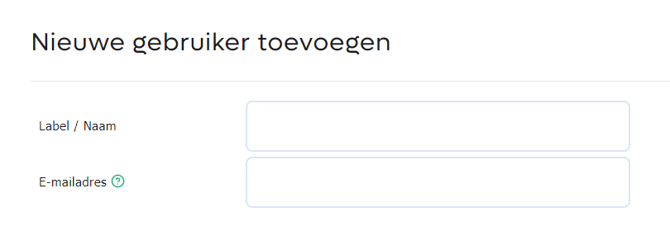
- Under 'Users', click on the 'Add’ link Figure: Add employees.
- Enter the Email address and other data of the person you want to add to the merchant account Figure: Invite employee.
- Indicate per subject whether the employee may receive notifications or not Figure: Setting notifications.
- You can assign 'all rights of the merchant' to an account or select a specific group of rights. Next to the name of the rights group you can see the options that are accessible.
- Click on the 'Save’ link in the pop-up!.
Do the standard rights groups in PAY. not match your needs? From the Professional package you can create your own rights groups. Please contact your account manager for this option.
NAfter you have invited the person, they will receive an e-mail with the request to link their personal account to the merchant account. They can easily do so using the link included in the e-mail. If the person does not yet have a personal account with PAY., the person is first asked to enter a password.
Add users
Instruction video: Setting up additional users with their own rights.
4. Look & Feel


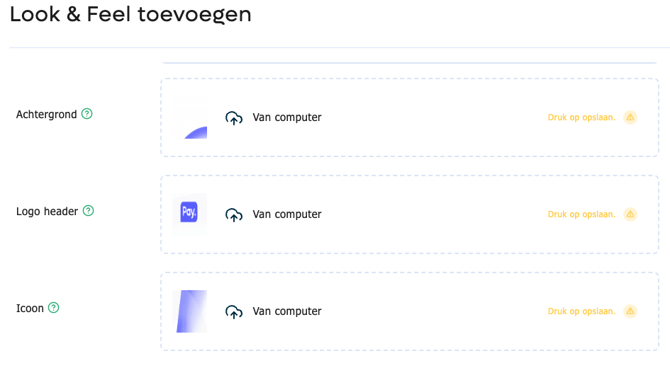

Voorbeeld betaalscherm voor categorie Auto & Motor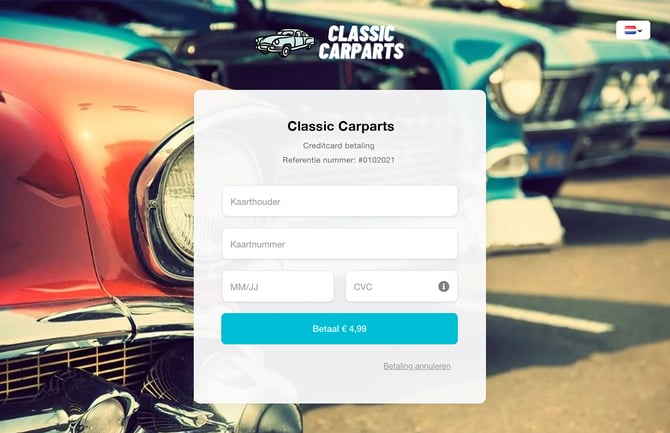
It is possible to personalize the Credit card payment screen with a:
-
Logo
- Achtergrond
- De kleuren van jouw huisstijl
Layout toevoegen
To add your first layout, go to Manage > Sales locations and click on Change. Scroll to Look & feel and click on Add.
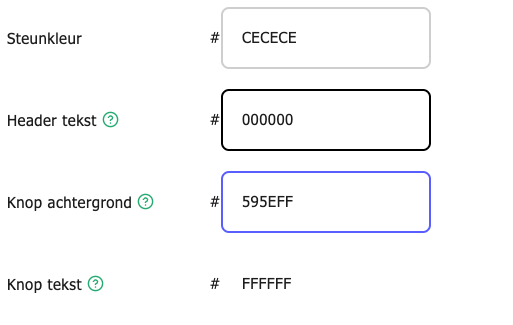
Fill in the style/color fields and upload a background and logo (optional). Below you will find more information:
| Style | Explanation |
|---|---|
| Control status | Under review or Reviewed |
| Name | The name of the layout in the PAY. Admin. The name is not shown on the payment screen. |
| Background | We recommend an image with a resolution of at least 800*600 pixels. The image is automatically resized to the full width and height of the screen. |
| Logo header | We recommend a PNG file with a maximum resolution of 640*150 pixels and a transparent background. This image is placed over the background and above the map data. |
| Icon | This style field does not apply to the credit card payment screen. |
| Spot color | This style field does not apply to the credit card payment screen |
| Header text | The color of the company name and description must be in contrast with the background. Enter the color code without # |
| Knop achtergrond | Colors of the buttons must be in contrast with the color white. Do not choose light colors. Enter the color code without # |
| Knop achtergrond | Color of the text in the button(s) must contrast with the button's background color. Enter the color code without # |
When you've checked your layout click Save. If you want to see a preview of the page, first save your settings and then click on Preview.
Access by partner When you've checked your layout click Save. If you want to see a preview of the page, first save your settings and then click on Preview.
5. Access by partner
Toegang beheren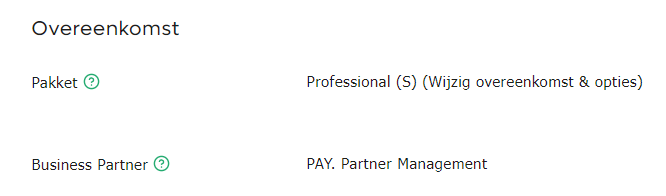
Toegang verlenen aan Business Partner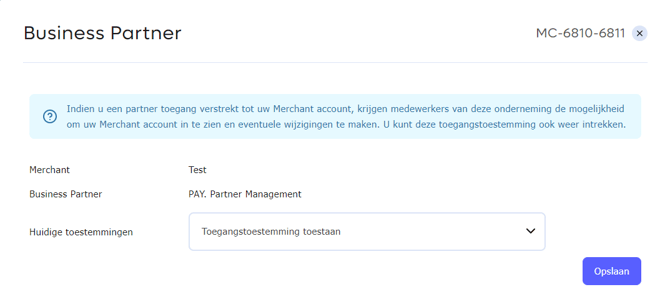
Toegang intrekken van Business Partner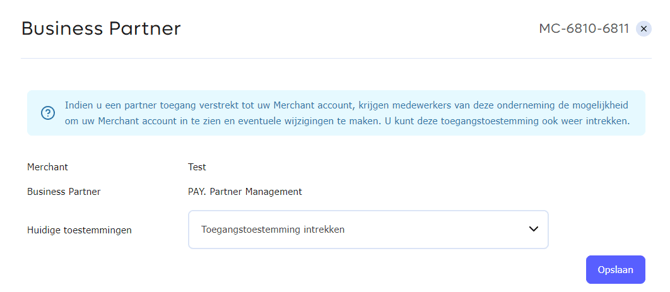
When your account has been created by or via a PAY. Business Partner, it is possible to grant this Partner access to your Merchant account. The Partner can retrieve your API credentials to setup the technical implementation and possibly support in completing your Merchant file. It is also possible for the partner to turn payment options on and off, or to activate options within your package. When the connection has been set up, the partner can imitate to your Merchant Account to perform these actions.
Granting access
To grant access to your Partner, you can view the partner connection via your Company details page under the Agreement header Figure: Granting access to the Business Partner. Click on the Partner to view and manage the access. Then press the green button to grant access.
Revoking access
To revoke access to your Partner, you can view the partner connection via your Company details page under the Agreement header Figure: Revoke access of the Business Partner. Click on the Partner to view and manage the access. Then press the red button to revoke the access.
6. API Tokens
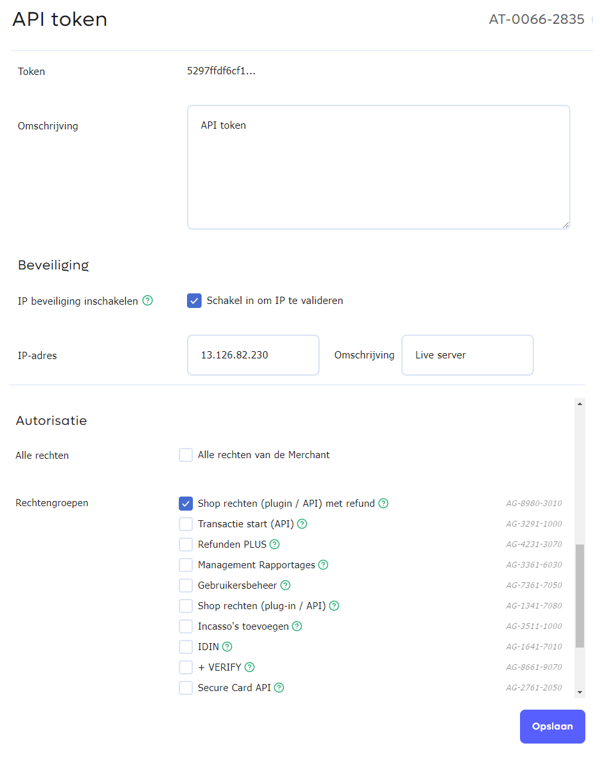
We use API tokens to connect your software to PAY. ‘s technology. A token consists of a code (AT-1234-1234) and the actual token itself (between 32 and 64 characters). By default, each merchant has a single API token, although you can add an unlimited number of tokens from the professional package.
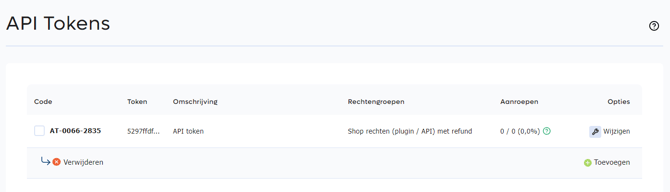
API token toevoegen
Account or token?
- A person has an account with a username and a password, with which they can perform actions, depending on which permissions have been enabled.
- A system has an API token with a code and a hash, with which it can perform certain actions, depending on which permissions have been enabled.
IP security
If you choose to use IP security to make your API tokens even more secure, you can submit a server list to us. In your overview, the token will be marked with a green padlock icon.
Assigning permissions to tokens
Both an account and an API token are linked to one or more permission groups. Whereas accounts often receive a combination of permissions, an API token generally only needs permission to initiate a transaction and retrieve the status. If you want to issue refunds via your software, you must assign refund permissions as well.
7. Tradenames and brands
By default, payments made by your customers via our system are paid to Stichting Pay on behalf of “your company name,” along with a payment reference. From the Professional package, you can add you own tradename. That means your customers will see your tradename instead of your company name on both the payment screen and their bank statement.
Activating the option to use your tradename

The option to use your tradename is not activated by default. You can activate this option via the “Change package options” link on the tab Merchant » Company https://admin.pay.nl/my_merchant. In the pop-up window, make sure to check the “Public / Tradename” option Figure: Activating the option to use your tradename.
Need help with the activation?
More information about activating a package option can be found here. If you want to use your tradename, but your current package does not support this option, you can easily upgrade your package.
1. Adding a tradename

Handelsnaam toegevoegd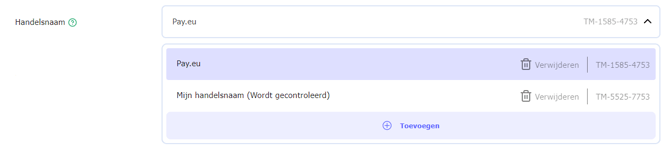
Once you have activated the option to use tradenames, you can add the tradenames you want to use. To do so, follow these steps:
- On your Admin Panel, go to the tab Merchant » Company https://admin.pay.nl/my_merchant.
- Under “Company information,” you will see the field marked Tradenames Figure: Adding a tradename. Enter the tradename you want to use. If you want to add more than one tradename, use the green plus icon to add another name.The “Professional” package lets you add one tradename. You can add an unlimited number of tradenames from the “Business” package.
- Click on the “Save” button at the bottom of the screen.
- If the tradename you added is included on the COC extract and we can validate it automatically, it will be approved immediately. If that is not the case, the tradename will be shown in orange. Figure: Tradename added This means that a PAY. staff member must first verify your chosen tradename. In most cases, this will happen within 24 hours.
For Dutch merchants: the tradename you add must be registered with the Chamber of Commerce.
Verkooplocatie wijzigen
2. Setting up your tradename
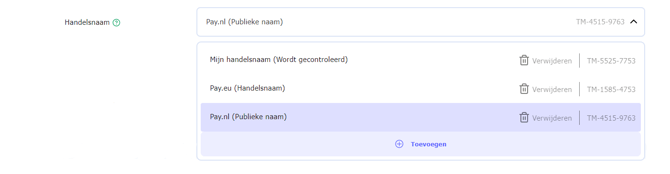
Once you have added a tradename, you can link it to the sales location (web shop) for which you want to use it.
Domain name as tradename
PAY. can only show registered tradenames in payment descriptions. You can list the URL in the description. If you want to show “Webshop.nl via PAY.nl,” you must register your domain name as a tradename with the Chamber of Commerce, the CBE registry (Belgium) or a similar organisation. After doing so, you can use your domain name as a tradename.
8. Clearing accounts
The funds that the PAY. Foundation manages for you can be periodically transferred (cleared) to your bank account. This is known as your clearing account. A clearing account has to meet a number of conditions.
Your clearing account:
- Must be an IBAN number in the SEPA area
- Must be registered to your company name or registered tradename.
- Must be a business account.
II use my private bank account for my business as well. Is that allowed?
We do not allow private bank accounts to be used as clearing accounts. Contact your bank to open a business account. The reasons for this restriction are described in our blog at www.pay.nl/blog/waarom-altijd-een-zakelijke-bankrekening.
Adding a clearing account
Weergave op basis van enkele clearing rekening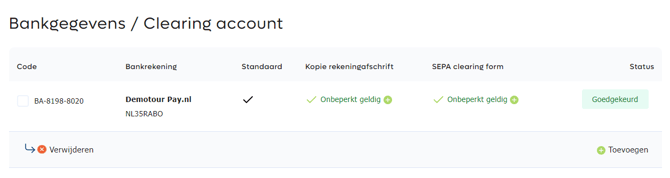
You can add a clearing account by going to 'Merchant -> Company information' Company information” in the Admin Panel. The “Bank information / Clearing account” section contains the option to add a new account. You can do so by making a payment in the amount of €0.49. This amount is added to your balance after you complete the payment. You can also reimburse the payment to your account once the verification process is complete. If you wish, you can add the bank account manually by entering the name of the account holder, the account’s IBAN number and possibly your BIC code. If you choose to manually add an account, you must submit a copy of a bank statement for verification purposes.
If you have already added an account and have not activated the “Multiple clearing accounts” option, your previous clearing account will be overwritten.
adding multiple clearing accounts
Weergave op basis van meerdere clearing rekeningen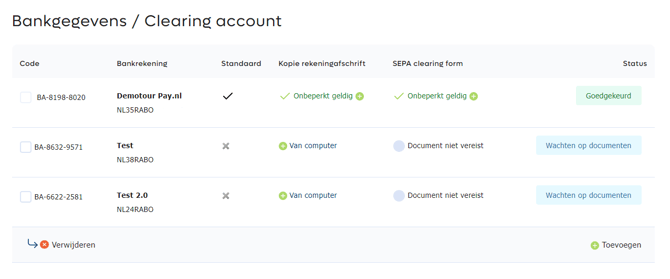
If you want to add multiple clearing accounts, for example because you want to divide your revenue, you can activate the option to do so in the Business package. After this upgrade, you can add an unlimited number of clearing accounts. The aforementioned verification procedure must be repeated for each bank account you add.
9. General data
Contactgegevens invullen
Contact information
Please provide the contact information of your company. These can also be sent to the payment options for boarding purposes.
10. Deposit & rolling reserve
Borg zichtbaar in financieel overzicht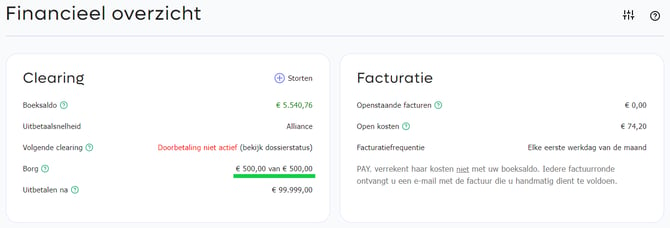
The different payment options we offer each carry their own risks. For some payment options, the risks are limited (i.e. iDEAL and Bancontact). PAY. is a licensed financial institution that handles payments for businesses. If a business should go bankrupt, we have a reputation risk but no financial risks. This is different for credit card payments where the chain is responsible for any losses due to chargebacks. If a business goes bankrupt, the issuing bank will reclaim the amounts from PAY. via a number of intermediate parties. If a business goes bankrupt, the financial institution will still have to pay these amounts which is why credit card payments are often subject to higher risk premiums in the form of extra percentage points. In accordance with the terms of our licence and in order to secure third-party funds, PAY. has a mandatory equity capital (at least € 1.000.000,-). This amount of money allows us to guarantee the unpaid amounts to our merchants and cope with any losses incurred when a merchant goes bankrupt. To ensure that all of our clients' funds are safe, we may opt to use a deposit, a rolling reserve or delayed payments with a release term for certain businesses.
Fixed deposit
A relatively clear option is to set up a fixed deposit. This means that a fixed amount of the business balance is frozen. This amount is safely stored in PAY.‘s Stichting Derdengelden account and will be made available when the risk profile of the business is lowered. If new or larger risks occur, the deposit amount may be raised instead.
Rolling reserve
A rolling reserve is a certain part of a business revenue that is frozen for a certain period of time. For example, we may decide to pay out 10% of your credit card traffic after 180 days. This does make the payment process more complex because you will receive 90% of a payment after five days and the remaining 10% after 180 days.
Release term
The release term is a period during which an entire transaction remains under PAY.'s control because we have not yet received the amount in question from the chosen payment option or because we use this time to cover small risks. In practice, an extended release term is an efficient way to prevent fraud and abuse by businesses, but it does not help in case of a bankruptcy. The latter usually occurs suddenly and we cannot hold on to a businesses' revenue indefinitely.
Factors that increase a company's deposit
- Your company has a large number of bad reviews or disputes
- Your company makes use of a relatively large percentage of high-risk payment options
- Your company has an extended period of time between order and delivery, e.g. for (plane) tickets
- Your company has submitted its annual figures late
- Your company has a low credit score
- Your company is active in a sector with a high risk of bankruptcy
- Your company has a low profit margin
- Your company is active for a short time
- Third parties involved
- Your company has a high financial gearing
- Your company's directors are not shareholders or only have minority shares
- Your company, the holding company or a director has previously been involved in a bankruptcy
- Failures in reporting directorial or shareholder changes in a timely manner
- Your financial statements have not been submitted to the Chamber of Commerce in time or do not provide insight (financial position)
Factors that lower a company's deposit
- Your company uses a lot of low-risk payment options.
- Your company has been a client of PAY. for a long time and has had few disputes, low chargebacks, fraud rates and MOI reports.
- Your company provides clear insight into your payment traffic and delivery data.
- Guarantees provided by UBOs or other external parties.
- Your company has existed for a long time with a good reputation.
Objecting to a deposit amount
PAY. cannot simply set a deposit amount. There must be a proper reason and the deposit amount must be fair and reasonable. If we raise your deposit amount significantly, we will record our reasons for doing so internally. If you are dissatisfied with your deposit amount, you can file a complaint via compliance@pay.nl. Please state clearly how the deposit amount has unfairly impacted your business and what guarantees that you can offer to lower your company's risk profile.
Retaining a deposit isn't free.
The terms of our licence state that we must properly store all third-party funds, including deposits. Storing funds is not free for PAY. Financial institutions charge each other for this service. More information is available at Euribor rates Europe. We will not charge you for holding amounts up to € 100.000,-. If you want us to hold on to funds for more than five working days, we may charge a service fee. We will discuss this with you beforehand.
11. Change company registration
If you change your legal form, you must submit a new PAY. registration. We recommend that you go through these steps in good time, so that when your original company is de-listed from the business registry, your new registration will already be active.
Which documents do you have to resubmit?
You must provide the typical business documents. Your new business needs to be fully mapped out by PAY., irrespective of whether this may already be known to us in a different legal form. Use your personal PAY. account (email address and password), this way you do not have to resubmit your personal documents such as your ID.
Can I view my old transactions?
A new company, created with your original email address, gives you the option to switch between them. However, please note: If you change authorization data, such as TOKENS and SERVICEIDs in an additional system, you may not be able to automatically refund when you replace this data with that of your new connection.
A new company always means a new registration within PAY. This amounts to a considerable administrative burden for both parties. If you provide the documents correctly, our onboarding team will ensure that your request is processed as quickly as possible.
12. Data Processing Agreement
Verwerkersovereenkomst donwloaden en uploaden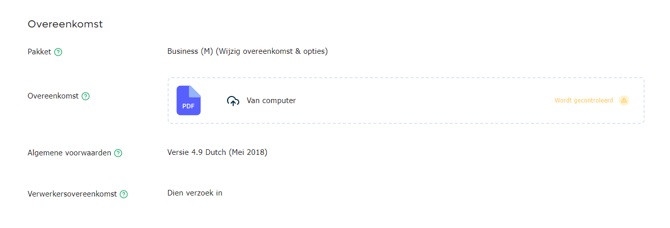
We are the processor of your data. To ensure that you comply with the rules for processing personal data (GDPR), we have a data processing agreement drawn up that you can offer to us after signing.
Download the data processing agreement by logging into the PAY. Admin Panel. Click on the Merchant menu, then click on Company Information. You can download the data processing agreement by clicking on ''download the data processing agreement draft''.
When you have uploaded the document, you will see a round orange symbol ("being checked"). When the check is complete you will see a green tick ("approved").
Do you want to know more about GDPR / AVG within PAY? Then please read this blog article carefully.
13. Fair use policy
PAY. uses a fair use policy. That means that our rates are based on normal use. Normal use is defined as 'average use', which is regarded as ‘fair use’.
The motivation behind the fair use policy is simple. Almost all our clients are in the category 'Fair', or occasionally in 'Raised'. If you are in 'Exceeded' or 'Excessive' something is wrong. Often this is due to bad technology, incorrect implementation, incorrect communication with your customers, or deliberate abuse. There are several aspects that are monitored by us. To make our process transparent to you, we have created a combination of guidelines for payment options and the limits we use.
| Indicator | Fair | Raised | Exceeded | Excessive |
|---|---|---|---|---|
| Charge backs for credit cards | < 5 of < 0,3% | 0.3 tot 0.5% | 0.5 tot 0.75% | > 0.75% |
| Fraud reports on credit cards | < 10 of < 0.6% | 0.6 tot 0.75% | 0.75 tot 1.0% | > 1.0% |
| Customer reversal of SEPA direct debit | < 25 of < 5.0% | 5.0 tot 7.5% | 7.5 tot 10.0% | > 10% |
| Unjustified direct debit notices in SEPA direct debit | < 5 of < 0.1% | 0.1 tot 0.2% | 0.2 tot 0.25% | > 0.25% |
| Fraud via IBAN | < 10 of < 0,2% | 0.2 tot 0.3% | 0.3 tot 0.5% | > 0.5% |
| Disputes in PAY. | < 3 of < 0.2% | 0.2 tot 0.5% | 0.5 tot 1.0% | > 1.0% |
| Communication failure (Exchange) | < 100 of < 1.0% | 1.0 tot 2.0% | 2.0 tot 2.5% | > 2.5% |
| Generated API errors | < 100 of < 1.0% | < 1.0 tot < 1.5% | < 1.5 tot < 2.5% | > 2.5% |
| API requests vs TRX ratio | < 1000 of < 4x | 4x tot 5x | 5x tot 6x | > 6x |
| TRX vs success | < 100 of > 60% | 60% tot 40% | 40% tot 25% | > 25% |
Prevent additional surcharges of 10% on your invoice amount (Exceeded) and 1.0% on the processed payment volume (Excessive). From the Business Package onward, we can provide support to help you improve your technology.
14. Acquisition of business activities
Is your webshop, website, or business activity being acquired by another company, and does the new owner wish to continue using PAY.? That is possible. If you are a director with signatory authority, please send us an email from the email address registered with PAY., including the details below:
| 1. KVK nummer |
| 2. Geldig BTW nummer |
| 3. E-mailadres contactpersoon |
Send your change request to boarding@pay.nl.
The onboarding department will contact the new business and arrange registration with PAY as soon as possible. The cost for this request is €85.00.
If you do not wish to use this service, that is fine. The new business can then register itself via Pay.nl/registreren. Acceptance will follow the standard procedure.
15. Cancelling your agreement
Account opzeggen
Please follow the steps below if you want to cancel your PAY. account:
- Navigate tot he Admin Panel and click on the tab Merchant » Company information https://my.pay.nl/my_merchant.
- Navigate to Contract » Package » and click the 'Change contract and features' link.
- A popup will be opened. You can terminate the agreement by clicking the Cancel button located at the bottom of this popup.
Indicate on which date you want to cancel the agreement. Based on your contact addidtional costs may be charged. Finally click the button 'Cancel your agreement'. A confirmation by email will be send.
Contract periode
The Pioneer account can always be canceled free of charge. A minimum contract period of 12 months applies to a paid package. This package can then be canceled with a three months' notice. If you upgrade to a higher package, you are concluding another one-year contract.
If you want to prematurely terminate your agreement and thereby close the full access within your account, you will receive a discount of 50% on the remaining package costs. After the cancellation you will no longer have access to payment data from the past. You will also no longer be able to receive or refund payments.
After the agreement has ended, authorized signatories have 35 days to view or export any data. The data is then archived. From this point on it is no longer possible to receive or refund payments. If you wish to make longer use of our services, you can extend your agreement within these 35 days.
Returning hardware
After termination of your agreement, you must return the rented, leased or demo hardware. If you want to keep the hardware, you don't have to report anything. We will automatically charge the replacement value after 2 weeks.
Deposit or rolling reserve
If you have paid a deposit, we will determine whether this deposit is still necessary within 2 weeks after the end of the agreement. A rolling reserve expires in the regular manner, even after your agreement has been canceled.