
PAY.'s anti-fraud module is called: "VERIFY". Depending on various factors, we determine whether a payment needs to be reviewed and by whom. In most cases, an employee reviews the payment for fraud signals. This way we protect both the consumer and the merchant. In approximately 10% of cases, the merchant is asked for advice. They can then decide for themselves whether to accept the risk of the payment.
A payment in VERIFY has status 85, view all other transaction statuses.
Fraud prevention
Fraud prevention instructional video: how the credit card review process works. The same procedure is also used for other payment methods.
Communication to the customer
If a payment is placed in VERIFY, you must inform your customer that the order has been received. You can choose to notify your customer about the manual review, optionally including your company's contact details for questions.
After review by PAY. or the merchant, the transaction will be rejected or accepted. At that moment you will receive the corresponding exchange call.
1. Timing of the review
Review moments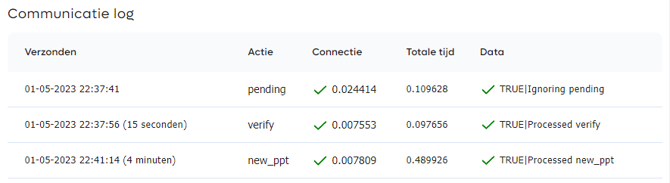
Not all data is always available before we can properly review the payment. For example, with an iDEAL payment, the IBAN number can only be checked after the payment. With a credit card payment, this can happen during the payment. Below we list the moment of VERIFY for a transaction.
-
Before the actual payment
-
During the payment (before authorization and the actual payment
-
After the payment, but before we notify your system of the payment
2. Service levels
Deviating transactions must be reviewed; you can choose to do this yourself, or have PAY handle it as a full service. If you want to change this SLA, contact risk@pay.nl
| Fashion | Explanation |
|---|---|
| SELF | You want to independently assess the VERIFY |
| FULL_SERVICE | A PAY risk officer makes the decision. |
| SHARED_CHECK (default) | A PAY employee attempts to make a decision, but in case of doubt, the transaction can be proposed to your employees. |
| PRE-ACCEPT | A PAY employee checks whether the payment can definitely be accepted; you will be notified in case of doubt or rejection, as PAY does not actively reject payments. |
If a PAY. employee has doubts about the transaction, you will receive an email titled: Order *** shows an increased fraud risk. In this email we ask you to approve or reject the transaction. You are given 72 hours to do so. If the transaction is not accepted within this period, we will automatically reject it. After that, it is no longer possible to accept the transaction.
Certain indicators can always trigger a 'review' by a PAY Risk employee, even if you assess the VERIFY yourself.
3. Variables involved in VERIFY
To carry out proper fraud protection, a number of variables are considered. By combining the executed payment, the already known "related data", and the lifespan of certain data, the system can produce a good impact analysis.
- The amount
- The time
- The IP address and host name of the payer
- Browser and device data
- The time between the purchase and delivery
- The email address of the user
- Location data of purchase, delivery and invoice address).
- The customer's reference within the merchant (customerReference)
- The merchant's own trust factor (customerTrust)
- The category of the purchase (based on the sales location)
- The payment option used and verification quality
- The reputation of the payer in PAY.
- The purpose of the payment (productType)
ANTI / TRUST values
After calculating the VERIFY score, the ANTI or TRUST value is added per matching object.
Fraud settings sales location
Based on the fraud settings (none, low risk, medium or high risk) linked to your sales location, certain checks can count more or less heavily in the overall assessment.
Merchant reputation
The merchant reputation is calculated by combining various factors, if your reputation:
- The number of months you have been a customer, and the number of payments processed
- Sales2Fraud ratio (do you have an above-average amount of fraud)
- Customer-initiated refunds: chargebacks, MOI reports or reversals
- Number of disputes and information requests and the average response time to these.
- Ranking on public review websites, Facebook or Google.
Make sure the data you provide is correct. If you cannot or do not want to provide certain data, leave it blank (do not use dummy data)
4. Risk rules
Merchants who use the VERIFY module can adjust some settings themselves. Based on current market trends, known fraud cases, and its legal obligations, PAY. applies its own risk rules on top of the merchant's settings. This means it is possible for a transaction to be reviewed by us without you actively using the VERIFY module. Risk rules are applied to various productTypes, countries, regions, internet and email providers, or the category of your services. The more fraud-sensitive your products are, the more important it is to choose the right settings.
Not all payments are the same.
VERIFY does not base its advice solely on the data within the sales location or the order. The merchant's reputation also counts. If you have more fraud, VERIFY will more quickly propose deviating transactions for review. If you have little fraud, it may be that a relatively high payment still goes through. In addition, the consumer's familiarity also plays a role. For example, a consumer may order products that are delivered to an area where relatively a lot of fraud occurs (for example: luxury coats ordered with a credit card and delivered to a walk-up apartment in a disadvantaged neighborhood), but because we already mark this consumer as reliable, this delivery will be less likely to be flagged for review. Meanwhile, his neighbor, who makes a lower-value purchase with iDEAL, may stand out.
VERIFY is a must if you operate in an elevated-risk industry, such as mobile credit, jewelry, diamonds, top-ups, eMoney, cryptocurrencies, branded goods, perfumes, telecommunications, mobile phones, tablets, or other easily resold goods.
5. Warming up the VERIFY
In the beginning you may receive false positives: we may already know your specific target audience, but not yet your own fraud measures. After approximately 10,000 payments, we can properly map out your target audience, so that deviating transactions occur less often and, when they do occur, are genuinely worth reviewing. In most cases you will notice little of this, since most transactions are assessed by us.
6. Managing ANTI / TRUST
Adding an ANTI/TRUST rule
PAY. checks every credit card transaction for possible fraud; we call this system the VERIFY. In addition to our standard checks and adding a customerTrust score to the Transaction::start, it is possible to influence the VERIFY yourself using the ANTI TRUST.
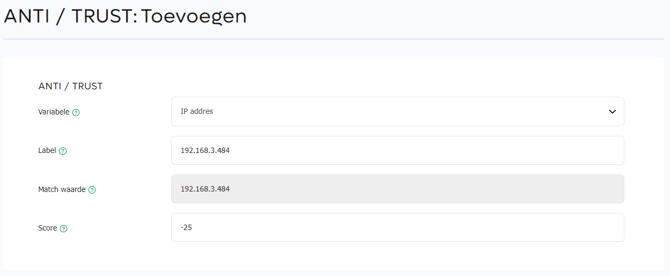

In the ANTRITRUST you can add variables. Each variable has a value. You give each unique value a score. If the value of a variable matches during the fraud check of a transaction, VERIFY applies the entered score. For example, if the variable Address key has a negative score of -25, for example because this address is used in fraudulent transactions, it will by default end up in VERIFY for future credit card transactions. If the same variable has a positive score of 25, for example because it is a trusted delivery address, the transaction will be processed without a VERIFY status being assigned.
Available variables are:
| Variables | Match values | Score |
|---|---|---|
| Email address | Full email address | -25 to 25 |
| CustomerKEY (encrypted value) | Unique hash created by the Transaction::start API. | -25 to 25 |
| Address key | Format: countryCode+ zipCode+streetNumber+streetNumberExtension For example: NL-7547TK-10 |
-25 to 25 |
| IP address | IPv4 format | -25 to 25 |
| customerReference | End-user reference that you sent during the Transaction::start. | -25 to 25 |
| CustomerID | Customer identifier, for example the credit card or IBAN bank account number | -25 to 25 |
You can find all the variables from the table above in the Transaction information popup in the PAY. Admin.
Removing an ANTI/TRUST rule
If you want to change a new or already added value, click the button behind the added rule Change. If you want to remove a value, select the rule. Then click the dropdown menu and choose Delete. Click OK to actually delete the value. Note: deleted values cannot be restored.
7. Your own assessment
It is possible to include your own trust factor with a payment to help prevent possible false positives. You can do this when starting a payment (via the API) by adjusting customerTrust.
Score for credit card
| Remark | Score |
|---|---|
| -10 payment always appears in verify | -100 |
| -9 payment appears in verify if not 3DS | -99 |
| >-8 payment appears in verify if not Lyablily shift or 3DS | -88 |
| -1 to -7 : Manual penalty points | Square 5x5 4x4 3x3 |
| +1 to +7 (Extra points as value) | Square 5x5 4x4 3x3 |
| +8 Payment proceeds if 3DS | +88 |
| +9 Payment proceeds if 3DS or Lyablily shift | +99 |
| +10 Payment always goes through | +100 |
Score for other payment options
| Remark | Score |
|---|---|
| -10 payment always appears in verify | -100 |
| -1 to -9 : Manual penalty points | Square 5x5 4x4 3x3 |
| +1 to +9 (Extra points as value) | Square 5x5 4x4 3x3 |
| +10 Payment always goes through | +100 |
8. Accept or reject
A VERIFY transaction 'Approve' or 'Reject' (top right)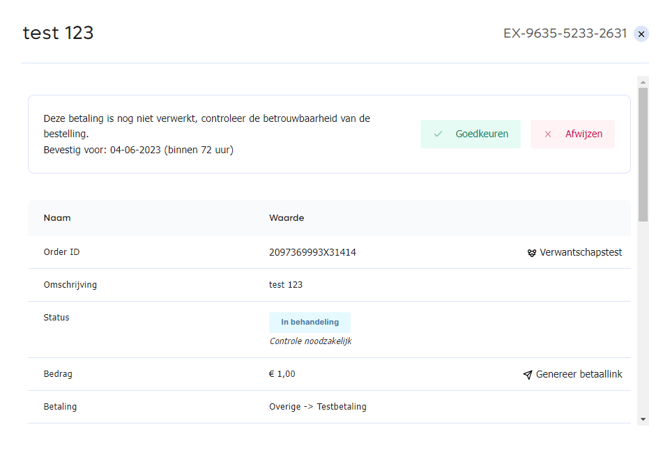

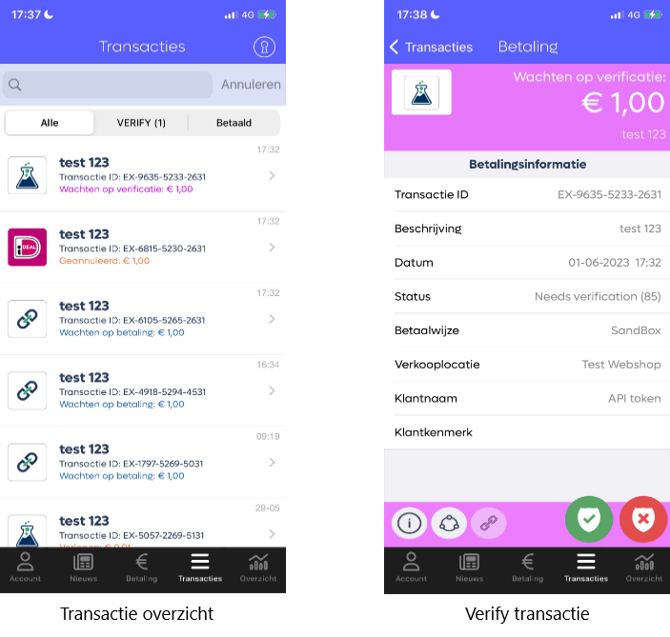
After you have made an assessment, you can approve or reject the VERIFY. Once you have made this decision, we send a signal to your system to finalize the order. If you reject a payment, a RESERVATION, for example on a credit card, will be released. For a bank payment, a refund will be issued. Upon acceptance, we CAPTURE the payment on the credit card. For a bank payment, no action is needed.
Via the Admin Panel
- In the Admin Panel, go to the tab Transactions » Verify https://admin.pay.nl/transaction/verify.
- Here you see an overview of suspicious transactions. To approve the transaction, click the green checkmark; to reject the transaction, click the red cross.
- Once you have clicked one of the two options, a popup opens in which you must confirm your choice by clicking Approve/Reject,
Via the PAY. APP
Transactions can also be approved or rejected via PAY.'s mobile app. For more information about this, see app transactions.
Via the API
Using the API, transactions with status 85 can be approved or rejected after review. You can find more information about this here.
9. Exchange communication
Exchange call upon VERIFY rejection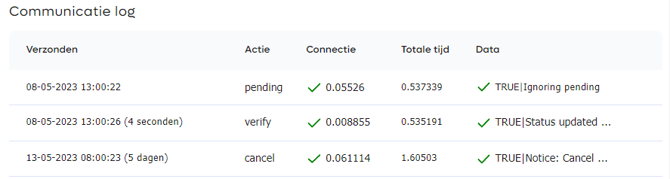
Exchange upon VERIFY acceptance
If you have configured your exchange settings for your sales location to receive all status changes, we will call your exchange again after rejecting the VERIFY. When approving, the exchange is of course always called. In certain cases, the payment must be refunded when a VERIFY is rejected, because the VERIFY only received signals that the payment deviated after the payment was made.
For the manual review
- PENDING (Payment started)
- VERIFY (Payment marked as deviating)
After the review (rejection)
- REFUND:ADD (Creating refund order)
- CANCEL (Passing on payment cancellation.
- REFUND:SEND (Refund executed)
- REFUND:RECEIVED (Refund received)
After the review (acceptance)
- NEW_PPT (Sending payment confirmation)
10. Verify screen
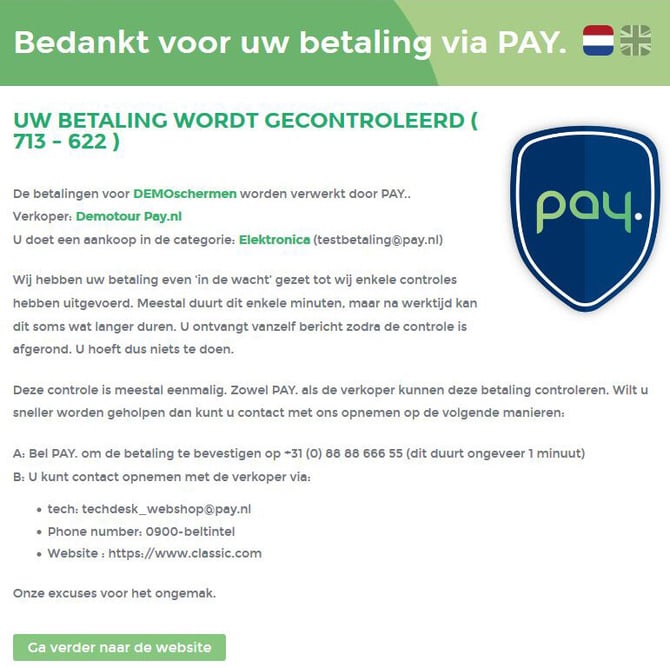
To inform your consumer that the payment has been placed 'on hold' by our VERIFY module, you can use an interim screen Image: VERIFY screen. This page explains that the payment is being reviewed and that the consumer does not need to do anything further. Your public contact details are also displayed here. You can read how to adjust these at requesting contact details.
To use the VERIFY interim screen, you need to contact with PAY, have a Business package, and your offering must fall under 'elevated risk products'.