
1. Information
| Facts | |
|---|---|
| Category | Pay later |
| Market | The Netherlands (B2C and B2B), Belgium (B2C) Only via your own account, contact Billink |
| Share | Unknown |
| Currency | Euro |
| Payment | Not guaranteed |
| Limit | B2C: between €250 and €500. B2B: between €250 and €2,500 (please contact the PAY. support desk first to increase the limit) |
| Refund | Multiple refunds per transaction possible up to 100% of the order amount |
| Chargeback/Rollback | Yes, up to 12 months after the transaction date |
| Clearing | via PAY. |
| Status | ✔️Active |
| Expiration date | 4 hours |
| Payment option ID | 1672 (up to € 100) and 1675 (from € 100) |
| Package | Available in the Pioneer , Professional , Business , and Corporate packages. |
| Surcharging | Passing on costs to consumers for the use of this payment method (surcharging) is not permitted. |
Billink is a fast-growing player in the world of buy now, pay later. Thanks to full integration with PAY., offering Billink in your webshop is nothing more than a matter of checking a box. Logging in to an external system is not necessary.
Billink is available by default for Dutch B2C and B2B transactions. If you also want to offer Billink to Belgian consumers, you need to contact Billink for an additional, separate account.
2. Contact Details
Contact Details Sales Location
Contact Details Company Details

Public Contact Details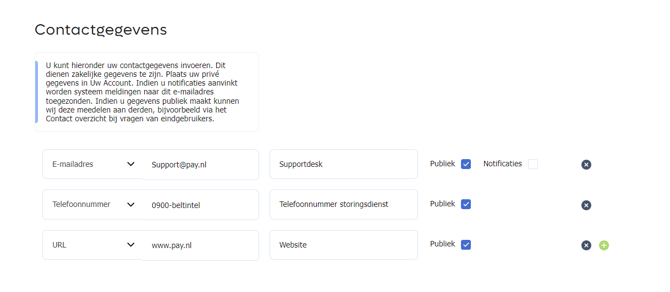
Sales Location
It is mandatory to set up contact details per sales location. We make this contact information about your company available when a consumer looks up their payment via https://www.pay.nl/betaald-via-pay. Billink also places this information on the customer invoice. You add this information by clicking on: Sales Locations -> Change -> General Information Image: Sales location contact details.
Company Details
Within the company details, you can fill in the business contact details at: Merchant -> Company Details https://my.pay.nl/my_merchant. We also make this contact information available when a consumer looks up their payment via https://www.pay.nl/betaald-via-pay. Billink also places this information on the customer invoice.
Public contact details
To manage the contact details, click the button Merchant -> Company Details. Now scroll down until you reach the "Contact Details" heading.
Here you can enter your contact details. These must be business details. Place your personal details in your private account. If you make your details public, we may share this information with third parties, for example via the contact overview when end users have questions.
To make your contact details available, you need to select the checkbox Public and save your changes. If you want to make your website address, contact phone number, and customer service email address publicly available, you need to add 3 lines in the menu. You can add a new line by clicking the + icon.
Important: It is mandatory to fill in these details when you offer Billink as a payment option. These are the details that Billink will also add to the invoice sent to the customer.
Billink Contact Details
Contact Billink's sales department if you have questions about Billink or how to offer this payment method in your webshop. For specific questions about an order placed via Billink, you can ask your customers to contact Billink's customer service.
| Contact | Merchants | Consumers |
| Phone number: | 010 - 414 14 73 | 010 - 414 14 73 |
| E-mail: | sales@billink.nl | info@billink.nl |
3. Limit and Credit Check
By default, you can process payments up to € 250,- (B2C/B2B) with the buy now, pay later payment method Billink. Depending on your product and the package you have with PAY., the limit can be increased for both B2C (to € 500,-) and B2B (to € 2.500,-). If you want to receive payments with a higher order amount (than € 2.500,-), this is (only) possible with your own Billink account. First contact Billink's sales department for this. You can find the contact details under 'contact details'.
Credit Check
Billink's credit check determines whether your customer is allowed to pay or not. If the customer is not creditworthy, we display a message stating that the customer is not eligible to pay with Billink.
Sales and Order Data
So-called sales and order data is needed to determine the creditworthiness of the payer. You must provide this (real) data when you want to start a Billink transaction via PAY.'s API. If you do not provide this data, or provide it incompletely, we will not display the payment option on the payment selection screen. You can find an overview of all mandatory variables for starting a Billink transaction in our Transaction::start (Invoice) API documentation.
Business Transactions (B2B)
On the back end, the Billink payment option consists of two routes: one for consumer payments and one for business payments. To start a business payment via Billink, the Chamber of Commerce (KVK) number is a mandatory variable. You can find this variable in the Enduser Company array of our API documentation. If the Company array does not contain a KVK number, the transaction is processed as a consumer transaction, provided the transaction amount does not exceed € 500,-. If the amount is higher than € 500,-, the payment is declined with the message "The transaction amount exceeds the allowed limit".
4. Payout
Billink transactions come in via Stichting Pay.nl and are paid out to you via a clearing process. There is no need to create an additional account or enter into an agreement with Billink.
Payout Speed
Curious about your payout speed? You can easily check this via Merchant » Rates.
5. Payment Screen
The Billink payment screen is responsive, accepts payments in euros, and is available in the following languages:
 Dutch
Dutch English
 French
Demo
- View the Billink payment screen
6. Payment Option Settings
Below you will find an overview of the payment settings for Billink and which packages these payment settings can be activated for.
| Settings | Pioneer | Professional | Business |
|---|---|---|---|
| Capture moment |  |
|
|
| Data share | ❌ | |
|
| Legend | Description |
|
Editable by the merchant. |
 |
Modifiable by PAY. or Billink. |
 |
Non-editable. |
Start Delay (Delayed Capturing)
If a transaction is accepted by Billink's credit check, the status changes to PAID. This is because PAY. sets the capturing setting to "Immediately after the credit check" by default for every new connection via PAY. If you do not want to capture automatically, please contact PAY.'s support desk or change this within the PAY. portal under: Sales Location -> Change -> Billink -> Settings
-
Immediately (after the credit check)
This is a default setting for new connections.
-
Via separate action (API or Admin)
Note: If a transaction is accepted by Billink's credit check, the status changes to AUTHORIZE. You must capture or void (cancel) transactions yourself, manually (or via our API). If you do not capture it, the authorization automatically expires after 14 days. If you want to deliver with a delay while guaranteeing that the transaction will be captured, request a change to one of the settings below. -
Automatically after 1 day
-
Automatically after 2 days
-
Automatically after 3 days
-
Automatically after … days
-
Automatically after 88 days
-
Automatically after 89 days
-
Automatically after 90 days
Datashare
Via the datashare, you share your customer's previous payment experiences with the payment option based on an anonymous indicator (-10 to +10), allowing you to reduce fraud and increase the acceptance ratio.
Within the Datashare there are three options:
- Do not share data
- SIMPLE (customerReference + Trust)
- FULL_EXTENDED (data from the related transactions).
7. Categories
You can use the Billink payment option if your webshop / sales location falls into one of the categories below.
| ID | Name |
|---|---|
| 73 | Car and motorcycle (parts) |
| 21 | Baby & Kids |
| 22 | Beauty & Wellness |
| 6 | Books, Magazines and DVDs |
| 49 | Gift cards, vouchers & mobile phone credit |
| 23 | Gifts & Cards |
| 52 | Consumer purchases (average order value less than €100) |
| 85 | Deal websites (daily offers and specials) |
| 43 | Animals & Accessories |
| 32 | Education & Training |
| 4 | Electronics |
| 46 | Only on the advice of PAY: special consumer products |
| 25 | Food & Drink |
| 26 | Fashion, Clothing & Shoes |
| 27 | Gadgets |
| 24 | Health |
| 61 | Traders in precious metals and diamonds |
| 30 | Watches & Jewelry |
| 29 | Home & Interior |
| 88 | Medical devices |
| 31 | Music, Movies & Games |
| 76 | Parking including reservation |
| 5 | Jewelry & Accessories |
| 34 | Toys |
| 35 | Sports & Leisure |
| 79 | Tobacco & E-cigarettes |
| 33 | Garden & Tools |
| 36 | Holidays & Travel |
| 37 | Department stores |
8. Images
If you want to display the Billink logo on your page, you can use the images below.
| PNG icon | SVG icon |
|---|---|
 |
 |
9. Terms and Conditions
| Document | Description |
|---|---|
| Terms of Use | The Billink user terms PDF |
| Terms of Use | The user terms of Billink URL |
| Billink terms and conditions | The Billink terms and conditions for merchants PDF |