
PAY. does not always know what your customer has purchased online. Due to privacy legislation, this is a matter between the customer (the payer) and you (the seller of the product or provider of the service).
If your customer has a complaint about your services, a question about their payment, or an issue regarding the delivery of goods, your company should be their first point of contact.
Because PAY.’s company name is displayed alongside your trade name on the payer’s bank statement, we regularly receive questions from consumers.
The payer (your customer) can contact us at info@pay.nl to request more information about their payment. The information we provide includes both the payment details and your contact information. It is therefore important to ensure that your contact details are accurate and up to date.
In this article, we explain how to manage your contact details and provide more information about the dispute process.
1. Looking Up a Payment
A consumer can request your company’s contact details by contacting info@pay.nl. We can only provide this information if you have made your contact details publicly available. If you have not, you may be at risk of receiving a dispute.
Adding Contact Details to the PAY. Admin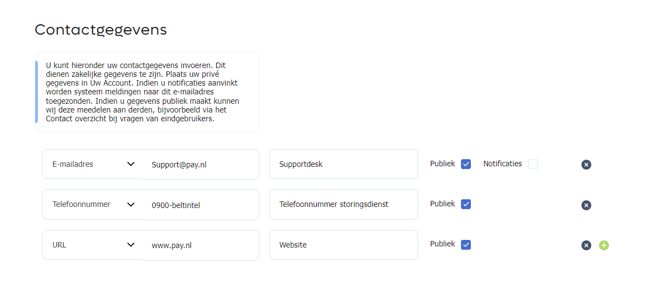
Your Contact Details in the Admin
To manage your contact details, click the Merchant button and then the Company Information tab. Now scroll down until you reach the "Contact details" heading.
Here you can enter your contact details. This must be business information. Place your personal details in your private account. If you make your details public, we may share this information with third parties, for example via the contact overview when end users have questions.
To make your contact details available, you must select the Public checkbox and save your change. If you want to make the website address, the contact phone number, and the email address of your customer service publicly available, you need to add 3 lines in the menu. You can add a new line by clicking the + icon.
2. What Is a Dispute?
Your customer can request the contact details of a webshop by contacting info@pay.nl. We will provide the information that you are legally required to display on your website, as well as the public contact details you have provided to us. If the customer is unable to reach you using this information, a dispute may be initiated.
If you do not respond to the customer or fail to resolve the issue to their satisfaction, PAY. offers the customer the option to initiate a dispute. Your customer can submit a complaint against your organization through PAY., for example if goods have not been delivered despite having been paid for.
Once your customer initiates a dispute, you will receive an email notification. The confirmation email will state that, as a PAY. merchant, you have 7 days to respond. If you do not respond to the dispute within 7 days, a PAY. employee will contact you. PAY. may also resolve the dispute by determining whether the complaint is justified.
If your organization receives a high number of disputes, PAY. may charge additional fees.
It can also happen that PAY. considers you unsuitable to continue working with us in the future (read our acceptance policy)
3. How Do I Handle a Dispute?
Disputes Overview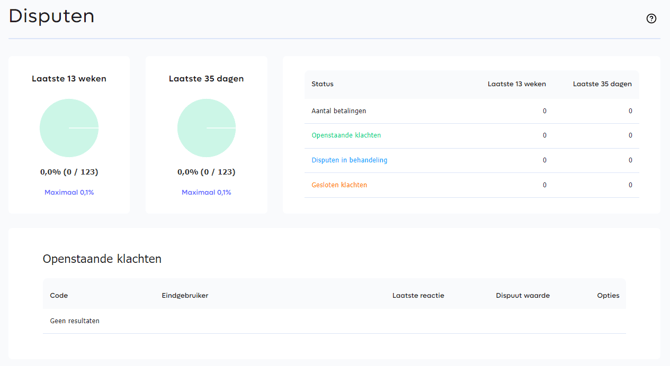
The Disputes Overview
If your customer has started a dispute, we inform you by email. In this automated notification, we let you know that a dispute is waiting in our PAY. Admin. You can find the pending dispute by logging in and then clicking the Transactionsand Disputes tabs. On the disputes page, we show 3 different overviews:
-
Open Disputes: If you have just received a notification that a dispute is waiting, click the View button in the Options
-
Disputes in Progress: If you have responded to a pending dispute and are in conversation with the customer, we show the dispute in this overview. You open the dispute by clicking the View button in the Options
-
Closed Disputes: If you have resolved the dispute, it is closed by you or the customer. Closed disputes remain available in the Closed Disputes overview. You open the dispute by clicking the View button in the
Managing Disputes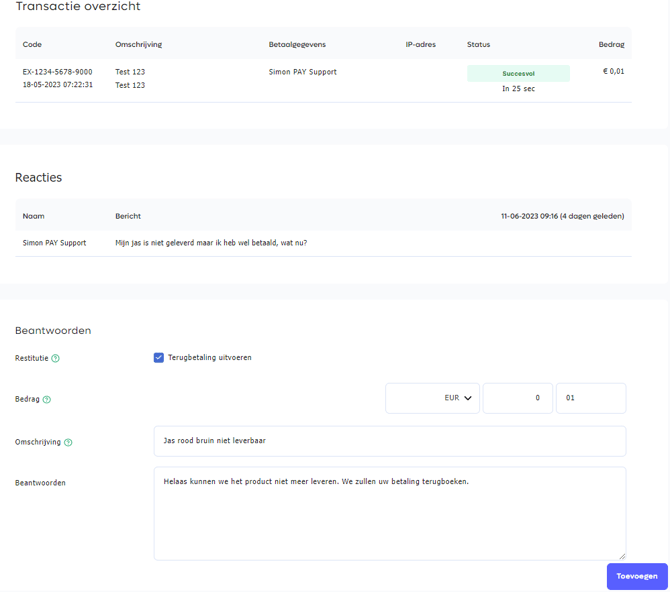
Taking the Dispute into Progress
If you have opened the dispute, we show several overviews with information. These are divided into:
-
Complaint: In this overview we show internal information such as a Complaint Code, End User Information, the Dispute Value and the status.
-
Transaction Overview: In the Transaction Overview, we show the transactions the dispute is about. By clicking the ID, the Transaction Information pop-up opens. This contains all transaction information. Naturally, you will find the same transaction information in our general transaction overviews.
-
Responses: This overview shows the conversation between you and the customer. If you have responded to the dispute and the customer replies to this message, we update the Responses overview.
-
Respond: As a Payment Service Provider, we basically expect you to resolve the dispute by communicating with the customer. This can be done via external communication channels or via this dispute. If you have resolved the problem via an external communication channel, respond to the dispute with a message. The customer receives this as proof, after which they can close the dispute.
-
-
Refund: This is not a required field. If there is no refund involved, leave this field empty. If the customer expects a refund, you can refund the transaction directly (partially) to the customer. Always enter a reference. This reference is used with the refund and, if possible, placed on the account holder's (customer's) statement.
-
Respond: You can use this field to communicate with the customer. Enter your message here and click Add. If you have resolved the dispute to your satisfaction and the customer agrees, you can ask the customer to close the dispute.
-
-
If you were the last to respond to a message and the customer no longer responds, after 7 days we will assume the dispute has been resolved. We will then close the dispute.
4. Reputation
Adding an Employee
Complaints are not pleasant for anyone. As an entrepreneur, you would rather focus on running your webshop as effectively as possible. Unfortunately, a dissatisfied customer can quickly leave a negative mark on your online image by sharing a bad review on Facebook, Trustpilot, or klacht.nl.
It can also happen that there is no complaint at all, but rather uncertainty on the customer's side. Sometimes a complaint is started after three days while the ordered product has a delivery time of 5 working days. In such cases, it is important that your webshop is easily reachable and communicates important information clearly.
A good reputation is essential to PAY. We like to work with merchants who have a good reputation (few complaints), so that your potential customer is more likely to complete a payment due to increased trust. That is why we also want to take work off your hands in this area.
Our dispute system allows your customers to contact you in a safe and user-friendly way. This can, for example, be for a complaint from your customer about products that were not delivered. By using the dispute system, a negative online review can be prevented.
5. Setting Up Notifications
Inviting an Employee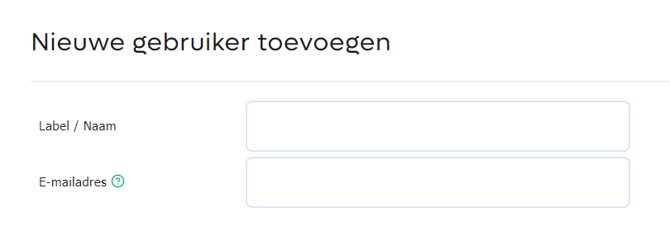
Setting Up Notifications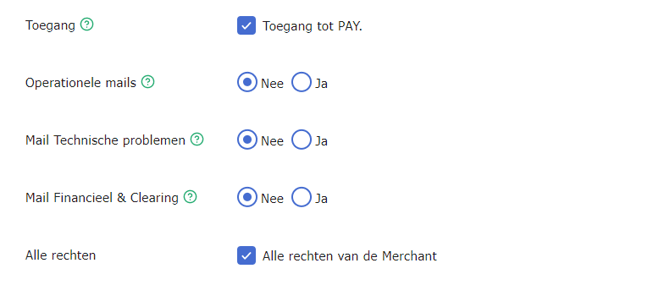
To stay informed about incoming complaints in the dispute system, you can turn on email notifications. Activate the option: Operational emails under the user, or via Transactions > Disputes > click Configuration and activate the notification types.
6. Arbitration
If you leave a dispute unanswered for an extended period, PAY. has the option to reverse the payment.
This can happen 7 days after the last response under the Pioneer and Professional packages. With every response from either party, this period is extended by 7 days.
If you use the Business package, your account manager can get in touch to support you in handling a dispute.