
1. Information
| Facts | |
|---|---|
| Category | Wallet payments |
| Market | Contactless payment with Google Wallet available in 25+ countries . Online payment with Google Wallet is possible in 50+ countries . |
| Share | Unknown |
| Currency | EUR |
| Payment | Not guaranteed, chargeback is possible |
| Refund | Multiple refunds per transaction possible up to 100% of the order amount |
| Clearing | via PAY. |
| Status |  Active Active |
| Expiration date | 4 hours |
| Payment option ID | 2558 |
| Package | Available in the Professional , Business , and Corporate packages |
| Surcharging | Permitted if an AMEX transaction is initiated. If a debit or credit card transaction is initiated, the charging of transaction fees is not permitted . |
Links to Google Wallet Documentation
Document
Google Wallet Web developer documentation
Google Wallet Web integration checklist
Google Pay Web Brand Guidelines
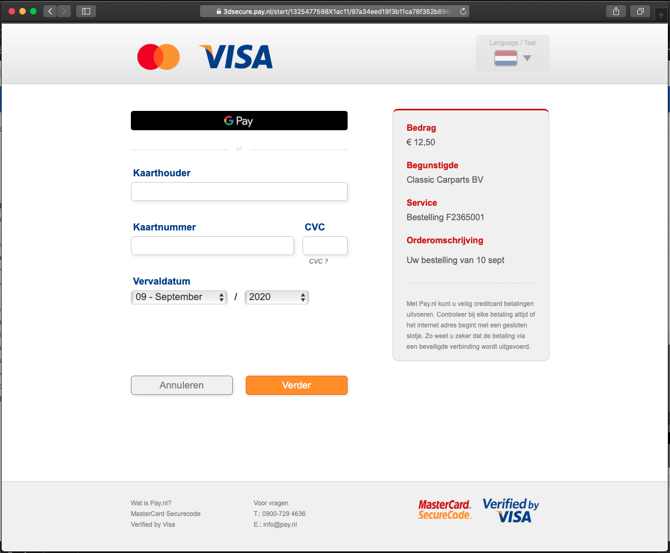
Google Wallet gives your customers the option to complete transactions via a linked Android device or a smartwatch. During a payment, the card details are retrieved from the Google Wallet account. PAY. then receives this data and processes the payment based on the linked payment method (Visa, Mastercard or PayPal).
2. Activation
Activate Google Wallet via the sales location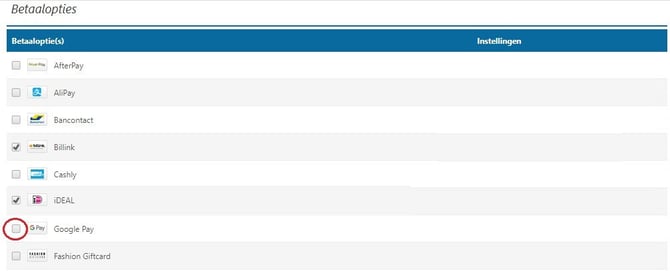
To make Google Wallet available for your webshop, follow these steps:
1. Activate package options
- In the Admin Panel, go to the tab Merchant » Company https://admin.pay.nl/my_merchant.
- Click the link ''Change package options''.
- In the pop-up, find the ''Credit cards'' option under the Professional package and make sure you check the checkbox.
- Click the ''Save'' button in the pop-up to apply the package changes.
2. Activate Google Wallet
Google Wallet is now available as a payment option within your webshop and/or sales locations. To activate the payment option, follow the steps below:
- In the Admin Panel, go to the tab Sales Locations https://admin.pay.nl/programs/programs.
- Select the sales location for which you want to enable Google Wallet by clicking the ''edit'' button in the options column.
- Check the checkbox for the Google Wallet payment option.
- Click the edit button at the bottom of the page.
3. Start boarding
For Google Wallet, the payment option is not immediately available. After activating Google Wallet in the sales location, a boarding process is started. Once this has been completed successfully, you will receive an email notification: Google Wallet is then ready for use.
In-store payments
If you use a PIN terminal from PAY. in your physical store, you don't need to do anything. Your customer can already pay with Google Wallet via their Android device.
Important: once the boarding for Google Wallet is complete, we will show the payment option (if activated) on the payment screen. Your customer can only pay with Google Wallet if the Google Wallet account is activated in your customer's Google account and if it is linked to a credit card or PayPal account.
3. Payout
E-commerce payments
You receive a Google Wallet e-commerce transaction via PAY. For each transaction, we check which payment method was used to complete it, namely: credit card (Visa/Mastercard) or PayPal. The rates and release periods of the relevant payment methods then apply.
In-store payments
Google Wallet payments made via Visa/Mastercard are not paid out to you via PAY. but via the supplier with whom you have a credit card PIN contract. Google Wallet PIN payments made with PayPal are paid out to you via PAY. as usual.
Payout speed
Curious about your payout speed? You can easily check this via Merchant » Rates.
4. Rates
The debit and credit card rates charged differ for in-store and e-commerce transactions.
| Payment option | Rate | Rate calculated via | |
|---|---|---|---|
| E-commerce payment | Maestro | % per transaction | PAY. |
| Visa / Mastercard | % per transaction | PAY. | |
| In-store payment | V PAY and Maestro | 0.0x per transaction | PAY. |
| Visa / Mastercard | % per transaction | Wordline |
5. Refunds
E-commerce payment
From the Admin Panel, you can refund an e-commerce Google Wallet payment to the customer. You can carry out multiple refunds per transaction. The maximum amount that can be refunded to an end user is 100% of the original order amount.
In-store payment
A PIN transaction via Google Wallet cannot be refunded directly. To do this, you need to request the account holder's IBAN number.
6. Categories
You can only use the Google Wallet payment option if your webshop / sales location provides digital services and falls within one of the categories below.
| ID | Name |
|---|---|
| 20 | Subscriptions (Member service) |
| 73 | Car & Motorcycle (parts) |
| 21 | Baby & Kids |
| 22 | Beauty & Wellness |
| 6 | Books, Magazines & DVDs |
| 23 | Gifts & Cards |
| 49 | Gift cards, vouchers & call credit |
| 52 | Consumer purchases (average order value less than €100) |
| 85 | Deal websites (daily offers and specials) |
| 43 | Animals and accessories |
| 11 | Digital services dating |
| 10 | Digital entertainment (Gaming & Mediums) |
| 55 | Digital products (software, downloads) |
| 32 | Education & Training |
| 4 | Electronics |
| 25 | Food & Drink |
| 70 | Invoicing |
| 26 | Fashion, Clothing & Shoes |
| 27 | Gadgets |
| 24 | Health |
| 61 | Traders in precious metals and diamonds |
| 30 | Watches & Jewelry |
| 29 | Home & Interior |
| 88 | Medical devices |
| 76 | Parking including reservation |
| 31 | Music, Movies & Games |
| 5 | Jewelry & Accessories |
| 34 | Toys |
| 35 | Sports & Leisure |
| 7 | Admission tickets (ticketing) |
| 33 | Garden & Tools |
| 36 | Holidays & Travel |
| 37 | Department stores |
| 9 | Business services |
Do you want to use Google Wallet? Then read the user policies as drawn up by Google.
7. Images
If you want to display the Google Pay logo on your page, you can use the images below.
| PNG icon | SVG icon |
|---|---|
 |
 |
Links to Google PAY Brand images
Document
Google Pay Android brand guidelines
Google Pay Web brand guidelines