



Example payment screen for the Auto & Motor category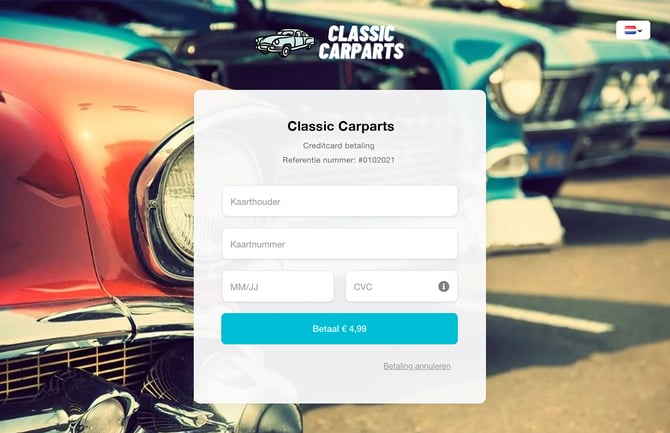
It is possible to personalize the payment screen with a:
- Logo
- Background
- The colors of your house style
Add Layout
To add your first layout, go to Manage > Sales Locations and click behind the sales location on Edit. Scroll to the function Look & Feel and click Add
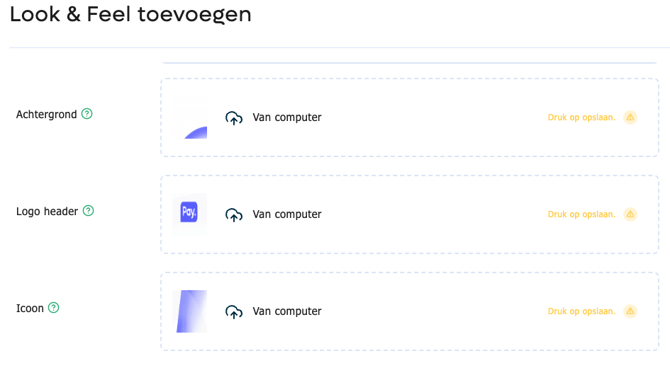
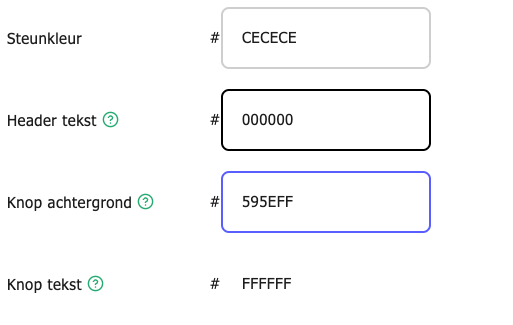
Fill in the style/color fields and upload a background and a logo (optional). Below is an explanation of each style field:
| Style | Explanation |
|---|---|
| Check status | Is being checked or Checked |
| Name | The name of the layout in the PAY. Admin. This is not shown on the payment screen. |
| Background | We recommend an image with a resolution of at least 800×600 pixels. The image will automatically adjust to the full width and height of the screen. |
| Header logo | We recommend a PNG file with a maximum resolution of 640×150 pixels and a transparent background. This image is placed over the background and above the map data input fields. |
| Icon | This style field does not apply to the credit card payment screen. |
| Support color | This style field does not apply to the credit card payment screen. |
| Header text | Color of the company name and description. This must contrast with the background. Enter the color code without # |
| Button background | The button colors must contrast with the color of the button text. Enter the color code without #. |
| Button text | The color of the text in the button(s) must contrast with the button background color. Enter the color code without #. |
Once you have finished checking your layout, click Save. If you want to see a preview of the page before saving, click Preview.
If you have added a new Look & Feel, the status is by default Being Reviewed. An employee from our Support Desk reviews the new Look & Feel within 1 business day. The status then changes to Reviewed. Once the layout is approved, you will receive a notification.