
The PAX CCV A35 is a compact Android payment terminal designed for use on the countertop. The terminal features a modern touchscreen and supports all common payment methods. Thanks to the clear interface and responsive touchscreen, the terminal is easy to use for both staff and customers.
Key features
-
Android payment terminal for countertop use
-
Compact design with bright touchscreen
-
Supports chip and contactless payments (NFC)
-
Fast and secure payment experience for customers
Frequently asked questions
How do I exit kiosk mode?
How do I perform a reinstallation?
How do I perform a Soft Reset?
How can I easily view the configuration of the CCV PAX A35?
✅ Tip:
A reinstallation via the CCV ISA app resolves most issues, because the terminal fully synchronizes with the server and retrieves all settings again.
How do I exit kiosk mode?
When the payment terminal is in kiosk mode only the payment screen is displayed. To reinstall the terminal, you must first exit this mode.
Step 1
-
Make sure the terminal is powered on and the welcome or payment screen is visible.
Step 2
-
Tap the top of the screen 5 times until the password screen appears.
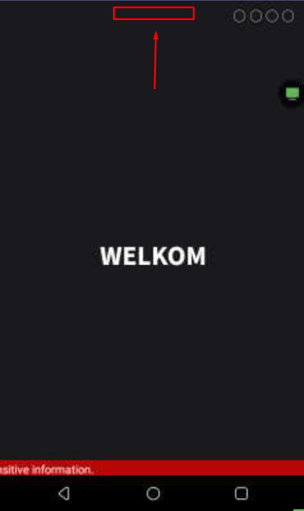
Tap 5x at the top of the screen.
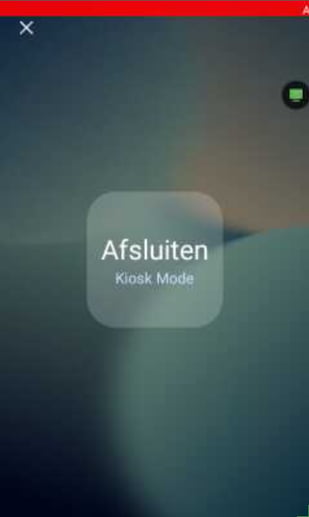
Press Exit Kiosk Mode.
Step 3
-
Enter the terminal password (default password: 166831)
Step 4
-
After entering the password, the Android application overview will open.
You now have access to the apps on the terminal.
How do I perform a reinstallation?
First exit kiosk mode using the instructions above.
Step 1
-
Find the CCV ISA app in the application overview.
-
Open the CCV ISA app.
Step 2
-
Start the reinstallation of the terminal.
Step 3
-
The terminal will automatically start retrieving settings and configuration.
During this process you may see messages such as:
-
Retrieving parameters
-
Downloading parameters
Allow the terminal to continue until the installation is complete.
What happens during the reinstallation?
During the reinstallation two important processes are automatically performed.
Contact TMS
A Contact TMS (Terminal Management System) ensures that the payment terminal retrieves the latest settings and configuration from the server.
This normally happens automatically every night but it also runs during the reinstallation via the CCV ISA app.
Contact Acquirer
A Contact Acquirer is the connection between the payment terminal and the transaction processor.
Through this connection, the terminal retrieves:
-
payment settings
-
contract information
-
transaction processing data
This ensures that payments are processed correctly.
Returning to the payment screen
Once the reinstallation is completed:
-
Close the CCV ISA app
-
Open the PayGear app
The terminal will return to the normal payment screen.
Please wait up to 3 minutes until the terminal becomes active again.
The payment terminal is now reinstalled and ready to use.
How do I perform a Soft Reset?
A Soft Reset restarts the payment terminal. This can easily resolve issues.
-
Press the red STOP button and the green OK button at the same time.
-
On the screen, press Restart.
- On the screen, press OK.
The terminal will now restart.
How can I easily view the configuration of the CCV PAX A35?
By tapping quickly 5 times in the center of the screen, you can view the configuration of the CCV PAX A35. This includes, among other things:
- TMS number
- Serial number
- IP configuration
- IP adress
Press STOP once to exit this screen.