
With the Look & Feel feature in Pay.Pos, you can customize the appearance of your terminal. Previously, it was only possible to change a logo and primary color via App2App (Inject). With Look & Feel, you can adjust the following elements through the Pay. Dashboard:
- Logo header (format: PNG/JPG/JPEG)
- Button background (HEX color)
- Button text (HEX color)
- Header text (HEX color)
- Terminal Portrait (format: PNG/JPG/JPEG/JSON-lottie)
- Terminal Landscape (format: PNG/JPG/JPEG/JSON-lottie)
How do I set up a Look & Feel?
- Go to the Pay. Dashboard
- Open the settings and locate your sales location
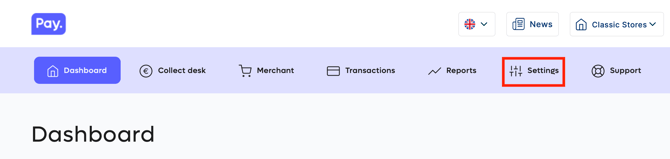
- Use the edit button to access your sales location's settings

- Under the "General information" tab, enable the Look & Feel option
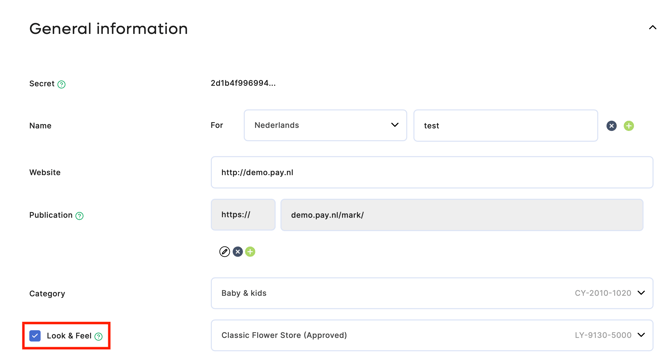
- Choose to create a new Look & Feel or modify an existing one
- Please note: the Look & Feel will only be synchronized to your terminals once it has been Verified
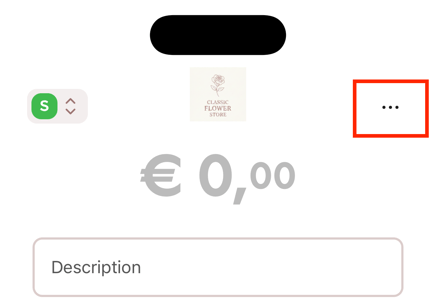
- Once your Look & Feel is verified, you can toggle this feature on or off in the terminal settings. To do this, open the Pay.Pos app on your terminal and use the three dots (...) to open the settings
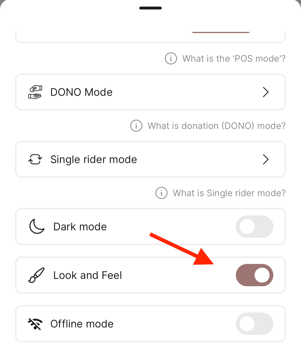
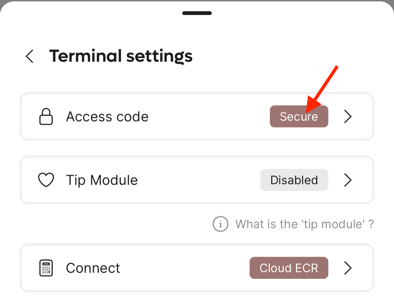
- Go to Terminal settings, enter your PIN code, and scroll down to activate (or deactivate) the Look & Feel
What exactly do I configure?
Logo header
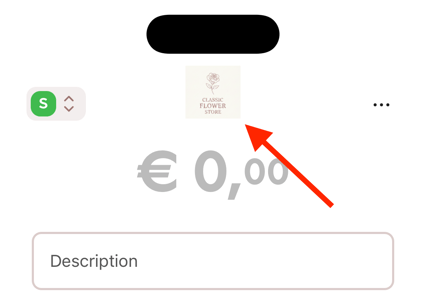
The logo header sets the logo at the top of the Pay.Pos app and the logo displayed when launching the app. The Pay.Pos app will scale the image to the center until it fits within a box of 200px wide or 50px high.
Button background
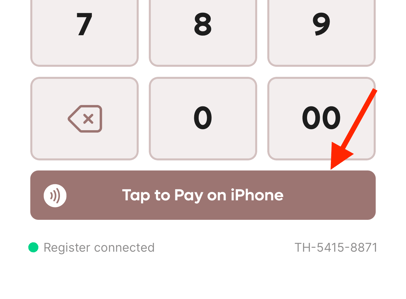
The button background allows you to set the accent color of the Pay.Pos app. This color is visible in several places: the "Tap to Pay on iPhone" button, the spinner during transaction processing, under the settings, and more.
Button text
The button text option lets you adjust the color of the text on the "button background." This ensures your text always remains readable against the accent color of the Pay.Pos app.
Header text
The header text ensures that the text with your business name remains visible against your Terminal portrait/landscape backgrounds.

Terminal portrait/landscape
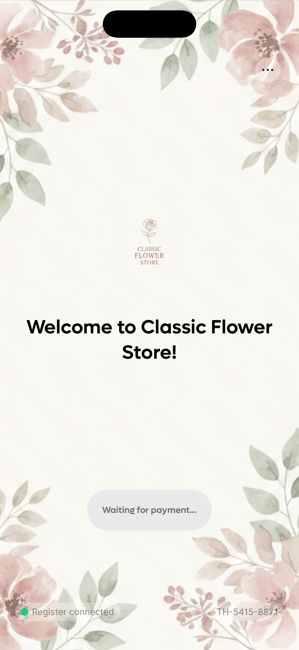
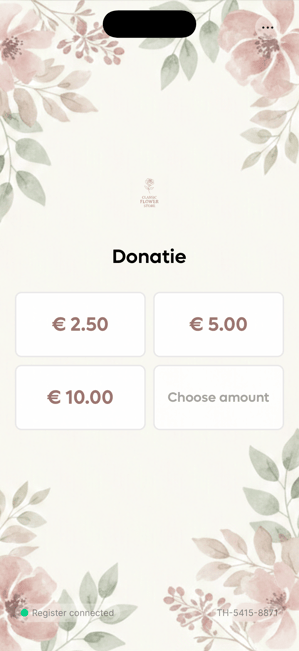
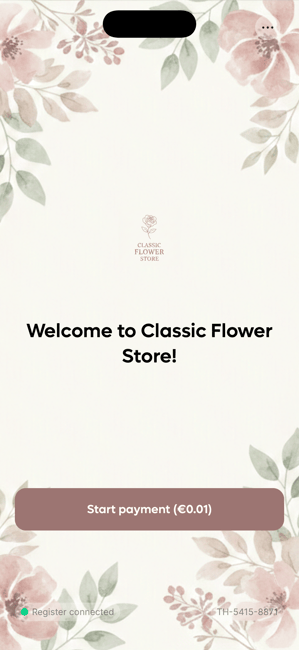
Pay.Pos has various screens, including the customer screen, single rider screen, and Donations. The background of these screens can be customized using a PNG/JPG/JPEG or a JSON Lottie file. Your media file will be scaled according to the size of the terminal's screen. With PAY, you need to provide two separate media files: one for portrait and one for landscape.
| Customer screen | Donation screen | Single rider screen |
|---|---|---|
 |
 |
 |