
The transaction details popup provides an overview of the payment, including its status, financial processing, customer information, and communication with external systems.
This article explains the different sections and how to interpret the available information.
In this article
- Find the transaction
- Transaction information
- Money flow involved
- End-user information
- Communication log
- Showing costs in the transaction overview
- Additional support
1. Find the transaction
To view the details of a transaction, follow these steps:
- Log in to the PAY. Dashboard.
- Navigate to Transactions.
- Search for the relevant transaction using the transaction number, reference, or transaction date.
- Click the magnifying glass icon under 'Options' to open the transaction details.
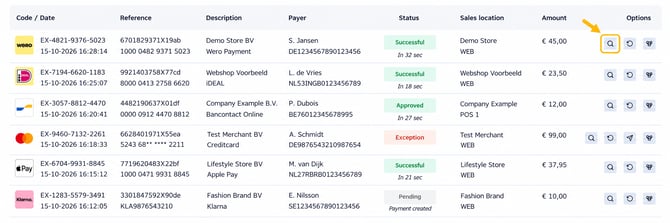
After opening the transaction, a popup will appear containing the available information about the payment.
2. Transaction information
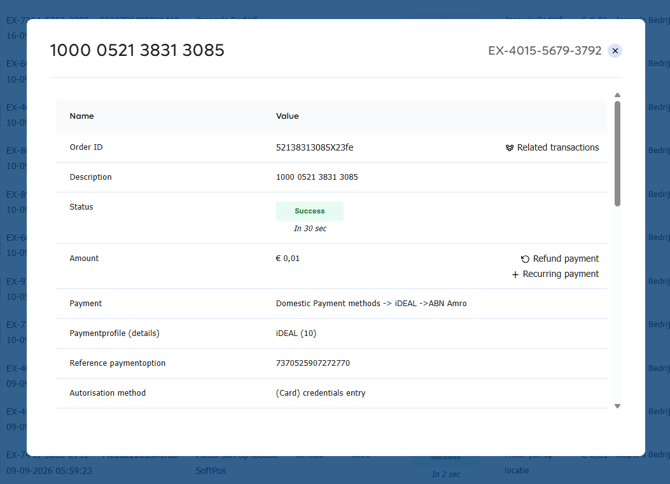
The first section provides an overview of the transaction and how the payment was processed.
Here, you will find the following information:
- Transaction number (EX-code): The unique transaction identifier assigned by PAY. You can use this number when contacting our support team.
- Order ID: The order identifier associated with the payment. This can also be used to identify the transaction through an API integration.
- Description: The description provided when the transaction was initiated. This field may be empty if no description was supplied.
- Status: The current status of the transaction, such as Successful, Pending, Cancelled, or Failed. The processing time may also be displayed.
- Amount: The amount and currency of the transaction.
- Payment: The payment method used by the customer, such as iDEAL, credit card, or an in-person card payment.
- Payment profile (details): The specific payment profile used to process the transaction, including its identifier.
- Payment option reference: A reference provided during payment processing. This can be useful when tracing a payment.
- Authorisation method: Indicates how the customer authorised or verified the payment.
- Latest processing action: Displays the most recent technical processing response, including an approval or error code when available.
Depending on the payment method and transaction status, additional information or actions may be available.
Understanding the transaction status
The transaction status indicates whether the payment was completed successfully or whether further processing is required.
For example:
- Successful: The payment was completed successfully.
- Pending: The payment is still being processed, or its final status is not yet known.
- Cancelled: The payment was cancelled.
- Expired: The payment was not completed within the available payment period.
- Failed: The payment could not be completed successfully.
For certain payment methods, a transaction may also be Authorised. This means the amount has been reserved but has not yet been captured.
Understanding the authorisation method
The authorisation method provides additional information about how the customer authorised the payment.
For example:
NFC without PIN
This indicates that the customer completed a contactless payment without entering a PIN code.
Other authorisation methods may be displayed depending on the payment method and the verification required.
Understanding the latest processing action
The latest processing action provides additional insight into the most recent step in the payment processing flow.
For example:
00 - approved (Auth: F43677)
This indicates that the payment was approved. When available, an authorisation reference is also displayed.
For unsuccessful payments, an error code and description may be available.
For example:
5C - Transaction not supported/blocked by issuer
This message indicates that the card-issuing bank does not support or has blocked the transaction.
The displayed response can help identify why a payment was unsuccessful but does not always provide the complete underlying reason.
Important: The latest processing action is a technical response and does not necessarily reflect the current payment status. Always check the transaction status as well.
Additional transaction options
Depending on the transaction, additional options may be available.
For example, the Refund payment option allows you to refund a successful payment to the customer.
For certain authorised transactions, you may also have the option to capture the reserved amount or release the reservation.
The available options depend on the payment method, transaction status, and your account settings.
3. Money flow involved
A successful payment does not necessarily mean that the funds have already been paid out to your bank account.
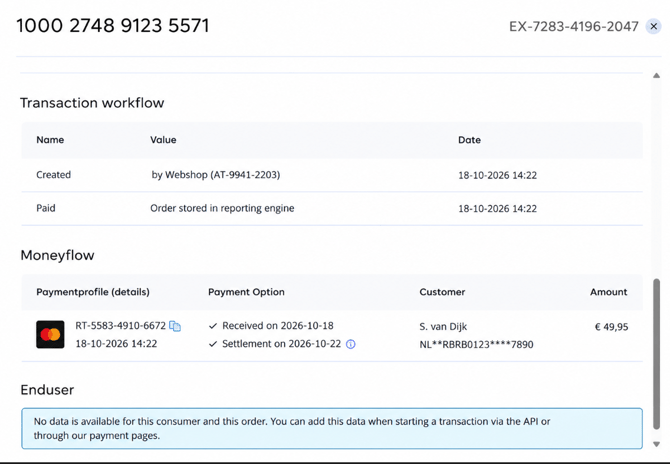
Within the Money flow involved section, you can check whether PAY. has received the funds from the payment provider and whether they have been released for payout.
Understanding the available information
This section contains the following information:
- Payment profile (details): Displays the payment method, payment reference, and processing date.
- Payment option: Shows whether the funds have been received and released for payout.
- Customer: Displays available payment-related information, such as a masked card number.
- Amount: The amount associated with the payment.
If a transaction consists of multiple payments, such as a gift card combined with another payment method, multiple entries may be displayed.
Understanding the financial statuses
There are three important stages in the financial processing of a transaction.
1. Received
For example:
Received on 2026-10-15
This indicates that PAY. has received the funds from the payment provider.
2. Released
For example:
Settlement on 2026-10-15
This indicates that the funds have been released and can be included in an upcoming payout.
3. Paid out
Once the funds have been included in a clearing, the transaction has been paid out.
When available, you can view the clearing reference associated with the payout. This reference can be used to find the corresponding clearing in your clearing history.
Why are the funds not yet available?
The time required to receive and release funds depends on the payment method and the applicable payout conditions.
For example, funds from certain payment methods may take longer to become available than others.
Once the funds have been released, the actual payout takes place according to your configured clearing frequency.
Refunds
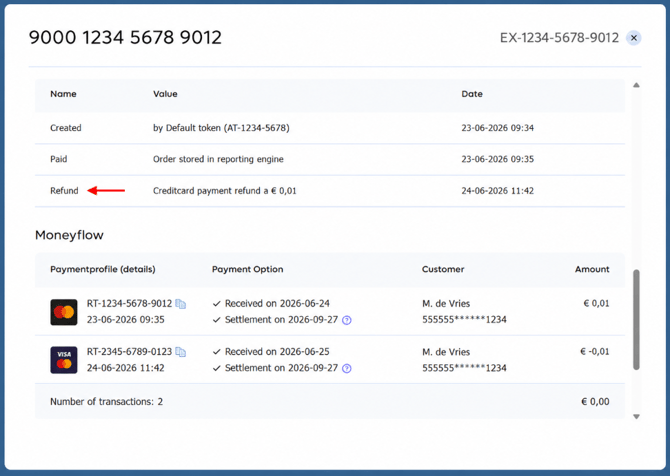
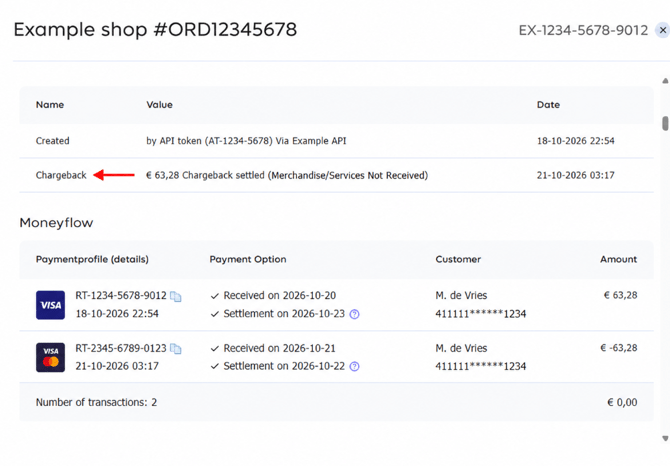
Has a payment been refunded? The transaction overview shows a Refund entry, including the refunded amount and the date and time it was processed. Under Related money flow, you can see the original payment and the refund as a negative amount.
Chargeback
Has a chargeback been processed? The Chargeback entry shows the deducted amount, the reason, and the date and time it was processed. Under Related money flow, you can see the original payment and the amount deducted due to the chargeback.
Important: A transaction with the status Successful is not necessarily paid out. The funds may still be awaiting receipt, release, or the next clearing.
For more information about payout processing, see our documentation on Clearing and Payouts.
4. End-user information
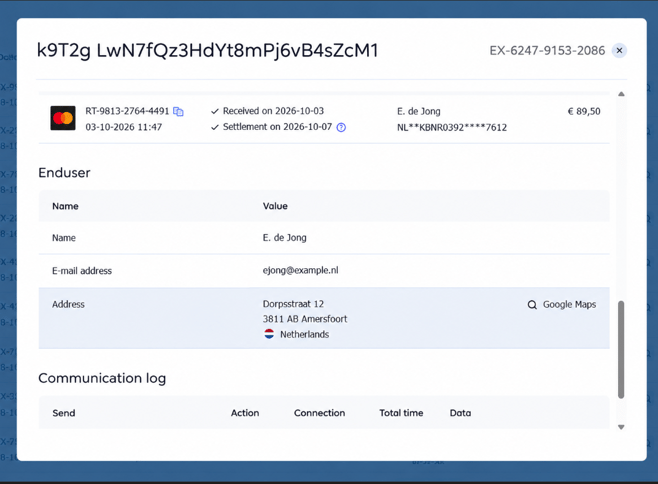
The End user section contains information about the customer associated with the transaction.
Depending on the information provided when the payment was initiated, this may include:
- Customer name
- Email address
- Billing address
- Shipping address
The available information depends on the payment method and the integration used.
Why is no customer information displayed?
If no customer information is available, the following message may appear:
There is no information known about this consumer and this order.
This means that no additional customer information was provided or is available for the transaction.
Customer information can be supplied when initiating a payment through the PAY. API or through a supported payment integration.
Why is this information relevant?
Providing customer information can contribute to the risk analysis performed during payment processing.
For example, billing and shipping addresses may provide additional information when assessing potential payment risks.
If your integration supports sending customer information, we recommend providing the relevant details when initiating the transaction.
Depending on your integration, a separate Products section may also be displayed if product information was provided.
5. Communication log
When a transaction changes status, PAY. can send a notification to your webshop or external system.
These notifications are also known as Exchange calls, IPNs, or webhooks.
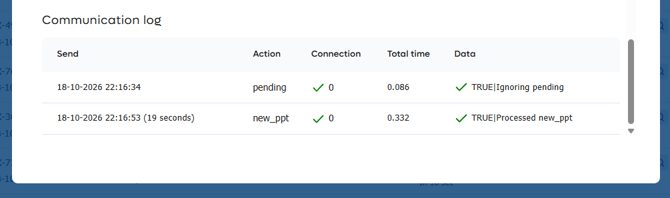
Within the Communication log, you can check whether a notification was sent and how the receiving system responded.
This information can be particularly useful when a payment is marked as successful in PAY., but the order status in your webshop has not been updated.
Understanding the communication log
The communication log contains the following information:
- Sent: The date and time when the notification was sent.
- Action: The event or action associated with the notification.
- Connection: Displays the time required to establish the connection.
- Total time: The total time required to complete the communication request.
- Data: Displays the response received from the external system.
What does a successful communication look like?
For example:
Action: new_ppt
Data: TRUE|gelukt
In this example, PAY. sent a notification indicating that a payment was completed successfully.
The receiving system returned a successful acknowledgement.
For traditional Exchange notifications, a TRUE response indicates that the receiving system has acknowledged the notification.
What if the communication was unsuccessful?
If the receiving system does not respond correctly, the notification may be marked as unsuccessful.Depending on the configured settings, PAY. may attempt to deliver the notification again.
This is particularly relevant when your webshop or external system has not updated the order status.
For example:
A customer completes a payment successfully, and the transaction receives the status Successful in PAY.
However, the order in your webshop remains Pending.
By checking the communication log, you can determine whether PAY. sent the notification and whether your system acknowledged it.
If the notification was successfully acknowledged, further investigation may be required within your own integration.
If the notification was unsuccessful, you can investigate the returned response or check whether your receiving system was available at the time.
Important: A successful payment and a successful Exchange notification are two separate processes. A successful acknowledgement does not necessarily confirm that all subsequent actions within your own system were completed correctly.
For more information about Exchange notifications and retry mechanisms, see our documentation on Exchange Notifications.
6. Showing costs in the transaction overview
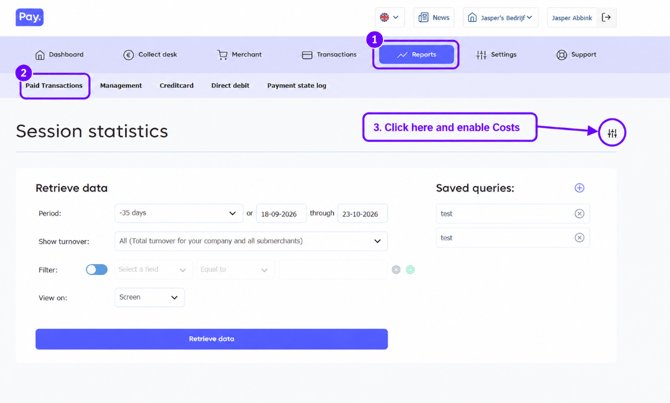
In my.pay.nl, go to Reports → Paid Transactions. Click the sliders icon in the top-right corner, next to the Session statistics heading. Enable Costs to display the costs in the overview.
What is the difference between Transactions and Paid Transactions?
Under Transactions → Overview, you’ll find all payment attempts, including payments that are still pending, have been cancelled or have failed. Use this overview to look up a payment and view its status and transaction details.
Under Reports → Paid Transactions, you’ll find successful payments. Use this overview to review your turnover and create financial reports. Click the sliders icon in the top-right corner to enable Costs.
Please note: a paid transaction has not necessarily been paid out to you yet. The payout timing depends on the payment method and the applicable payout schedule.
7. Additional support
Are you unable to determine why a transaction was unsuccessful, why funds have not yet been paid out, or whether a notification was successfully delivered?
Please contact our support team: support@pay.nl
Make sure to include the transaction number (EX-code) or Order ID, together with the relevant information from the transaction details.
Depending on your question, the transaction status, latest processing action, money flow information, or communication log can help us investigate the transaction more effectively.