
The CCV IM30 is a robust Android payment terminal specially designed for unattended payment solutions. The terminal is designed for integration into kiosks, vending machines, parking solutions, EV chargers, and other self-service applications. Thanks to its bright touchscreen, support for all common payment methods, and rugged housing, the IM30 delivers a fast and secure payment experience, even in heavily used environments.
Key Features
- Android payment terminal for unattended payment solutions
- Suitable for integration into kiosks, vending machines, and self-service solutions
- Bright touchscreen for easy operation
- Supports chip and contactless payments (NFC)
- Rugged housing for intensive daily use
- Fast and secure payment experience
Frequently Asked Questions
How Do I Exit Kiosk Mode?
How Do I Perform a Reinstallation?
How Can I Easily View the Configuration of the CCV IM30?
✅ Tip
A reinstallation via the CCV ISA app resolves many issues. During the reinstallation, the IM30 syncs with the server again, and the software, settings, and configuration are retrieved again.
How Do I Exit Kiosk Mode?
When the payment terminal is in kiosk mode, only the payment screen is displayed. To reinstall the terminal, you must first exit this mode.
Step 1
-
Make sure the terminal is turned on and the welcome or payment screen is visible.
Step 2
-
Tap multiple times (5x) at the top of the screen until the password screen appears.
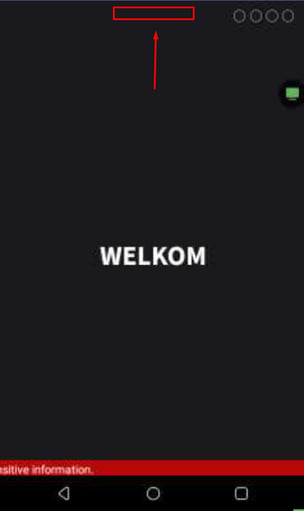
Tap 5x at the Top
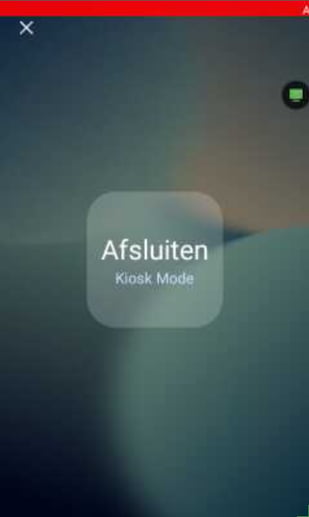
Press Exit Kiosk Mode
Step 3
-
Enter the password for the terminal (default password: 166831).
Step 4
-
After entering the password, the Android application overview of the terminal opens.
You now have access to the apps on the terminal.
How Do I Perform a Reinstallation?
First exit kiosk mode using the instructions above.
Step 1
-
In the application overview, look for the app CCV ISA.
-
Open the CCV ISA app.
Step 2
-
Start the reinstallation of the terminal. Press the green button RE-INSTALL.
Step 3
-
The terminal automatically starts retrieving settings and configuration.
During this process, you will see messages such as:
-
Retrieving parameters
-
Downloading parameters
Let the terminal fully continue until the installation is complete.
What Happens During the Reinstallation?
During the reinstallation, two important processes are automatically carried out.
Contact TMS
A Contact TMS (Terminal Management System) ensures that the payment terminal retrieves the latest settings, software, and configurations from the server.
This normally happens automatically every night, but also during reinstallation via the CCV ISA app.
Contact Acquirer
A Contact Acquirer is the connection between the payment terminal and the transaction processor.
Through this connection, the terminal retrieves:
-
payment settings
-
contract details
-
transaction processing information
so that payments can be processed correctly.
Back to the Payment Screen
When the reinstallation is complete:
-
Close the CCV ISA app.
-
Open the PayGear app.
-
The terminal returns to the normal payment screen. Wait up to 3 minutes until the terminal is active again.
The payment terminal is now reinstalled and ready for use.
How Can I Easily View the Configuration of the CCV IM30?
By quickly tapping 5 times in the middle of the screen, you will see the configuration of the CCV IM30. This includes, among other things:
- TMS number
- Serial number
- IP config
- IP address
Press once on STOP to exit this screen.