
1. Informatie
| Facts | |
|---|---|
| Category | Wallet payments |
| Market | Worldwide |
| Share | 169 million PayPal accounts |
| Currency | 26 different currencies |
| Payment | Not guaranteed, chargeback & rollback possible in case of fraud reports |
| Refund | Multiple refunds per transaction possible up to 100% of the order amount. Maximum refund period: 180 days after the start of the transaction. |
| Clearing | via PayPal (with your own PayPal account) or via Pay with the Full-service model |
| Status | ✔️Active |
| Expiration date | 4 hours |
| Payment option ID | 138 |
| Package | Available in the Pioneer , Professional , Business , and Corporate packages. |
| Surcharging | Not allowed |
Worldwide, PayPal is a popular and widely used method of online payment. Through a free and personal account, your customers can pay for their online purchases directly online via credit card, bank transfer, or their PayPal balance.
With over 169 million users, PayPal is a payment method that should not be missing from your webshop's checkout.
2. Activate PayPal
Add new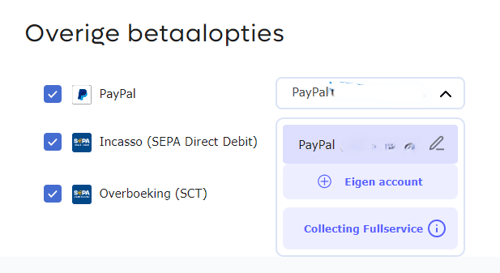
Log in to your PayPal account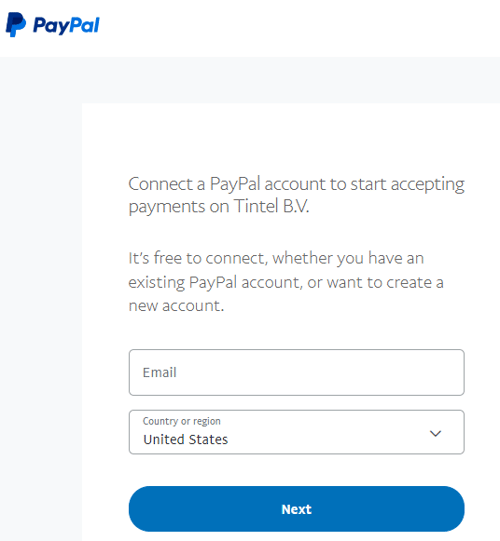
Go back to your Sales Location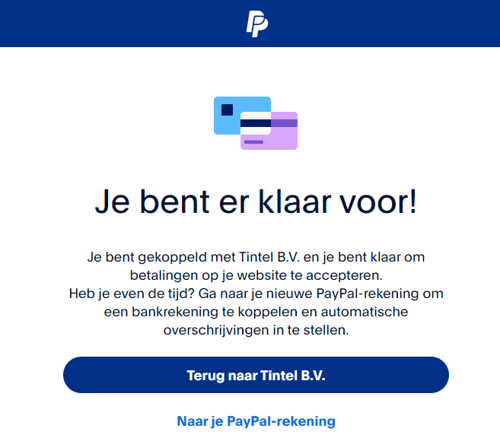
PayPal can be used with your own PayPal account, where money is transferred directly from the consumer to your own account, or with our full-service model, where no business PayPal account is required and the money is paid out via PayPal.
To use your own PayPal account, you must authorize PayPal to link your account to PAY. You can easily do this via my.pay.nl. To do this, create a new account in the Sales Location.
Follow the steps below to authorize PayPal and link your account to PAY.
- Go to the Sales Locations tab and scroll to the PayPal payment option.
- Activate the payment option if you do not use PayPal yet and/or click Add
- Enter your email address in the PayPal popup and click Next.
- Enter your password and click Log in
- If you have enabled 2-step verification on your account, enter the verification number you received via SMS or Authenticate App.
- Authorize PayPal to link your account to Tintel BV
- Click on Back to Tintel BV to close
Choose the collecting full-service option to process payments via Pay. There is no need to link a PayPal account. This is only possible via my.pay.nl
PLEASE NOTE: PayPal Full Service is only available for NL and BE merchants.
Now complete the account creation by configuring the Payment option settings and finally clicking on Change .
If you have multiple sales locations, you can easily select the new account from the payment option dropdown. Don't forget to save this change.
3. Cash flow
PAY. plays a distributing role in the transaction process. You will therefore receive the funds in your own PayPal account. The costs for financial processing are deducted from this. We only invoice you for the fee for routing the transactions.
PayPal account
To use the PayPal payment method, you must have a PayPal account . PayPal provides you with a standard account with standard rates. If you process more than €100,000 in PayPal payments per month and have the Business package, your account manager can contact PayPal to obtain a personal offer directly.
Payout speed
Curious about your payout speed? You can easily check this via Merchant » Rates.
4. Payment settings
Seller protection
PayPal is beneficial for your customers because the payment method offers purchase protection, thereby protecting your customers against scams and fraud. These funds are deducted from the PayPal account. To protect your customers against these costs, PayPal also offers Seller Protection.
Unauthorized transaction
A customer requests a refund and has stated that the purchase of an item or service was made without his or her consent. If the transaction qualifies for this, you can recover the full amount of the payment with our Seller Protection.
Item not received
A customer pays for an item and claims that it was never received, subsequently requesting a refund for the physical item or service. If the transaction qualifies, you can recover the full amount of the payment with our Seller Protection.
PAY. has no influence on PayPal's "fraud investigations". If they initiate an investigation, in most cases the value of the payment is first blocked on your customer's PayPal account. The funds are only made available again after the investigation.
Set up PayPal
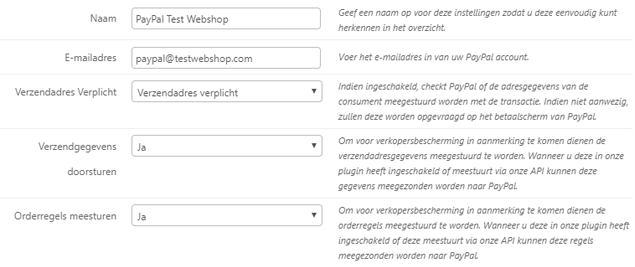
Activate
Seller protection is automatically active if you include the correct details (shipping address and order lines) when creating a transaction within PAY. and at your sales locations with the payment option, provided PayPal also gives us permission to forward this data to PayPal. You set this up as follows:
-
In the Admin Panel, go to the Sales Locations tab https://admin.pay.nl/programs/programs .
-
Click on the "Change" link for the relevant sales location in the options column.
-
Under "Payment options", check PayPal. An option to create a PayPal setting will appear on the right. Click on "Add new".
-
Set the fields below as follows Image: Setting up PayPal :
- Shipping address required: Shipping address required
- Forward shipping address: Yes
- Include order lines: Yes -
Click the "Change" button and then click the "Change" button at the bottom of the page again to save the settings. From now on, you are using PayPal Seller Protection.
5. Credentials
PayPal uses various credentials.
| Value | Simple explanation | Can it be exposed? |
| Client ID | Identifies your application/integration to PayPal. Think of it as the application's username/identifier. | Yes, generally. It is designed to be used in client-side integrations such as the PayPal JavaScript SDK. |
| Client secret | A private credential for your application. It is used together with the client ID to obtain an OAuth access token and authenticate API calls. | No. Keep it secret. It should only exist on your server/backend or in a secure secrets store. PayPal explicitly says to keep it safe and not share it. |
| Merchant ID | Identifies the PayPal merchant/account that receives the payment. In a marketplace/PSP setup, this can identify the seller on whose behalf you're processing the transaction. | Yes, generally. A merchant ID is an identifier, not an authentication secret. PayPal uses it, for example, as the merchant-id parameter in the JavaScript SDK. |
6. Refunds
''Issue a refund for a specific transaction''
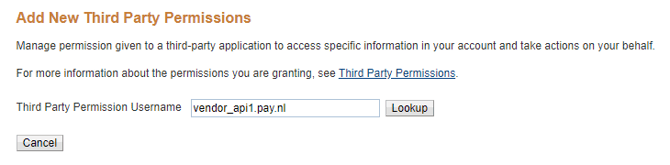
It is possible to refund a PayPal transaction directly to your customer from the PAY. Admin Panel. However, you need to set this up once in your PayPal environment. Follow the steps below to do so:
- Click on this link: https://www.paypal.com/businessmanage/credentials/apiAccess .
- Click on the link ''Grant API permission''.
- Enter the following value for "Username third-party access rights" and click the lookup button. Image
: "Username third-party access rights" - Select the access right "Issue a refund for a specific transaction" and click the "add" button.
Image: "Issue a refund for a specific transaction" - You can refund PayPal transactions created from now on via the Admin Panel using PAY.
External restitution
Starting with the Professional package , it is also possible to create an external refund . The external refund is not linked to the original transaction but appears as a separate refund in the Admin Panel. Naturally, you will need to have the IBAN number and the name of the account holder.
The maximum refund period is 180 days after initiating a PayPal transaction.
Transaction received in offered currency

Add a currency
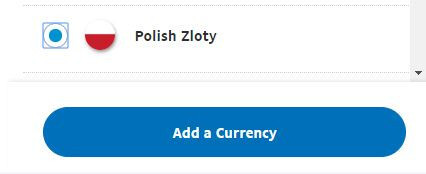
Add the currency Złoty
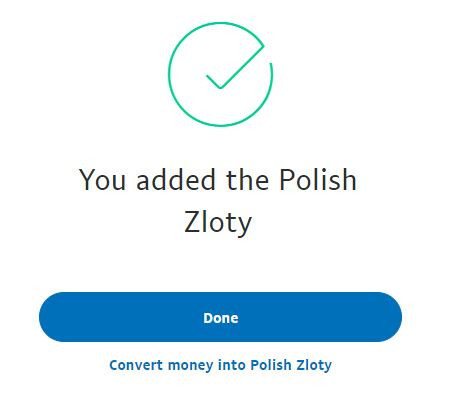
Zloty added as a payment option
The current balance of the payment option is shown in the overview.

Via PAY., you can submit transactions in a different currency to PayPal. To do this, we make the paymentOption feature 'Receive transaction in submitted currency' available.
You can find this setting in the Sales Location section of the PAY. Admin Panel. To find this feature, scroll to the PayPal payment option in the properties of your Sales Location . Click Edit next to the payment option to view the overview of PayPal settings. On the bottom line, you will see the paymentOption setting Receive transaction in offered currency . This setting ensures that when the transaction is offered in a currency other than Euro, it is received in the currency offered by PayPal.
To receive funds in another currency, you need an account in that same currency within your PayPal account. If you only have a Euro account, a conversion takes place from, for example, GBP (Pound) to Euro (EUR), which can lead to all kinds of annoying problems. PayPal also charges a fee for the conversion from GBP to EUR.
Adding extra currency to your PayPal account
Using the steps below, we explain how to add extra accounts in other currencies to your PayPal account.
- Click on Money in the menu bar
- Click on Add a currency
- Select a currency from the list, Click on Add a currency
- Wait until the currency has been successfully added and click Done.
- You can now receive funds in another currency.
7. Payment screen
The PayPal payment screen is responsive, accepts payments in various currencies, and is available in the following languages:
 Dutch
Dutch English
 German
 French
 Italian
Demo
- View the PayPal payment screen
8. Categories
You can use the PayPal payment option if your webshop / sales location falls into one of the categories below.
| ID | Name |
|---|---|
| 20 | Subscriptions (member service) |
| 73 | Car and motorcycle (parts) |
| 21 | Baby & kids |
| 22 | Beauty and wellness |
| 6 | Books, Magazines and DVDs |
| 23 | Gifts & cards |
| 49 | Gift cards, vouchers, call credit |
| 52 | Consumer purchases (average order value) |
| 64 | Crowdfunding, peer-to-peer platforms for lending or paying |
| 40 | Crypto Currency |
| 43 | Animals and accessories |
| 11 | Digital services dating |
| 1 | Digital entertainment (Adults) |
| 10 | Digital entertainment (Gaming & Mediums) |
| 55 | Digital products (software, downloads) |
| 85 | Deal websites (daily offers and specials) |
| 24 | Health |
| 32 | Education and training |
| 4 | Electronics |
| 46 | Only on the advice of PAY: Special consumer products |
| 25 | Food & Drink |
| 26 | Fashion, Clothing & Shoes |
| 27 | Gadgets |
| 82 | Mind-altering products (legal) |
| 28 | Charities (ANBI status) |
| 61 | Traders in precious metals and diamonds |
| 30 | Watches & Jewelry |
| 29 | Home & Interior |
| 31 | Music, Movies & Games |
| 76 | Reservations included |
| 5 | Jewelry & accessories |
| 34 | Toys |
| 35 | Sports and leisure |
| 79 | Tobacco & E-cigarettes |
| 7 | Admission tickets (ticketing) |
| 33 | Garden & tools |
| 36 | Holidays and travel |
| 37 | Department stores |
| 9 | Business services |
9. Images
If you want to display the PayPal logo on your page, you can use the images below.
| PNG icoon | SVG icoon |
|---|---|
 |
 |
10. Video
How to sell online?
Instructievideo over het PayPal transactieproces.