
Reconciliation is a term that originated in the world of bookkeeping and is a corruption of the Dutch word "afvinken" (checking off) — "afpunten" in Flemish. It refers to the processing of payments. Reconciliation is the linking of a payment to an open item.
After reconciling, you have processed an open invoice. The open invoice then disappears from your bookkeeping, and your bookkeeping is updated accordingly. By reconciling regularly, you keep your financial records up to date, giving you access to current figures. The advantage of up-to-date bookkeeping is that you can make business-critical decisions based on current figures.
Reconciliation timing
You can export payments via PAY. to update your bookkeeping software. Before you start reconciling, you need to determine when to reconcile. There are three points at which you can do this:
- Based on the payout to your IBAN account
- Based on paid transactions on a daily, weekly, or monthly basis
- Based on the exchange URL
Per payout to your IBAN account
You receive one or more batch payments per day from PAY. Before you can reconcile the individual items in your bookkeeping, these payments need to be split up. After all, you need to know which payments are included in the batch. With each payout, you receive a transaction detail file from us — in MT940, CSV, or another format. By posting the received batch payment to a suspense account and linking it to the detail file, you can connect these two payments to each other. This way, when the payment is received, you reconcile all the items involved. The downside of this is that your bookkeeping only marks the items as settled once PAY. has actually paid the amount through to you. Certain payment options are paid through with a delay. This means that an invoice in your bookkeeping paid via Riverty will be marked as unpaid until the funds have actually been paid through to you.
Paid transactions on a daily, weekly, or monthly basis
If a payment is successful, it is placed in your account balance. You can compare this to the balance on a bank account. At the moment of crediting, you become the owner of the funds and the funds can be considered 'received'. At that point, you can therefore also mark your items (receivables/invoices) as paid (reconcile) in your bookkeeping system. The advantage of this is that you have immediate insight into paid invoices, even if you have not yet received the actual payout to your account.
Exchange URL
Updating your bookkeeping system based on the exchange is the least commonly used method. If an exchange request fails, you can apply a retry schedule, but logging actions are limited to 35 days. PAY. reports every status change to your exchange URL. If a payment succeeds, is reversed, or has another status change, PAY. will report this. It is possible to specify multiple exchange URLs for your sales location. This way, in addition to changing the order status, your bookkeeping system can also be updated directly.
Manually paid transactions
If you want to manually export the payments for a specific day or period, you can do this via the statistics using the 'download CSV' display method.
For more information, see Statistics » Paid transactions.
Manually per clearing
Financial insight
Maximum financial insight with PAY.:
- Financial specifications in any format you want
- Clear invoices
- Easy reconciliation of transactions.
It is possible to export invoices, clearings, and transaction specifications to a CSV, MT940, or PDF format so you can import them into your favorite bookkeeping software. By default, you can export the data for one payout. From the Professional package onward, however, it is possible to generate an export for a specific period.
The generated export is a zip file with the following 4 folders:
- Transactions
This folder contains a CSV, PDF, and MT940 file containing all the specifications of the transactions paid out to you through the clearing. - Clearings
This folder contains a PDF file with the extensions. - Invoices
This folder contains a PDF file with the invoices. - Summary
This folder contains several PDFs with management information: revenue per day and payment option, or per revenue group and vice versa. The content depends on the settings within PAY.
 View all payouts
 Generate export
 Download export
Exporting a clearing
To export a clearing, follow these steps:
- In the Admin Panel, go to the Merchant » Invoices https://admin.pay.nl/balance
- Under 'Payment History' you will see a table with the last 5 payouts. If you want to export an earlier payout, click the 'View all' link Image: View all payouts
- Select the payout for which you want to receive the export. Then click the 'Export' link in the options column of this payout Image: Generate export
- A zip file is now being generated. This may take a few moments. Once the export file is ready, you can download it via the options column Image: Download export
Activating export of multiple payouts

Export multiple clearings option
From the Professional package onward, it is possible to export multiple clearings at once. You then receive a single MT940, PDF, and CSV file with all the data for a selected period. The 'export multiple clearings' option is not activated by default. You can activate this option via the 'Change package options' link on the Merchant » Company https://admin.pay.nl/my_merchant. Make sure that in the pop-up, the 'Export multiple clearings' option Image: Activating export of multiple payouts is checked.
Need help activating this?
More information about activating a package option can be found here. Do you want to use the 'multiple account numbers' option, but your current package doesn't support it? Then you can very easily upgrade.
 View all payouts
Exporting multiple payouts
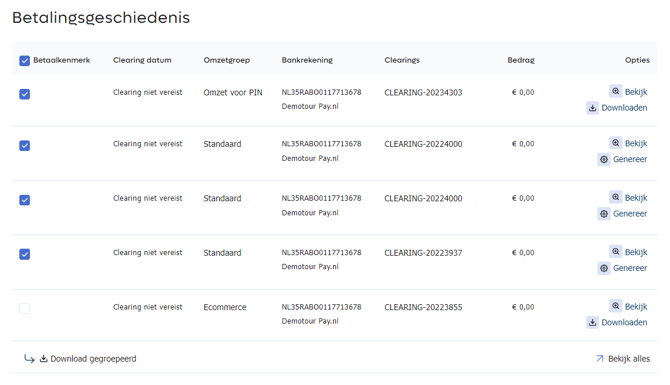
Export multiple clearings
To export multiple clearings at once, follow the steps below:
- In the Admin Panel, go to the Merchant » Invoices https://admin.pay.nl/balance
- Under 'Payment History' you will see a table with the last 5 payouts. If you want to export earlier payouts, click the 'View all' link Image: View all payouts
- Select the checkboxes of the payouts for which you want to generate an export file Image: Exporting multiple payouts
- Click the 'Download grouped' link below the table. The export file is now being generated. This may take a few moments. Once the export file has been generated, it will be offered for download.
Automatically via the Sync module
PAY.: Setting up the Sync module
A walkthrough for installing the PAY. Sync module.
With the PAY. Sync module, you can share transaction data with external parties. PAY. can automatically send specification files to people or departments who can use them to manually import them into your bookkeeping system.
People and partners within your company or network
- Users linked to your company
- External email addresses
- SFTP (uploading the files to your servers)
- API (push to your own API endpoint)
File formats
Depending on the chosen synchronization partners, the Sync module can export different formats.
- MT940 (financial bank statement file)
- CSV (minimal)
- CSV (with customer data)
- Coda XML (Belgian bank statement file)
Creating a synchronization task
reating synchronization tasks
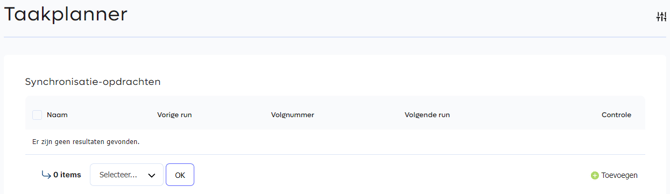
You create a synchronization task via the Merchant » Tasks menus. If no synchronization task has been created yet, you will see an empty overview. Click the button in the bottom right Add
Edit synchronization task
Editing synchronization tasks
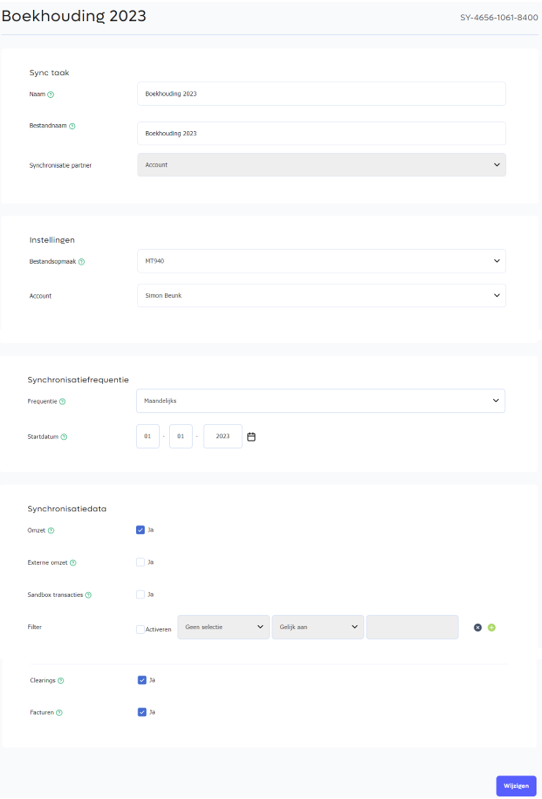
- Name: This field is shown as the file name of the synchronization job, followed by the date and sequence number.
- Synchronization partner: The type of connection you selected when creating the task.
- File format: Select the file format that corresponds to the desired layout of your (bookkeeping) system.
- Synchronization frequency: The synchronization module can synchronize your transactions from the period since the last sync job with your system on a daily, weekly (every Monday), or monthly (first day of the month) basis. It is also possible to run the synchronization based on the paid-out clearing.
- Start date: The date from which the data should be synchronized. If set in the past, the synchronization will start within 5 minutes.
- Revenue: Payments where the flow of funds runs through PAY. These funds are received on your behalf by Stichting Pay.nl and paid through to your account in a batch. For example, iDEAL, credit cards, and Bancontact.
- External revenue: For certain payment options, PAY. acts only as a gateway, or there is no flow of funds involved. In these cases, the payments are placed directly on your account (or in a wallet) by the payment option in question. For example, with PayPal or a proprietary gift card.
- Clearings: Select this option if you also want to include the payouts to your clearing account(s) in your export. For a complete status of your PAY. account balance in your own records, both the invoices and the clearing files need to be imported.
- Invoices: Select the invoices that are settled by PAY. through your account balance and that you want to include in your export. If you only want to reconcile transactions (revenue), do not select this.
API
If you use the Professional or Business package, you can send transaction data to an API URL. As the recipient of our transaction data, you must provide your own API URL.
- API URL: The API URL to which PAY. may send the transaction specifications.
PAY. calls the entered API URL to send the data in the desired format. If the format is JSON, you can retrieve the data as follows:
$data = (array) json_decode(file_get_contents('php://input'), true);
For MT940 and other formats, use:
$data = (array) file_get_contents('php://input');
SFTP
If you use the Professional or Business package, you can transfer transaction data via an SFTP connection. As the recipient of our transaction data, you must provide your own SFTP host.
- SFTP Host: Enter the IPv6 IP address of the host. Without prefixes.
- Port: Port number for the SFTP connection. Usually 443.
- Username: Request a dedicated username for PAY. with write-only access to a specific folder.
- Password: Password belonging to the username.
- Folder: Folder in which the document is stored.
(External) Email address
If you use the Professional or Business package, you can send transaction data to an (external) email address.
Please note: the exports may contain customer data. Make sure there is a proper data processing agreement in place with the party the data is sent to, or choose a file format without customer data.
- Email address: An email address to which transaction data should be sent. This can be an email address that is not registered in PAY.'s Admin Panel.
Bookkeeping partners
xCore
Reconciliation can be done easily and quickly with the Reconciliation Module 2.0 from xCore for Exact Online. The Reconciliation Module retrieves open items from Exact Online and matches them with payments you receive via PAY.
An example of how to set up xCore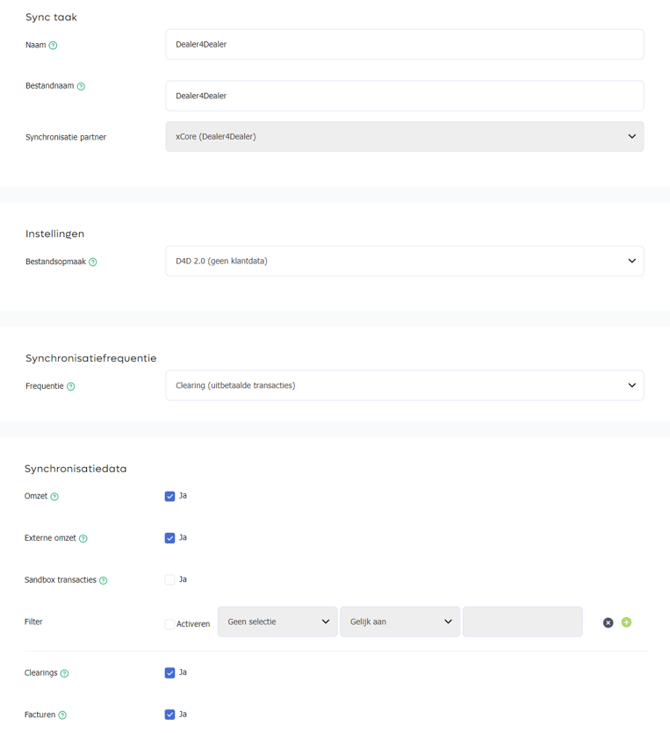
Automatic reconciliation via the sync module
If you use the Pioneer package or higher, you can reconcile transaction data directly with our bookkeeping partner xCore.
-
Username: Create an account via xCore.
-
More information: afletteren-exact-online-pay.
-
File format: Select the implementation package, D4D 2.0 as File format.
-
General ledger: Once the Reconciliation Module is installed, it becomes visible in the xCore menu under 'my apps'. Within the module, PAY.'s payout files are automatically retrieved and written off against the open items list in Exact Online:
-
You receive a payment. The automatic reconciliation module then retrieves the corresponding payment specification(s) from PAY. You can see this reflected in the overview of the Reconciliation Module.
-
The module searches for open items in Exact Online and matches them with your received payments. Matching is based on characteristics in the file that correspond to the open items. This is often an invoice or order number, or a journal entry number. At the same time, the module checks whether the amounts match. It is important that the unique reference attached to the payment can be found in the open item in Exact Online.
-
In the overview, you will see lines that have been matched appear, along with lines that have been partially matched or not matched at all. In the case of a 100% match with your payment, the reconciliation module automatically creates a reconciliation entry in Exact Online. This means the open items are written off in Exact Online, causing them to disappear from the (sub)ledger.
By default, the Reconciliation Module includes PAY.'s fees at line level in the entry. When VAT is charged on PAY.'s fees, you can set this up in the 'Exact Online' tab of xCore. When you enter the correct VAT code in the reconciliation module's settings, the recoverable VAT will be included in the VAT return you file in Exact.
Example of a journal entry for a booking in the reconciliation module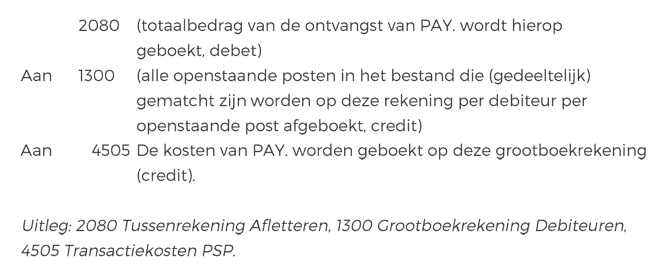
The result of written-off items
Once the steps above have been completed, the open items in Exact Online are written off. A financial entry is made in the created journal.
The writing off of the open items is done by the reconciliation module. The total amount is also posted to a suspense account.
You must post the receipts from PAY. that arrive in the bank book yourself to the suspense account Reconciliation (2080). Once all items can be matched, this suspense account will have a balance of € 0,-.
More information about xCore's Reconciliation Module 2.0 for Exact can be found here.
e-Boekhouden.nl
If you use the Pioneer package or higher, you can reconcile transaction data directly with our bookkeeping partner e-Boekhouden.nl.
Automatic reconciliation via the sync module
-
File format: For e-Boekhouden.nl, choose MT940 as File format.
-
Security code 2: You can find this code in your e-Boekhouden.nl account. Choose the button Manage, then Settings and then API/SOAP. Please note, use security code 2.
-
General ledger:You must specify the general ledger account this account is linked to. If you have not yet created a general ledger account in e-Boekhouden.nl, go to: Manage, General Ledger Accounts and there choose Add.
Yuki
If you use the Pioneer package or higher, you can reconcile transaction data directly with our bookkeeping partner Yuki. Once you have created a new synchronization task, our system will automatically guide you to the Edit synchronization task screen. Fill in all required fields here:
Automatic reconciliation via the sync module
-
Email address: The email address of your Yuki inbox within the Yuki bookkeeping system.
-
File format: Choose Yuki (with customer data) as File format.
Available sync views CSV
PAY. makes several sync views available per synchronization partner. A sync view is simply the layout of the bookkeeping file in CSV. In the table below, you will find an overview of all the columns we make available and in which sync view you can find them.
If you have a question about the layout of, for example, the MT940 or CODA bookkeeping file, please contact the Support desk of PAY.
| Format | Column title | CSV (minimum) | CSV (with customer data) | CSV (without customer data) | REPORTING_CSV | REPORTING_CSV (no customer data) | REPORTING_CSV (without account holder name) | CSV (clearing) | CSV (reconciliation sheet per payout) |
|---|---|---|---|---|---|---|---|---|---|
| CSV | STATS_ID | ✖️ | ✔️ | ✖️ | ✖️ | ✖️ | ✖️ | ✔️ | ✔️ |
| CSV | TRANSACTION_DATE | ✖️ | ✔️ | ✔️ | ✔️ | ✔️ | ✔️ | ✔️ | ✔️ |
| CSV | TRANSACTION_TIME | ✖️ | ✔️ | ✔️ | ✔️ | ✔️ | ✖️ | ✖️ | ✔️ |
| CSV | ORDER_ID | ✖️ | ✔️ | ✔️ | ✔️ | ✔️ | ✔️ | ✔️ | ✔️ |
| CSV | ORDER_NUMBER | ✖️ | ✖️ | ✖️ | ✖️ | ✖️ | ✔️ | ✔️ | ✔️ |
| CSV | PAYMENT_SESSION_ID | ✖️ | ✖️ | ✖️ | ✔️ | ✔️ | ✔️ | ✔️ | ✖️ |
| CSV | CONSUMER_NAME | ✔️ | ✔️ | ✖️ | ✖️ | ✖️ | ✖️ | ✖️ | ✖️ |
| CSV | CUSTOMER_ID | ✔️ | ✔️ | ✖️ | ✖️ | ✔️ | ✖️ | ✖️ | ✖️ |
| CSV | ✖️ | ✖️ | ✖️ | ✖️ | ✖️ | ✖️ | ✖️ | ✖️ | |
| CSV | DESCRIPTION | ✔️ | ✔️ | ✔️ | ✔️ | ✔️ | ✔️ | ✔️ | ✔️ |
| CSV | PAYMENT_OPTION | ✖️ | ✖️ | ✔️ | ✔️ | ✔️ | ✔️ | ✔️ | ✔️ |
| CSV | PAYMENT_OPTION_ID | ✖️ | ✖️ | ✔️ | ✔️ | ✔️ | ✔️ | ✔️ | ✔️ |
| CSV | TURNOVER | ✔️ | ✖️ | ✖️ | ✔️ | ✔️ | ✔️ | ✔️ | ✔️ |
| CSV | TURNOVER_EXTERNAL | ✖️ | ✖️ | ✖️ | ✔️ | ✔️ | ✔️ | ✔️ | ✔️ |
| CSV | TURNOVER_TOTAL | ✖️ | ✔️ | ✖️ | ✔️ | ✔️ | ✖️ | ✖️ | ✔️ |
| CSV | VAT | ✖️ | ✖️ | ✖️ | ✔️ | ✔️ | ✖️ | ✖️ | ✖️ |
| CSV | COSTS | ✖️ | ✔️ | ✖️ | ✔️ | ✔️ | ✖️ | ✖️ | ✖️ |
| CSV | CURRENCY | ✖️ | ✖️ | ✔️ | ✖️ | ✖️ | ✖️ | ✔️ | ✖️ |
| CSV | EXTRA_1 | ✖️ | ✔️ | ✖️ | ✖️ | ✖️ | ✖️ | ✖️ | ✖️ |
| CSV | EXTRA_2 | ✖️ | ✔️ | ✖️ | ✖️ | ✖️ | ✖️ | ✖️ | ✖️ |
| CSV | EXTRA_3 | ✖️ | ✔️ | ✖️ | ✖️ | ✖️ | ✖️ | ✖️ | ✖️ |
| CSV | CLEARING_ID | ✖️ | ✖️ | ✖️ | ✖️ | ✖️ | ✖️ | ✖️ | ✖️ |
| CSV | CLEARING_FILE | ✖️ | ✖️ | ✖️ | ✖️ | ✖️ | ✖️ | ✖️ | ✖️ |
| CSV | SERVICE_NAME | ✖️ | ✖️ | ✖️ | ✔️ | ✔️ | ✖️ | ✖️ | ✖️ |
| CSV | SERVICE_ID | ✖️ | ✖️ | ✖️ | ✔️ | ✔️ | ✖️ | ✖️ | ✖️ |
| CSV | TURNOVER_GROUP_ID | ✖️ | ✖️ | ✖️ | ✔️ | ✖️ | ✖️ | ✖️ | ✖️ |
| CSV | TURNOVER_GROUP_NAME | ✖️ | ✖️ | ✖️ | ✔️ | ✖️ | ✖️ | ✖️ | ✖️ |