
A refund is a repayment of (part of) a transaction to an end user. Another frequently used term for this is 'refund'. You will encounter both terms in PAY.'s system.
Via PAY. you can perform 3 types of refunds:
-
Via the Transaction Overview you can, for every paid transaction, perform one or more refunds. You do need to take into account the maximum refund amount. For a refund, where possible, the details entered by the customer will be used for the repayment. The refund(s) are linked to the relevant transaction so that you can immediately see that a particular transaction has been fully REFUND or partially PARTIAL REFUND refunded.
-
In some cases, it may be desirable to create a 'standalone refund'. This is possible via the 'External Refund' option and is available from the Business package onward. An external refund is not linked to a specific transaction, which has the advantage that you can determine the refund amount yourself. On the other hand, you do need to have the IBAN number and the name of the account holder in order to carry out the repayment.
-
With an instant refund, the money you refund is available directly in your customer's account - even on weekends, holidays, and at night. You can request the instant refund option from the Business package onward by sending an email with the subject "Aanvraag instant refund" (or click here). You can find more information about the instant refund option here.
Availability
Below you will find the availability of refunds per package
 Pioneer Pioneer |
 Professional Professional |
 Business Business |
 Corporate Corporate |
|
|---|---|---|---|---|
| Standard refund | ✔️ | ✔️ | ✔️ | ✔️ |
| External restitution | ✖️ | ✖️ | ✔️ | ✔️ |
| Instant refund | ✖️ | ✖️ | On request | On request |
1. Refund Statuses
A refund within PAY. can have the statuses below:
| Code | Status | Description |
|---|---|---|
| -81 |  REFUND REFUND |
The full order amount has been refunded. |
| -82 | PARTIAL REFUND |
Part of the order amount has been refunded. |
The statuses above are only assigned once the refund has been carried out.
2. Refunds per Transaction
In general, you can perform multiple refunds per transaction up to the maximum refund amount is reached. An exception to this are credit cards, for which you can create only one refund per transaction.
| Payment option | Number of possible refunds |
|---|---|
| Gift cards | one per transaction, only the full transaction amount |
| Credit cards | Multiple per transaction |
| Other payment options | Multiple per transaction |
3. Maximum Refund Amount
In general, you can refund the original order amount + € 30,00 to an end user. An exception to this are credit cards and pay-later payment options, where the refund amount may not be higher than the original order amount.
| Payment option | Maximum refund amount |
|---|---|
| Billink | 100% of the order amount |
| VISA | 100% of the order amount |
| MasterCard | 100% of the order amount |
| Postepay | 100% of the order amount |
| Carte Bleue | 100% of the order amount |
| Maestro | 100% of the order amount |
| Gift cards | Only 100% of the order amount paid with the gift card |
| Other payment options | 100% of the order amount + €30.00 |
4. Refunding a Transaction
Via the ''Transaction Overview'' you can refund any transaction with the status PAID to your customer Image: Transaction Overview. If the customer details are known in our system, they are pre-filled and you can create a refund directly. You do this by clicking the green arrow of a specific transaction in the transaction overview. As soon as you click the green symbol, a popup appears. Click ''Refund Payments'' to refund the payment Image: Refunding a Payment.
Transaction Overview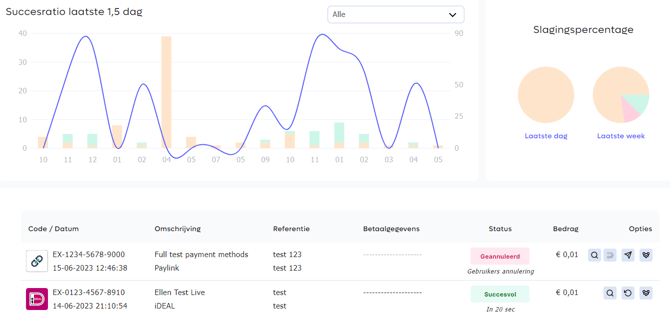
Creating a Refund
Refunding a Payment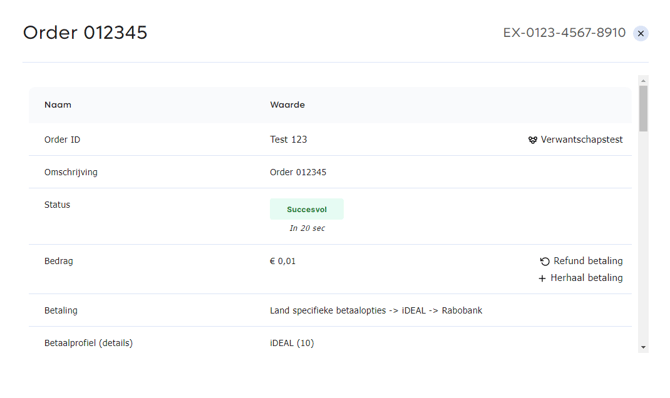
Refund Created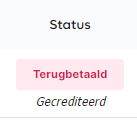
Type of Refund and Available Customer Details
In some exceptional cases, we do not always have the customer's details. For certain payment options, you therefore need to request the IBAN number and the name of the account holder from the customer in order to carry out the refund. This applies, for example, to paysafecard.
For refunds of Maestro and credit card e-commerce payments, you can refund these back to the card. This does not, however, apply to debit card payments via Maestro or credit card. If you want to issue a refund for these, you need to request the consumer's IBAN details. A complete overview can be found in the table below:
| Payment option: | Type of refund | Customer details known / pre-filled? | ||
|---|---|---|---|---|
| Internet banking | ||||
| iDEAL | Reversal to IBAN | ✔️ IBAN and account holder name | ||
| Bancontact | Refund directly to IBAN, via card details | ✔️ IBAN and account holder name | ||
| Giropay | Reversal to IBAN | ✔️ IBAN and account holder name | ||
| MyBank | Reversal to IBAN | ✔️ IBAN and account holder name | ||
| SOFORT Banking | Reversal to IBAN | ✔️ IBAN and account holder name | ||
| Debit card payments / In-store payments | ||||
| V-PAY | Reversal to IBAN | ✖️ IBAN | ||
| Maestro | Reversal to IBAN | ✖️ IBAN | ||
| Credit cards | Reversal to IBAN | ✖️ IBAN | ||
| Credit cards and debit cards | ||||
| VISA | Refund to IBAN or credit card | ✖️ IBAN ✔️ Credit card | ||
| MasterCard | Refund to IBAN or credit card | ✖️ IBAN ✔️ Credit card | ||
| Postepay | Refund to IBAN or credit card | ✖️ IBAN ✔️ Credit card | ||
| Carte Bleue | Refund to IBAN or credit card | ✖️ IBAN ✔️ Credit card | ||
| Maestro | Reversal to IBAN or debit card | ✖️ IBAN ✔️ Debit card | ||
| Bank payments | ||||
| Bank transfer | Reversal to IBAN | ✔️ IBAN and account holder name | ||
| Debt collection | Reversal to IBAN | ✔️ IBAN and account holder name | ||
| Pay later and in installments | ||||
| Riverty | Riverty Refund | ✖️ IBAN ✔️ Riverty | ||
| Billink | Refund to IBAN if claim paid or via Billink | ✔️ IBAN ✔️ Billink | ||
| Klarna | Chargeback via Klarna | ✖️ IBAN ✔️ Klarna | ||
| IN3 | Refund IN3 | ✖️ IBAN ✔️ IN3 | ||
| Wallet payments | ||||
| Apple Pay | Reversal to IBAN, debit or credit card | ✖️ IBAN ✔️ Debit card ✔️ Credit card | ||
| PayPal | Refund to IBAN or PayPal account | ✖️ IBAN ✔️ PayPal account | ||
| Vouchers & Prepaid | ||||
| Paysafecard | Refund to IBAN or Card | ✖️ IBAN | ||
| National Cinema Voucher | Reversal to IBAN | ✖️ IBAN ✔️ On Nationale Bioscoopbon | ||
| Home & Garden Gift | Reversal to IBAN | ✖️ IBAN ✔️ Home & Garden Gift | ||
| Festival gift | Reversal to IBAN | ✖️ IBAN ✔️ On Festival Gift | ||
| Webshop Gift Card | Reversal to IBAN | ✖️ IBAN ✔️ On Webshop Giftcard | ||
| Fashioncheque | Reversal to IBAN | ✖️ IBAN ✔️ On Fashioncheque | ||
| Fashion Giftcard | Reversal to IBAN | ✖️ IBAN ✔️ On Fashion Giftcard | ||
| Podium Gift Card | Reversal to IBAN | ✖️ IBAN ✔️ Op Podium Gift Card | ||
| Health voucher | Reversal to IBAN | ✖️ IBAN ✔️ On Health Voucher | ||
| Wine gift | Reversal to IBAN | ✖️ IBAN ✔️ On Wijncadeau | ||
| Yourgift Card | Reversal to IBAN | ✖️ IBAN ✔️ On Yourgift Card | ||
Does the refund relate to a multipayment? Then navigate to 17.6.
Activating Transaction Refunds
Activating Manage Refunds
The ''Refund Transaction'' option is not activated by default. You can activate this option via the ''Change Package Options'' link on the Merchant > Company tab https://admin.pay.nl/my_merchant. Make sure that in the popup the ''Manage Refunds'' option Image: Activating Manage Refunds is checked.
To be able to refund a transaction, you need to make sure your account balance is sufficient. Is this not the case? Then you can easily and quickly top up your account balance.
Refunding a Transaction
To create a refund for an existing transaction, follow the steps below:
-
In the Admin Panel, go to the Transactions > Overview https://admin.pay.nl/transactions tab.
-
In the ''Transaction Overview'' Image: Transaction Overview look for the transaction you want to refund.
-
In the Options column, click the green arrow Image: Creating a Refund of the relevant transaction. An alternative way is to click the magnifying glass icon and choose the ''refund payment'' link in the popup.
-
A popup opens where you can enter the details of the refund Image: Refunding a Payment. If the customer details are known in our system, they are pre-filled.
-
Bank Account
Under ''Bank Account'' you will find the fields below:
-
Account Holder
Enter the name of the account holder of the account to which you want to refund the amount.
-
IBAN
Enter the IBAN number of the end user.
-
BIC
Enter the BIC code of the end user's bank. For Dutch banks, this is automatically generated based on the IBAN number.
-
-
Payment
Under ''Payment'' you will find the fields below:
-
Amount
Refund amount to be transferred
-
Description
This description is used as a reference for the refund (max. 32 characters).
-
Processing Date
Select the date on which the refund should be processed
-
-
Once all fields are filled in, click the ''Add'' button in the popup! to create the refund.
-
You return to the Transaction Overview. For the relevant transaction, the refund icon is now shown in the Options column Image: Refund Created. If you hover your mouse over the icon, the refund amount is shown. Have you configured the Refund Amount column? Then you will find here the amount you have refunded to the customer.
Note
As long as the status PAID is shown for a transaction you have refunded, you can still cancel / delete this refund. If the status has changed to REFUND or PARTIAL REFUND, this means that the refund has been processed by PAY.'s system and the repayment to the customer has been initiated.
Via the Transaction Overview you can, for every paid transaction, perform one or more refunds. You do need to take into account the maximum refund amount.
Availability
Below you will find in which packages this option is available.
| Pioneer |
Professional |
Business |
Corporate |
|
|---|---|---|---|---|
| Refund transaction | ✔️ | ✔️ | ✔️ | ✔️ |
5. Multipayment Refunds
Confirmation of Completed Multi-Refund
When a transaction consists of multiple partial payments, we refer to this as 'multipayments'. One of the partial payments in a 'multipayment' always consists of a payment via a gift card. If the balance on the gift card is insufficient to cover the transaction, the remaining amount can be settled via another payment option.
The question is: "How do we handle a refund of a multipayment?"
-
If the amount is exactly equal to the amount paid with 1 or more gift cards, the amount is refunded to the gift card(s).
-
If the amount can be fully refunded to a gift card and another part to the original payment option, this option is chosen.
-
If the amount can no longer be refunded to the gift card but there is a payment option with an IBAN number, the full amount is refunded to the IBAN number.
-
Optional: If a refund cannot be issued back, for example in the case of a full payment via gift cards after 14 days, or a follow-up payment that cannot be increased, an error is shown and there is an option to create a refund payment link.
Examples
Example 1
The customer has paid 15 euros, of which 5 euros via a gift card and 10 euros via iDEAL. For a refund within 14 days, the following rules apply per amount:
| Refund | Explanation |
|---|---|
| €4.00 | via IBAN (amount is not equal to the payment with a gift card). |
| €5.00 | Fully on gift card. |
| €6.00 | 5 euros on the gift card and 1 euro via IBAN. |
| €15.00 | 5 euros on gift card and 10 euros via IBAN. |
| €40.00 | 5 euros on gift card and 35 euros via IBAN. |
| €100.00 | ERROR (total amount to be refunded is more than 30 euros above the original amount). |
Maximum refund amount = original amount of the total transaction + 30 euros for a payment involving an IBAN. If no IBAN number is known, the maximum amount is equal to the original amount.
Example 2
The customer has paid 15 euros, of which 5 euros via a gift card and 10 euros via iDEAL. For a refund after 14 days, the following rules apply per amount:
| Refund | Explanation |
|---|---|
| €4.00 | Full amount to IBAN (refund after 14 days). |
| €5.00 | Full amount to IBAN (refund after 14 days). |
| €40.00 | Full amount to IBAN (refund after 14 days). |
| €100.00 | ERROR (total amount to be refunded is more than 30 euros above the original amount). |
A gift card can be refunded up to 14 days after payment.
Example 3:
The customer paid 15 euros, of which 5 euros was via gift card and 10 euros via PayPal. For a refund within 14 days, the following rules apply per amount:
| Refund | Explanation |
|---|---|
| €4.00 | via PayPal (amount is not equal to the payment with a gift card). |
| €5.00 | Fully on gift card. |
| €6.00 | 5 euros on the gift card and 1 euro via PayPal. |
| €15.00 | 5 euros on gift card and 10 euros on PayPal. |
| €20.00 | ERROR (total amount to be refunded is higher than the original amount). |
Example 4:
The customer paid 12 euros, of which 10 euros was paid via the VVV card and 2 euros via the Fashionchque. For a refund after 14 days, the following rules apply per amount:
| Refund | Explanation |
|---|---|
| Regardless of the amount | ERROR. You must request the consumer's IBAN and submit an IBAN refund. |
6. Batch refunds
If you want to process multiple refunds to (end) customers periodically (for example, weekly), you can use the PAY. Refunder for this. With the Refunder, you upload a Microsoft Excel (.xlsx or .csv) file into the tool.
Two columns are required in the Excel file: the amount (in cents) and the transaction reference (preferably the PAY. "Order-Id" or the "Order Number"). After all, we need to know which amount to refund for which transaction.
Enter API Token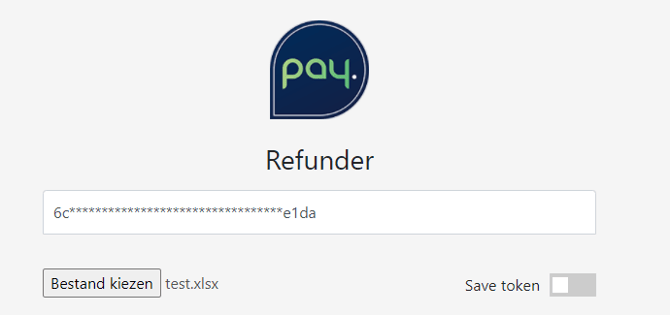
Select Needle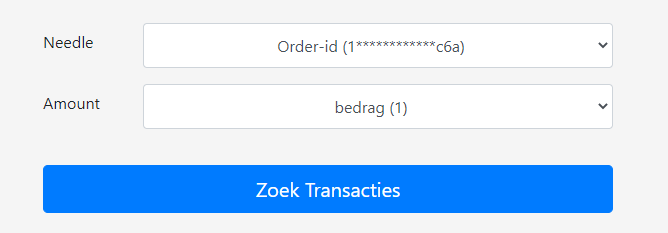
Manage and process refunds
To create a batch refund order:
-
Open the PAY. Refund
-
Enter an API token with refund rights. You can find an overview of API tokens here: https://admin.pay.nl/company/tokens
-
Click on Choose File and upload the Excel file from your computer.
-
For Needle , select the column from the dropdown containing the PAY. OrderId or your webshop Order Number.
-
Under Amount , select the column from the dropdown containing the amount you want to refund. Important: the "Amount" column in your Excel file must contain the refund amount in cents.
-
Click on Search Transactions
-
The Refund tool now shows a result. In the table below, you will find the meaning per column;
Column name Meaning ID Order ID or Order number of the transaction Code PAY Transaction ID. Payment option The payment option with which the transaction was initially initiated (for example iDEAL) Made The date and time the transaction was made at PAY. Original amount The original transaction amount when the transaction was made Already refunded Contains an amount in EUR if a refund has already been processed on the transaction Left amount Contains the amount that can still be refunded after processing the refund Refund request The refund amount in EURO according to your Excel file, which you can still adjust if desired. After refund The transaction amount after you have processed the refund -
On the right side of each line, in the Select column, you will see a checkbox. Only lines that are marked will be included in the Refund order.
-
Click on the blue Refund Transactions button to start the Refund batch.
7. Create outgoing IBAN refund
Via an 'External refund', you can issue a refund to a customer based on an IBAN number and account holder name. This also means that you must have these customer details to process the refund. It is not possible to issue an external refund to a gift card, credit card, Riverty, Billink, or PayPal account.
Activate external refund

'External refund' is not activated by default. You can activate this option via the 'Change package options' link on the Merchant » Company tab https://admin.pay.nl/my_merchant . Ensure that the 'IBAN transfers' option is checked in the popup . Image: Activate external refunds.
Need help activating?
You can find more information about activating a package option here . Do you want to use 'External refund' but your current package does not support this option? Then you can upgrade very easily.
To process an 'External refund', you must ensure that your book balance is sufficient. Is this not the case? Then you can easily and quickly top up your book balance.
create external refund
- In the Admin Panel, go to the Transactions tab » Outgoing (IBAN) » Scheduled https://admin.pay.nl/endusers/refund .
- In the 'Refund overview', click the 'add' button . Image: Create refund at the bottom of the page.
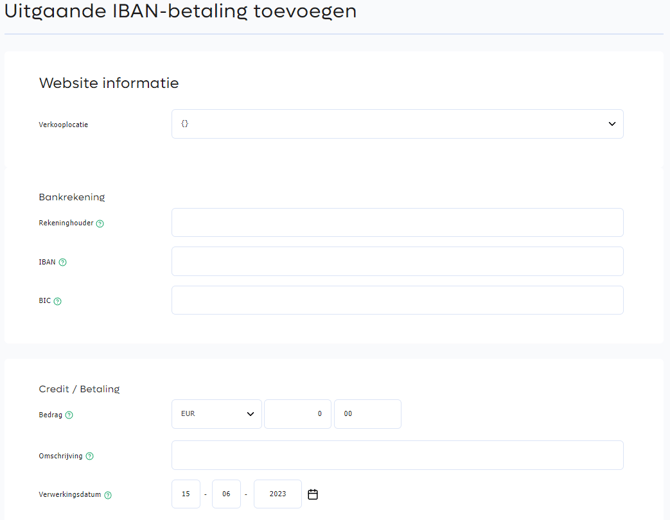
- A new page opens where you can enter the details of the refund. Image: Create external refunds .
- Website information
Under 'Website information', you will find the fields below:- Sales location
Select the sales location to which the 'External refund' should be linked.
- Sales location
- Bank account
Under 'Bank Account', you will find the fields below:- Account holder
Enter the name of the account holder to whom you want to refund the amount here. - IBAN
Enter the end user's IBAN number. - BIC
Enter the BIC code of the end user's bank. For Dutch banks, these are automatically generated based on the IBAN number.
- Account holder
- Payment
Under 'Payment', you will find the fields below:- Amount
Refund amount to be transferred - Description
This description is used as a reference for the refund (max. 32 characters). - Processing date
Select the date on which the refund should be processed
- Amount
- Once all fields have been filled in, click the 'Add' button at the bottom of the page to create the external refund.
Important: The limit is set to €250 by default.
External refund created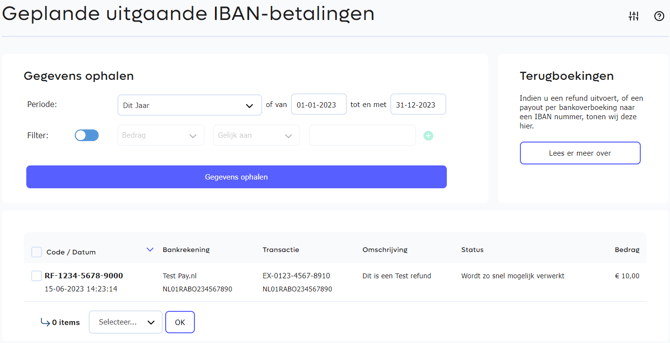
After creating the external refund, return to the Refund overview screen. You will see that the external refund you just created is now displayed in the overview Image: External refund created . The refund is now ready to be processed.
Refunds are processed by the PAY. system every working day at 10:00 AM . After processing, the transaction receives the status REFUND or PARTIAL REFUND and is moved to the ' Completed transactions ' page. From this moment on, it is no longer possible to cancel or delete a refund .
Availability
Below you will find in which packages this option is available.
| Pioneer |
Professional |
Business |
Corporate |
|
|---|---|---|---|---|
| create external refund | ✖️ | ✖️ | ✔️ | ✔️ |
8. Remove refund
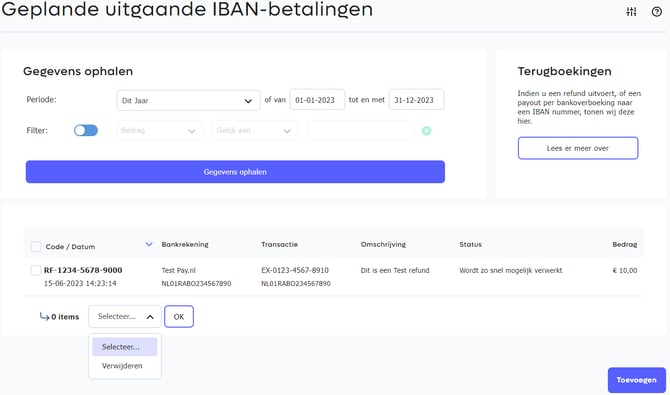

Have you created a refund that you would like to cancel or delete? That is no problem, as long as you delete the refund before 10:00 AM . From this moment on, the PAY. system processes the refund and the amount will be reimbursed to the end user.
You can remove one or more refunds at the same time. To do this, follow the steps below:
- In the Admin Panel, go to the Transactions tab » Outgoing (IBAN) » Scheduled https://admin.pay.nl/endusers/refund .
- In the 'Refund overview', you can see all refunds that have not yet been processed and that you can therefore still delete.
- Check the checkbox of the refund you want to remove. Image: Remove refund . It is possible to select multiple refunds.
- In the selection screen at the bottom of the table, select the Delete option and click the 'OK' button.
- The selected refunds are now being removed. You will return to the Refund Overview screen, where you will find the refunds you just removed with the status 'removed'. Image: Refund removed .
9. Refunds carried out
Executed refunds are transactions that have been processed by the PAY. system and where the refund to the end user has been initiated.
From this moment on, the transaction has the status REFUND in the event of a full refund of the order amount , or the status PARTIAL REFUND in the case of a partial refund.
View processed refunds
Refunds processed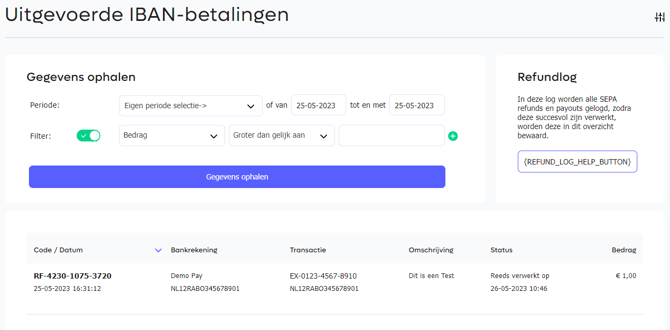
View details of an issued refund
To view the overview of processed refunds, follow the steps below:
- In the Admin Panel, go to the Transactions tab » Outgoing (IBAN) » Executed https://admin.pay.nl/endusers/refund_log .
- On the page that opens, you will find all refunds processed by the PAY. system. Image: Processed refunds .
- Click the 'Details' link in the Options column to view all details of a refund. Image: View details of an processed refund .
Credit card and Billink refunds
Please note: In the overview of processed refunds, you will currently only find refunds based on IBAN number. This means that credit card (card refund) and Billink (account refund) refunds are not (yet) displayed in this overview. However, this will change in the near future.
You can find the credit card and Billink refunds via the ' Transaction overview '.
10. Consumer Confirmation Email
If you wish for PAY. to send a confirmation of the (upcoming) refund directly to the payer, you can configure this per sales location under the notifications section. This allows you to notify the user of your instruction to PAY. to process a refund. In the email, we include the scrambled IBAN number (NL**RABO0123***789) to which the refund will be made. If a gift card was used for a payment and is being topped up, we also email the card number and PIN so that the customer can use it again.
The email is sent in the user's language to the email address included with the transaction.
You have the following options:
- Do not email
- Only email for multipayment refunds or if gift cards have been used.
- Always send an email
This option is available starting with the professional package.
This option is available starting with the Professional package. You set up these notifications per sales location via: Sales Locations -> Refund notifications.