
Before you can process a card refund, the following requirements must be met:
-
Pay.Pos is active on the sales location
-
Card refunds are enabled with a configured limit
-
The Pay.Pos app is set to Core Select: MULTI
NOTE: Card refunds are not supported on iOS.
Step 1 – Enable card refunds in your Pay account
-
Log in to your Pay account
-
Go to Settings → Sales locations
-
Select the correct sales location where Pay.Pos is active
-
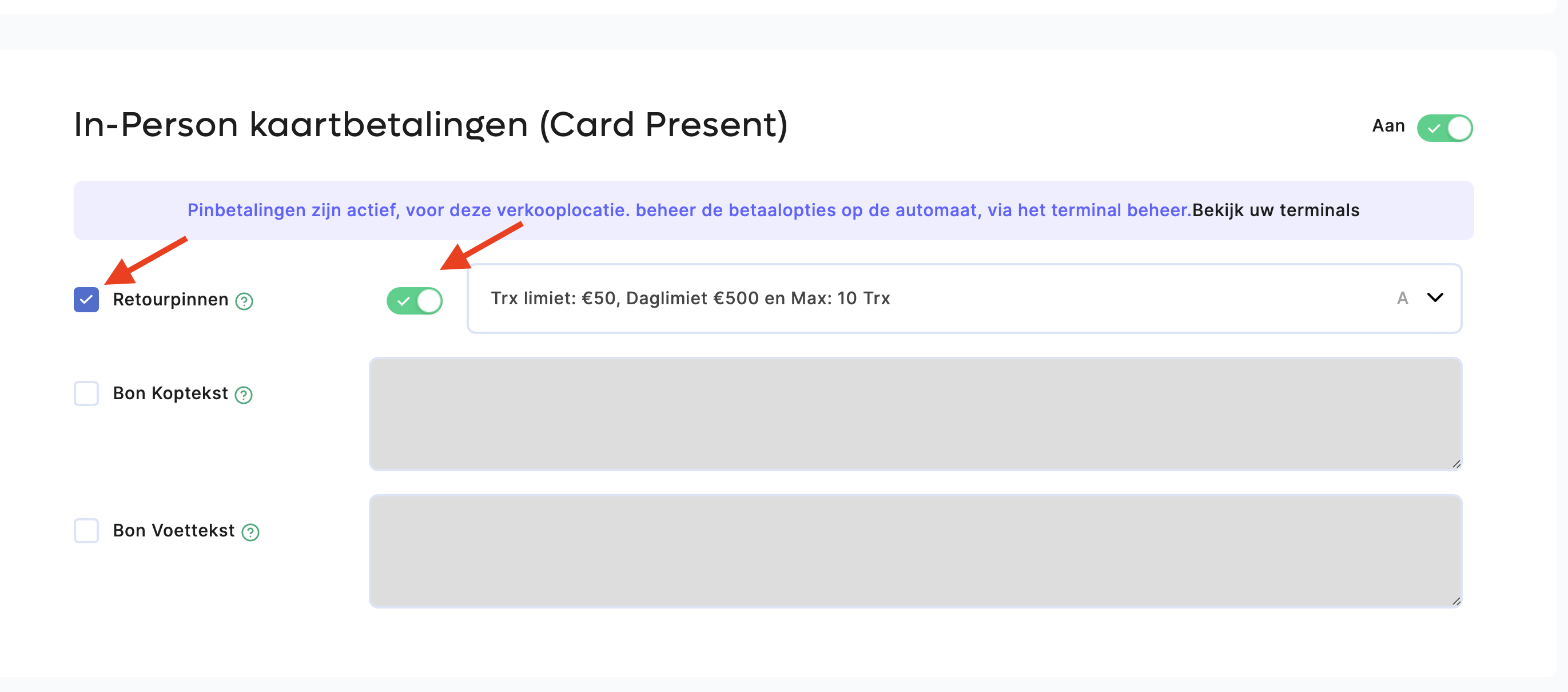
Make sure In-Person card payments (Card Present) are enabled
-
Enable Card refunds and set a transaction and daily limit
👉 Haven’t activated the Pay.Pos app yet?
View the activation guide here.
Step 2 – Set Core Select in the Pay.Pos app
-
Open the Pay.Pos app
-
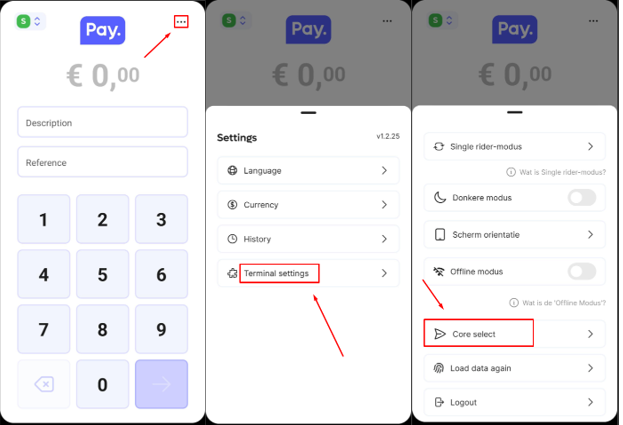
Tap the three dots in the top-right corner
-
Go to Terminal settings
-
Select Core Select
-
Make sure MULTI is selected
Step 3 – Process a card refund
-
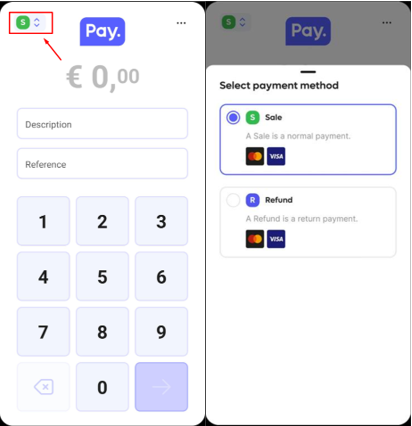
Tap the green “S” icon in the top-left corner of the Pay.Pos app
-
Enter your access code
-
The app switches to REFUND mode
-
🔵 Blue R = REFUND (card refund)
-
🟢 Green S = SALE (regular payment)
-
-
Enter the amount and let the customer present their card
-
After completion, the app automatically switches back to SALE
ℹ️ Important:
Each refund is a separate action. After every refund, the app automatically returns to SALE mode.